Classic Outlook is the version that comes with Microsoft 365 and Office 2016, 2019 and 2021, and has the File menu at the top left. This is where you add your Sitewig email as an IMAP account. It takes 5 minutes.
What you need
- Your full email address, for example
info@yourcompany.com - The mailbox password (not the control panel password)
- The servers below: they are also shown in the control panel under Email → Mailboxes → Account settings
Incoming mail
- Server
mail.sitewig.com- Port
993- Encryption method
- SSL/TLS
Outgoing mail
- Server
mail.sitewig.com- Port
465- Encryption method
- SSL/TLS
Add the account
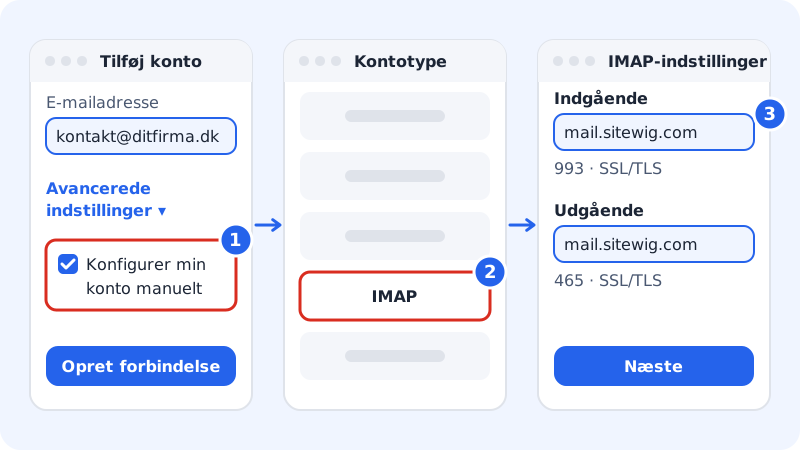
Step 1: Enter the address and choose manual setup
Click File → Add Account. Enter your full email address. Click Advanced options, tick Let me set up my account manually, and click Connect.
Step 2: Choose IMAP
Choose the account type IMAP. Do not choose Microsoft 365, Exchange or Google: your email is with Sitewig.
Step 3: Fill in the servers
Under Incoming mail, enter
mail.sitewig.com, port993and the encryption method SSL/TLS. Under Outgoing mail, entermail.sitewig.com, port465and SSL/TLS. Click Next.Step 4: Enter the password
Enter the mailbox password and click Connect. When Outlook says that the account has been added, click Done.
Change the server settings later
If you have entered something incorrectly, or an old account is set up with a different server, correct it here:
- Click File → Account Settings → Server Settings.
- Change Incoming mail and Outgoing mail so that they match the settings above.
- Check that the username is the full email address, and that outgoing mail uses the same login.
- Click Next and Done.
After you have changed your password
When you set a new password for the mailbox in the control panel, it must also be entered in Outlook, and on all other devices that use the account.
Step 1: Set a new password in the control panel
Go to Email → Mailboxes, and click Change password next to the address. Enter a new password twice, or click Suggest password. It must be at least 12 characters and contain at least two types of character (for example letters and numbers). Click Save password.
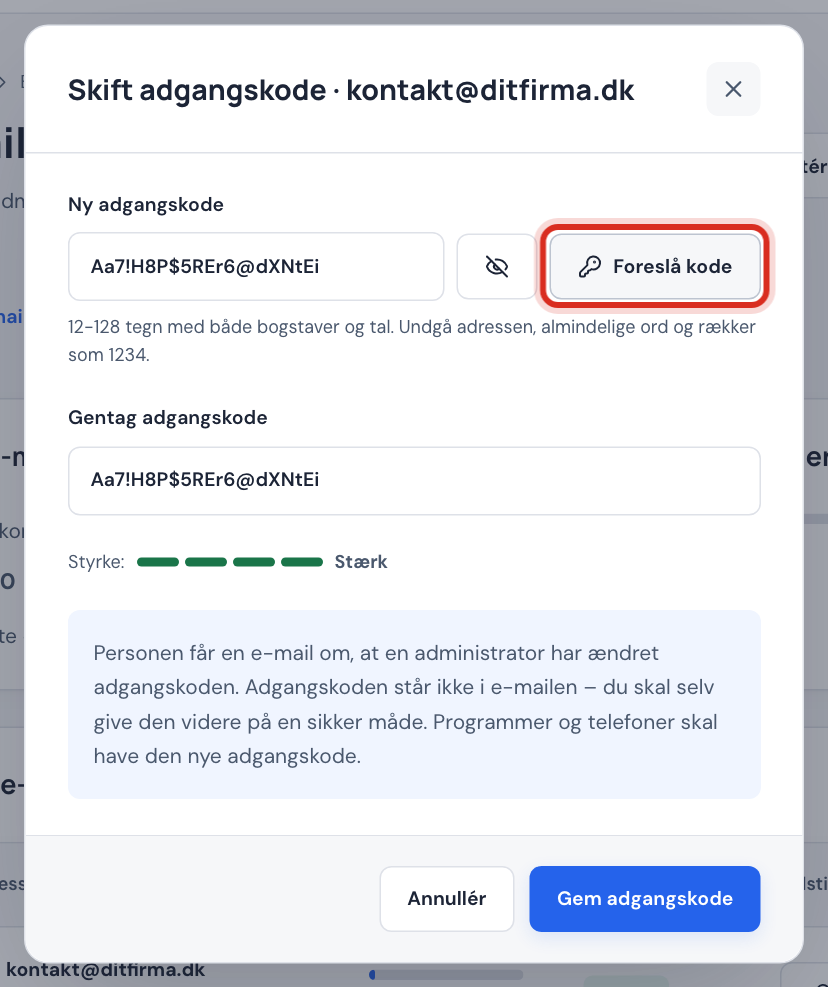
Change the password in the control panel Step 2: Enter the new password in Outlook
The next time Outlook connects, it asks for the password. Enter the new one, and tick Remember password. If Outlook does not ask, change it under File → Account Settings → Server Settings.
Frequently asked questions
Can Outlook find the settings by itself?
Sometimes, but not always. That is why we recommend manual setup with the values above. Then you know exactly what has been chosen.
Can I see my Sitewig calendar in Outlook?
No, not at the moment. Sitewig does not have Exchange, and Outlook does not support CalDAV without extra programs. Email works fully.
Why are my sent emails not in the Sent folder on my phone?
Check that the account has been set up as IMAP and not POP. With IMAP, Outlook saves sent mail on the server, so it also appears on your other devices.