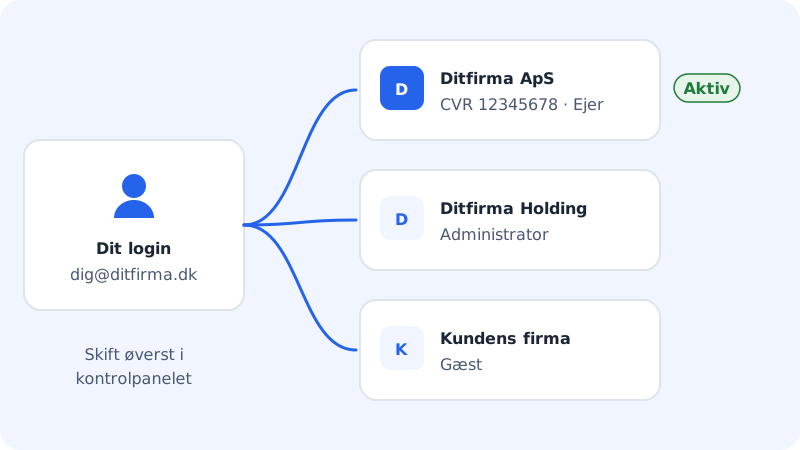
At Sitewig, your sign-in (your email and password) is separate from the customer account (the company with domains, hosting and invoices). One sign-in can have access to several customer accounts, e.g. your own company, an association and a client who has invited you as a guest.
Switch between customer accounts
If your sign-in has access to more than one customer account, the name of the active account appears at the top of the control panel, next to the hosting selector.
- Tap the account name at the top.
- Choose the account you want to work in under Your customer accounts.
You can also switch under Settings in the Account card: tap the account you want to use. The active account is marked Active, and you'll see the message Account switched.
Roles
Under each customer account you'll see your role, e.g. CVR 12345678 · Owner.
| Role | What the role can do |
|---|---|
| Owner | Everything, including inviting guests, changing customer details and deleting the account |
| Administrator | Almost everything the owner can, e.g. inviting guests and changing customer details |
| Guest | Only the areas the owner or an administrator has given access to |
Only owners and administrators can change the hosting. All members can view it. Read more about giving others access in Guest users.
Update customer details and domain owner
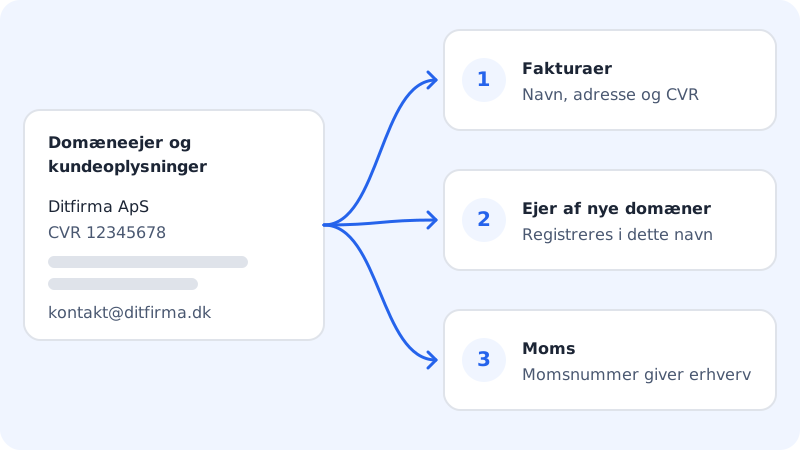
The Domain owner and customer details card under Settings shows the name, CVR number, address, phone and email for the active customer account. The details are used on your invoices and as the owner of new domains.
Step 1: Open the card
Go to Settings and find Domain owner and customer details. The card is only shown to owners and administrators.
Step 2: Tap Edit
Tap Edit and update the details. For Danish companies, we fetch the name and address from the CVR register when you enter the CVR number.
Step 3: Save
Save the changes. The details can be changed at any time. If the change affects the owner of a domain you already have, it may require a change of owner: you'll be told when you save.
VAT number
In the VAT number (CVR/VAT) card you can save the company's VAT number and tap Validate. The badge shows whether the number is Valid, Invalid or Could not be checked right now. When you save a VAT number, the account becomes a business customer.
Frequently asked questions
How do I get access to another customer account?
The easiest way is for the account owner to invite you as a guest. If you work as an agency, a client can also accept a site you hand over into their own account, see Agency mode.
Do I need a separate sign-in for each company?
No. Use one sign-in and switch between the customer accounts. That way you only have to remember one password and only need to turn on two-factor sign-in in one place.
Why can't I see the Domain owner and customer details card?
Because you're a guest on the active customer account. Only owners and administrators can see and change the customer details.