Your account has two email addresses under Sign-in and security: the one you sign in with, and a recovery email for emergencies. Both are personal and belong to your sign-in, not to the company.
Three different emails on the account
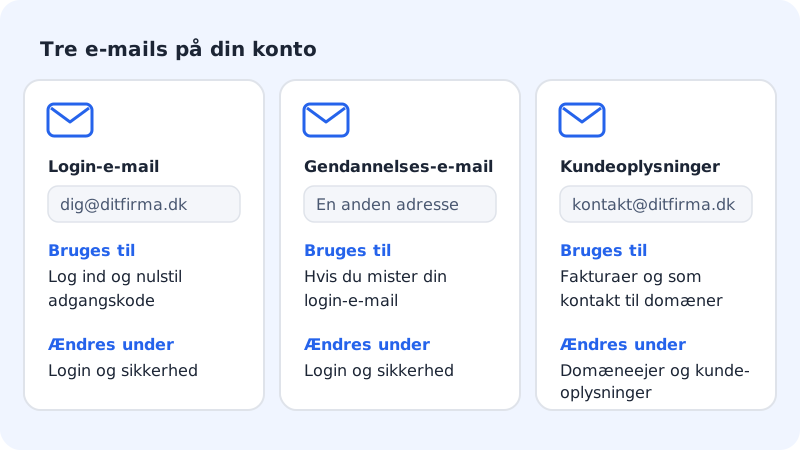
| Used for | Where you change it | |
|---|---|---|
| Sign-in email | Signing in and resetting your password | Settings → Sign-in and security |
| Recovery email | When you've lost access to your sign-in email | Settings → Sign-in and security |
| Email in the customer details | Invoices and as the contact for your domains | Settings → Domain owner and customer details |
None of them is the same as your mailboxes at Sitewig. Changing your sign-in email doesn't change your mailboxes or their passwords.
Change your sign-in email
Step 1: Open Sign-in and security
Go to Settings and find the Sign-in and security card. The Sign-in email row shows the address you sign in with now.
Step 2: Tap Change
Tap Change next to Sign-in email. The Change email window opens.
Step 3: Enter the new address
Enter the address in New sign-in email and tap Change email.
Step 4: Confirm from both addresses
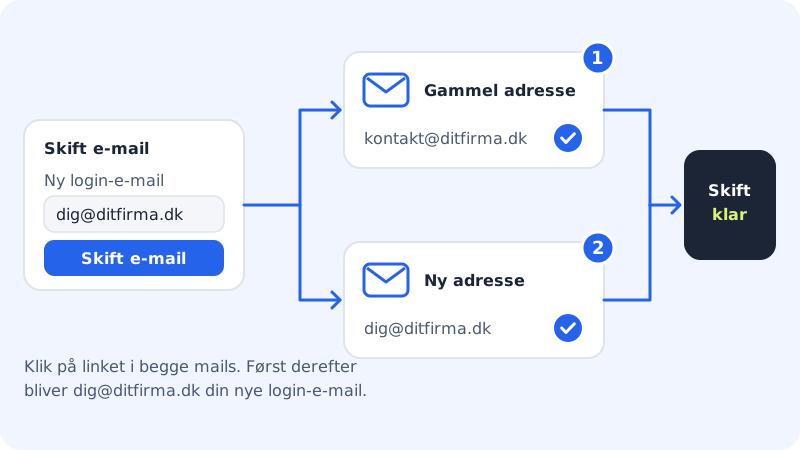
It now says We sent a confirmation to … Confirm from both the old and the new address. Open the email in both inboxes and click the link in each. The change only takes effect once both have been confirmed.
If it says This email is already used by another account., a Sitewig sign-in with that address already exists. Choose a different address, or sign in with the other account and ask to be added as a guest user.
Add a recovery email
A recovery email is another address you have access to, e.g. a personal email if you sign in with your work email. If you lose access to your sign-in email, we can use it to confirm that the account is yours.
Step 1: Tap Add
Under Sign-in and security, the Recovery email row shows the text Not set. Tap Add.
Step 2: Enter the address and save
Enter the address in the Recovery email field and tap Save. The row now shows the address with the Awaiting confirmation badge.
Step 3: Click the link in the email
We send an email to the new address. Click the link within 24 hours. You'll see Your recovery email has been confirmed., and the badge changes to Confirmed.
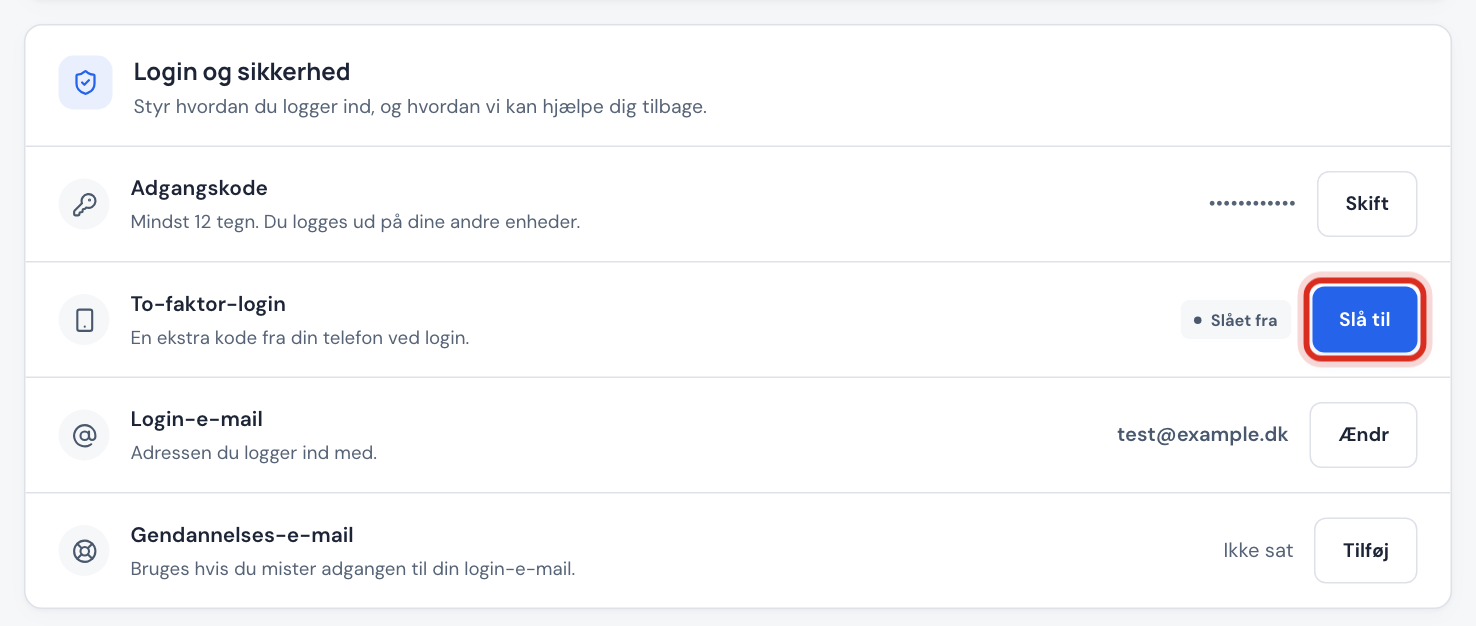
To change or remove the recovery email, tap Change and then Save with a new address, or Remove.
Frequently asked questions
The link for the recovery email doesn't work. What do I do?
If it says The link has expired or has already been used., tap Change next to Recovery email and save the address again. We'll then send a new link.
Can I use the recovery email to reset my password?
Not yourself. Forgot password always sends the link to your sign-in email. Support uses the recovery email to confirm that it's you if you've lost access to your sign-in email.
Does this change the address on my invoices?
No. Invoices are sent to the email in the customer details. You change it under Settings → Domain owner and customer details with Edit.