With guest users, others get their own sign-in to your account. You choose which areas they can view and whether they can change anything. When the collaboration ends, you switch off their access without having to change your own password.
Who can invite, and how many?
Owners and administrators can invite guests. The number depends on the plan:
Guests per plan
- Free
- 0
- Starter
- 1
- Pro
- 3
- Business
- 10
- Max
- Unlimited
Guests you've disabled don't count. If you've used all your places, disable a guest or upgrade your plan.
Invite a guest
Step 1: Open Guest users
Choose the hosting the guest should work with, and choose Guest users in the menu on the left.
Step 2: Tap Invite guest
Tap Invite guest at the top right. A panel opens at the side.
Step 3: Enter an email and choose access
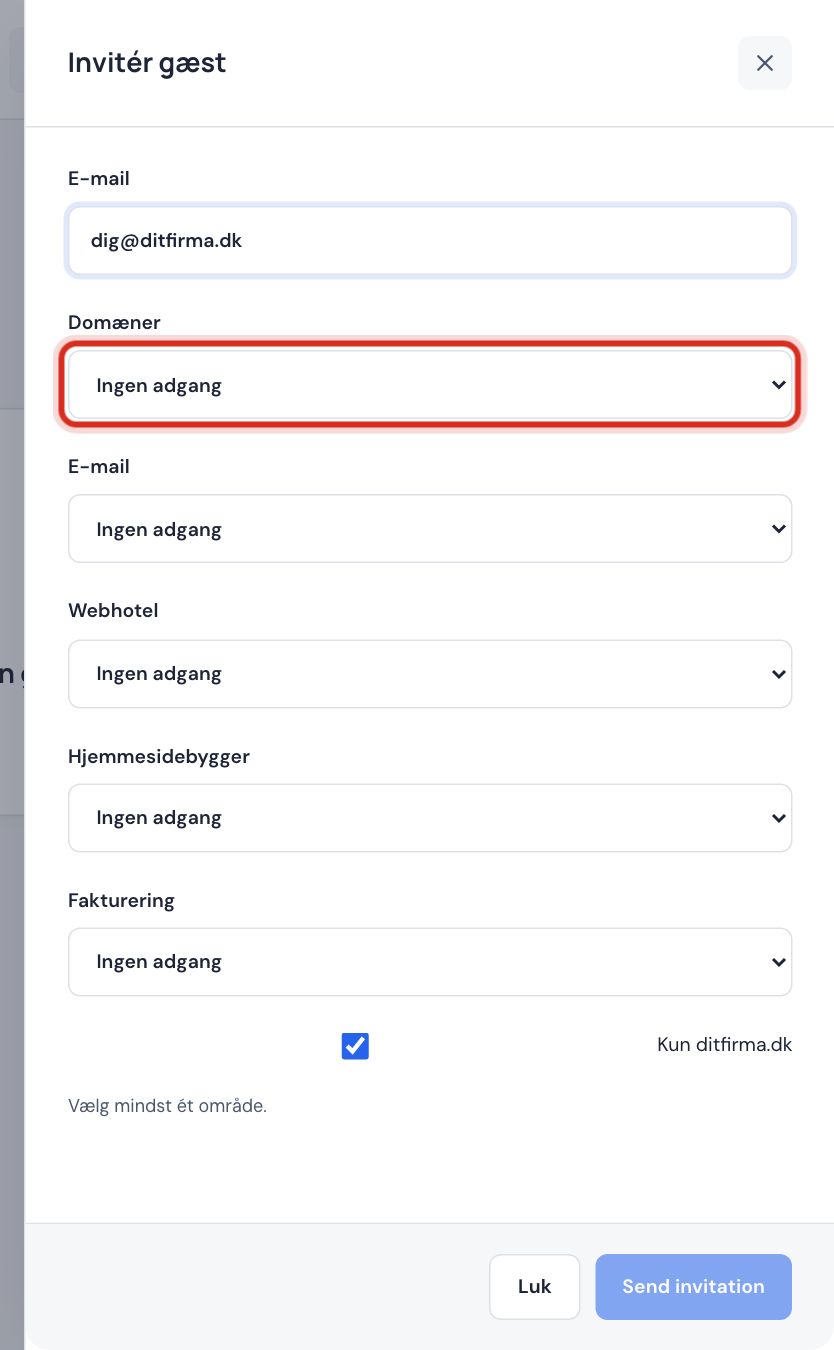
Enter the guest's email address in Email. Then choose access for each area: No access, Read only or Read and change. You must give access to at least one area.
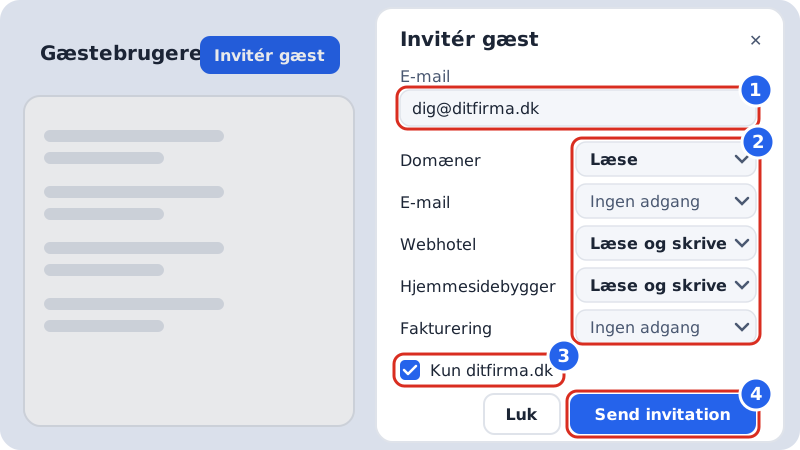
1 email, 2 access per area, 3 limit to one hosting plan, 4 send Step 4: Limit to one hosting plan or domain
If Only … is ticked (e.g. Only yourcompany.com), the guest only gets access to the chosen hosting plan or domain. Untick it if the guest should be able to work with the whole account.
Step 5: Send the invitation
Tap Send invitation. If it says The invitation was emailed., you're done. If it says The invitation was not emailed – share the link yourself., copy the Invitation link and send it to the guest another way.
What access should I give?
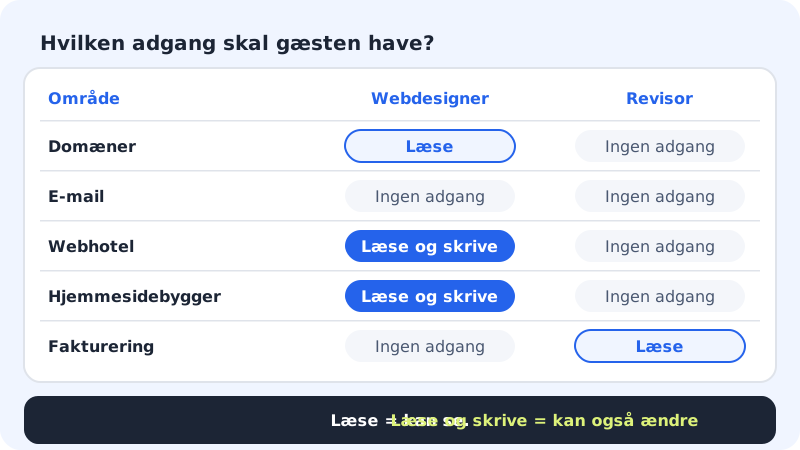
| Area | Web designer | Accountant or bookkeeper |
|---|---|---|
| Domains | Read | No access |
| No access | No access | |
| Hosting | Read and change | No access |
| Website builder | Read and change | No access |
| Billing | No access | Read |
Read only means the guest can view the area but not change anything. Read and change means the guest can also change settings. The Guest users and Activity log pages and deleting the account are always reserved for owners and administrators.
How the guest accepts
- The guest opens the link in the invitation. The link works for 14 days.
- If the guest doesn't have a Sitewig sign-in, they create a free one with the same email the invitation was sent to. Otherwise they sign in.
- The guest sees The invitation has been accepted. We're opening the control panel … and lands in your account with only the areas you've given them access to.
Edit, disable or remove a guest
On the Guest users page, the table shows each guest with Email, Status and Access. Next to the guest you can:
- Resend invitation: send the invitation again if it hasn't been accepted
- Pause: put the access on hold; Reactivate turns it back on
- Change password: set a new password for the guest, e.g. if they're locked out
- Remove: remove the guest from the account for good
To change a guest's access, tap Edit access. If you don't see the button, tap Pause and send a new invitation with the right access.
Frequently asked questions
Can a guest see my invoices and payment cards?
Only if you give access to Billing. Only give Read if the person just needs to download invoices.
Can a guest invite others?
No. Only owners and administrators can invite guests and change access.
Is a guest the same as a mailbox?
No. A guest gets access to the control panel. If the person needs an email address on your domain, create a mailbox under Email → Mailboxes.