If you know your current password and are signed in, you can change it directly in the control panel. If you've forgotten it, use Forgot password instead.
Change your password
Step 1: Open Settings
Sign in to the control panel and choose Settings in the menu under Account. You can also find it by tapping your name at the top right.
Step 2: Find Sign-in and security
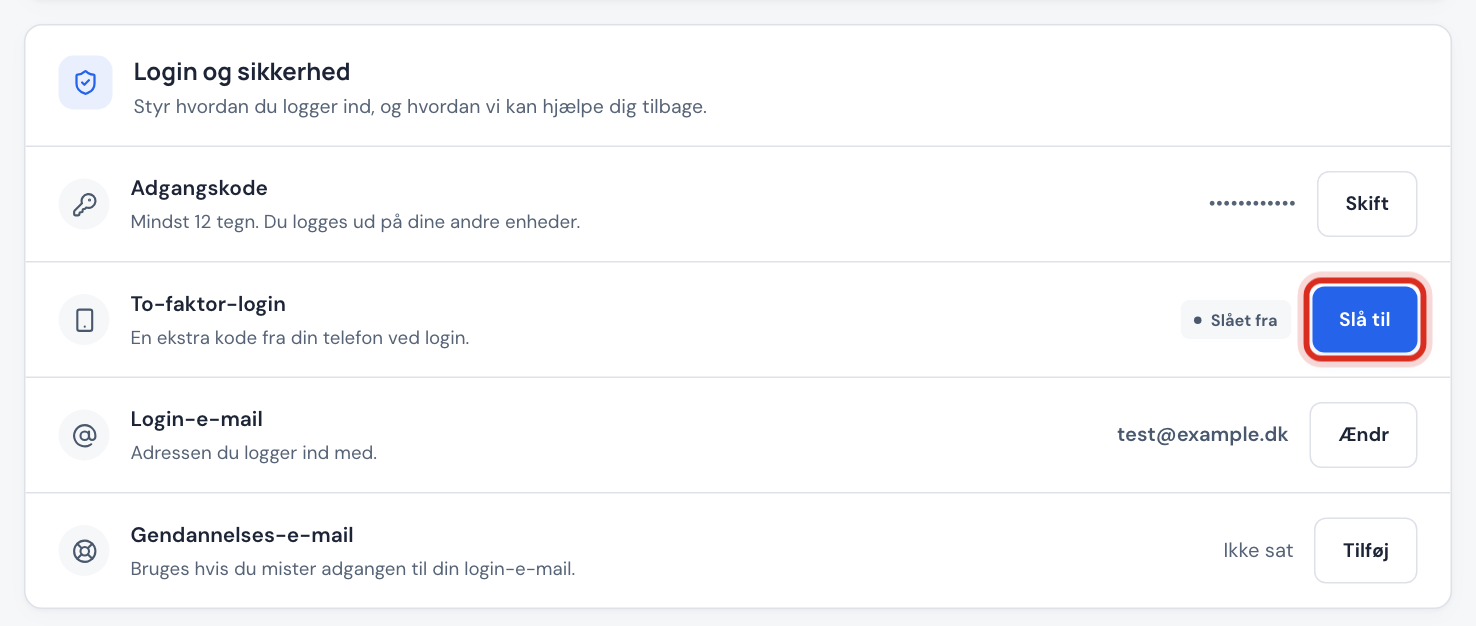
Scroll down to the Sign-in and security card. The first row is called Password. Tap Change.
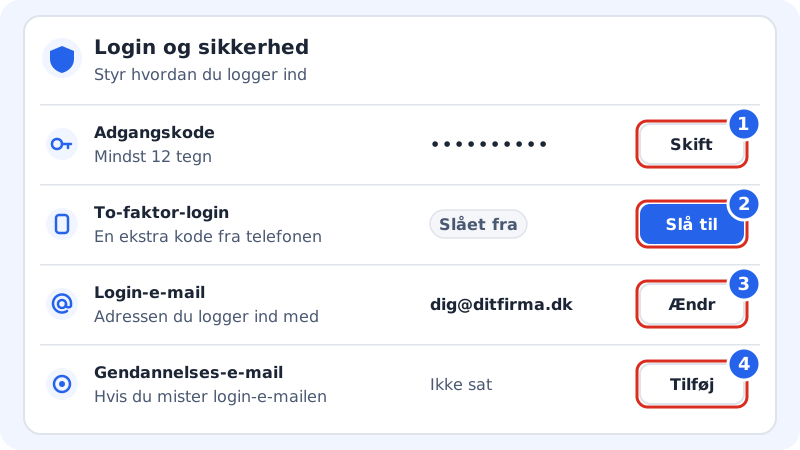
Sign-in and security: 1 Password, 2 Two-factor sign-in, 3 Sign-in email, 4 Recovery email Step 3: Enter the new password twice
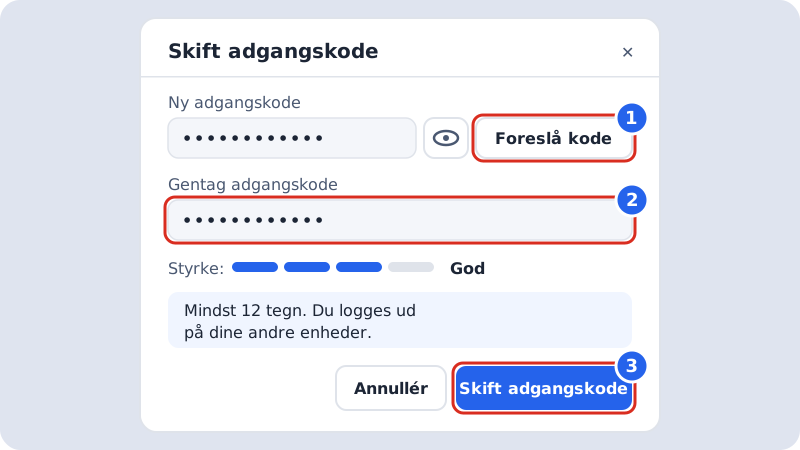
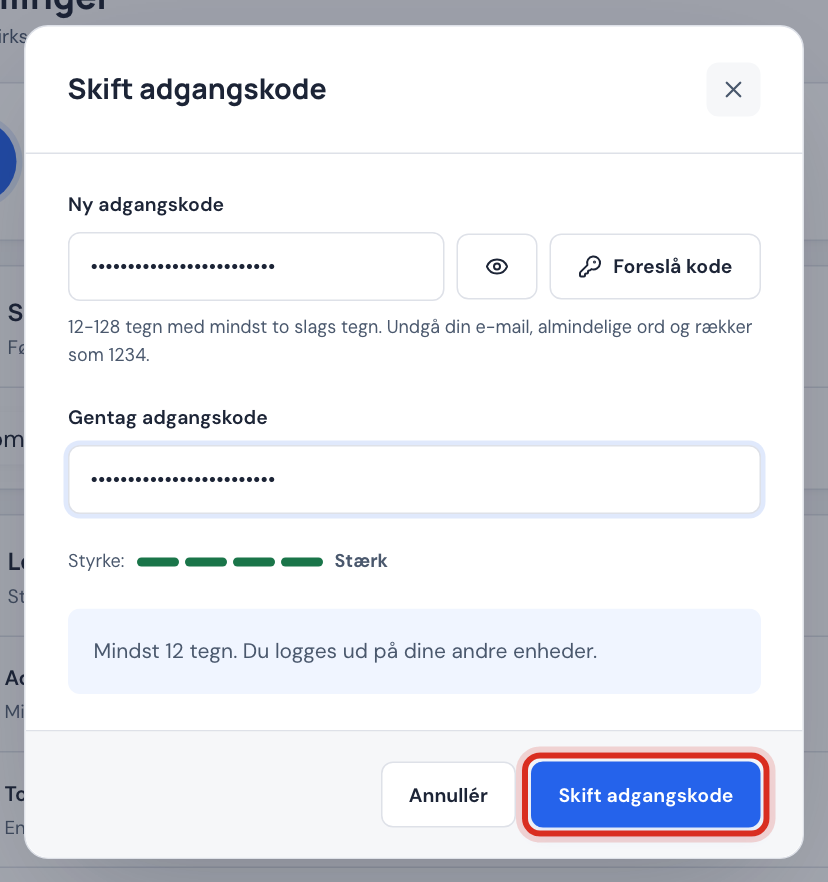
Enter the new password in New password and again in Repeat password. If you'd like help, tap Suggest password and we'll create a strong, random password and show it so you can save it in your password manager.
Step 4: Save
Tap Change password. You'll see the message Your password has been changed. All other devices that were signed in to the account are signed out and will need the new password. We also send a receipt to your sign-in email.
Password requirements
Rules in the control panel
- Length
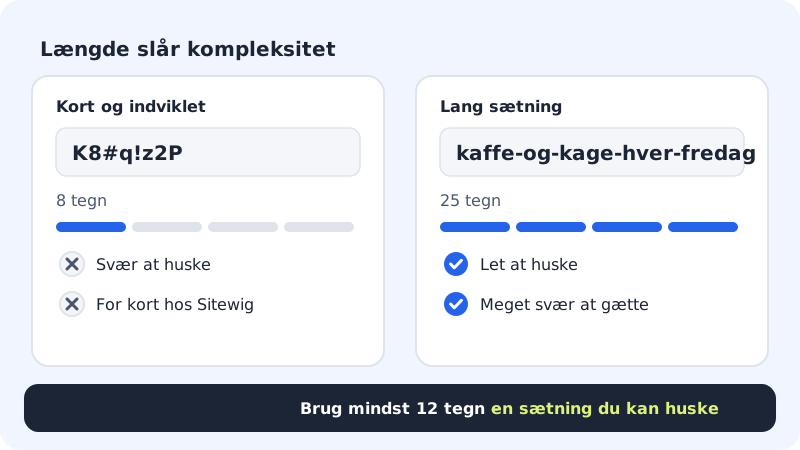
- At least 12 and at most 128 characters
- Characters
- At least two kinds: lowercase letters, uppercase letters, digits or symbols
- Strength
- The meter shows Weak, Fair, Good or Strong
If you get an error when you save:
- At least 12 characters. Make the password longer.
- Use at least two kinds of characters: lowercase and uppercase letters, digits or symbols. Add a digit or a capital letter, for example.
- The passwords do not match. The two fields must be exactly the same.
When you're asked to choose a new password
If you see Choose a new password right after signing in, an owner or administrator on the account has set a temporary password for you and required you to change it. Choose a new password following the same rules. You can't use the control panel until you've done so.
Frequently asked questions
Will I be signed out on my phone?
Yes, if you're signed in to the control panel on your phone. The device you change the password from stays signed in.
Does this change the password for my email?
No. Mailboxes have their own password. You change it under Email → Mailboxes.
How often should I change my password?
There's no reason to change a strong, unique password at regular intervals. Change it if you think others know it, or if you've used the same password somewhere else. Also turn on two-factor sign-in.