Every time you sign in to the control panel from a browser, we create a session. If you can't remember whether you signed out on a borrowed computer, or you think someone else knows your password, you can end the other sessions.
See your active sessions
Go to Settings → Sign-in and security and find Active sessions. The list shows each device with its browser and operating system (e.g. Chrome on macOS), when it signed in, when it was last active and which country it was in. The device you're using is marked This device.
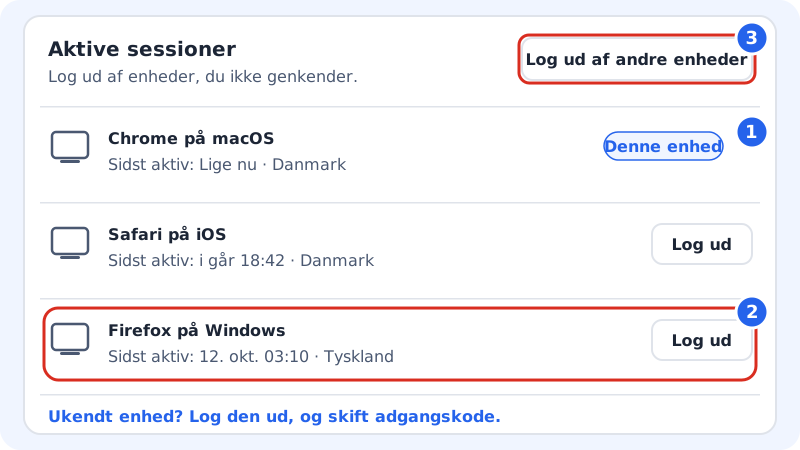
If it says The device list isn't available yet, but you can sign out of all other devices., you can still use the Sign out of other devices button.
Sign out of a single device
- Find the device in the list.
- Tap Sign out next to it.
- Confirm in the window. The device will need to sign in again to continue.
Sign out of all other devices
- Tap Sign out of other devices at the top of the section.
- Confirm in the Sign out of all other devices? window.
- You'll see You have been signed out of your other devices. You stay signed in yourself.
If you suspect someone else has access
Do everything in this order, so the intruder can't sign in again:
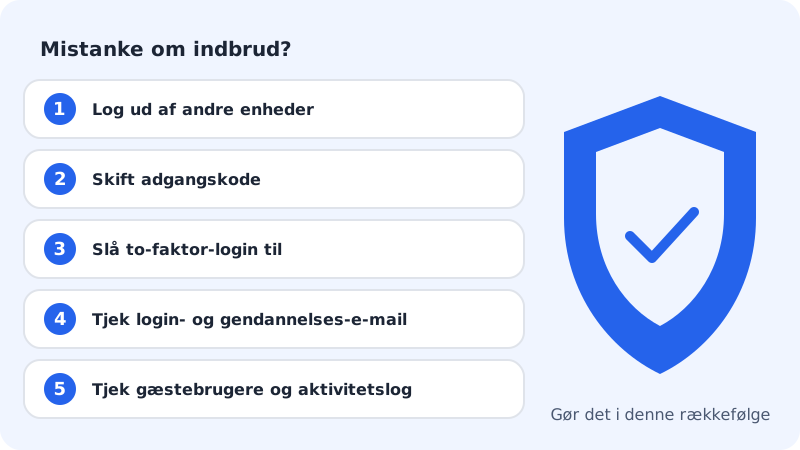
Step 1: Sign out of all other devices
Use Sign out of other devices, or skip straight to the next step, which does the same.
Step 2: Change your password
Choose a new, unique password under Sign-in and security → Password → Change. If you used the old one elsewhere, change it there too.
Step 3: Turn on two-factor sign-in
Then a password alone isn't enough to get in. See Turn on two-factor sign-in.
Step 4: Check your sign-in and recovery email
Make sure that Sign-in email and Recovery email are your own addresses.
Step 5: Check guest users and activity
Go to Guest users and remove anyone you don't know. Under Activity log you can see what has happened on the account.
Sign out on the device you're using
At the bottom of the Settings page you'll find Sign out: Sign out of Sitewig on this device. You can also tap your name at the top right and choose Sign out. Always do this on shared and public computers.
Frequently asked questions
I don't recognise the country for one of my sessions. Have I been hacked?
Not necessarily. The country is worked out from the internet connection, and a VPN, a company network or mobile data can show a different country. If you're in doubt, sign the device out and change your password.
Will my email programs be signed out?
No. Sessions only apply to the control panel. Email programs use the mailbox password: change it under Email → Mailboxes if you think it has leaked.