With two-factor sign-in, a person needs both your password and your phone to sign in. Even if someone else gets hold of your password, they can't get in without the 6-digit code that your phone generates. We recommend that everyone turns it on.
What you need
- An authenticator app on your phone. Any app that generates 6-digit one-time codes (TOTP) works, e.g. Google Authenticator, Microsoft Authenticator, 1Password or Bitwarden. Sitewig doesn't have its own app.
- Access to the control panel on a computer or another screen, so you can scan the QR code with your phone
Turn on two-factor sign-in
Step 1: Open Sign-in and security
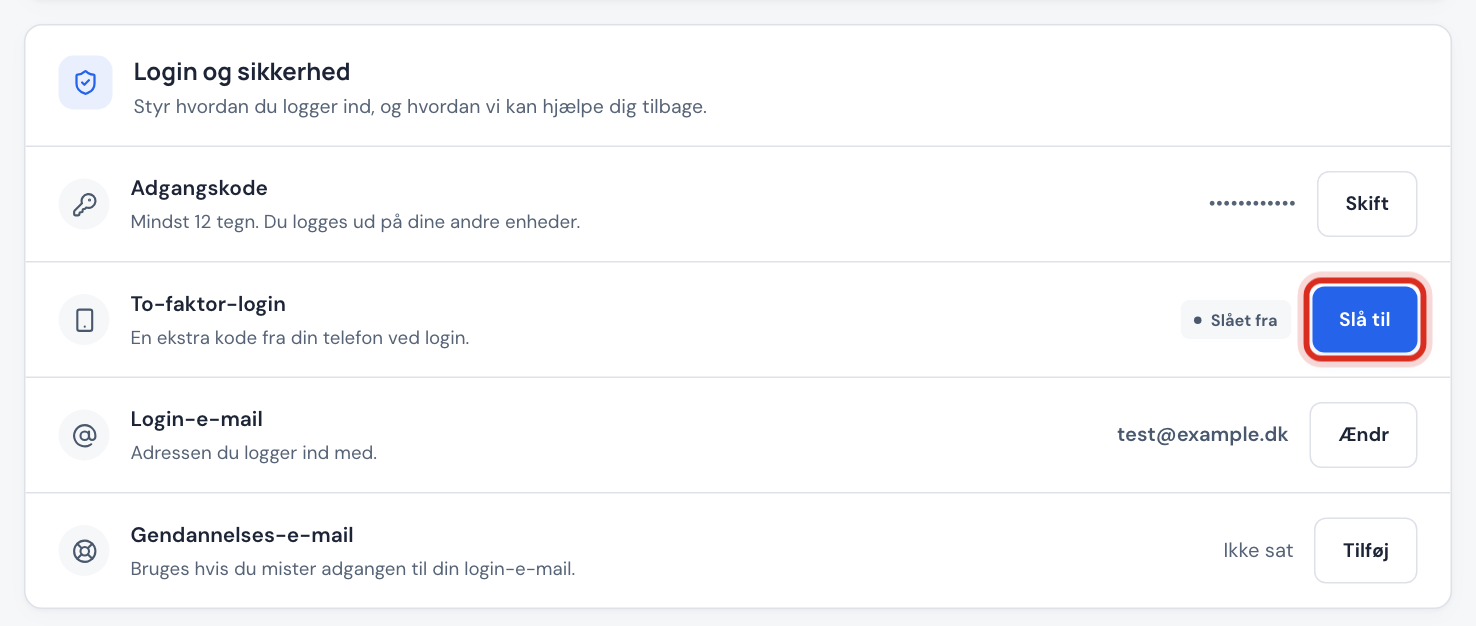
Go to Settings and find the Sign-in and security card. The Two-factor sign-in row shows Off.
Step 2: Tap Turn on
Tap Turn on next to Two-factor sign-in. A window with a QR code opens.
Step 3: Scan the QR code
Open the authenticator app, choose to add an account and scan the QR code. If you can't scan, copy the text in the Secret field and enter it manually in the app.
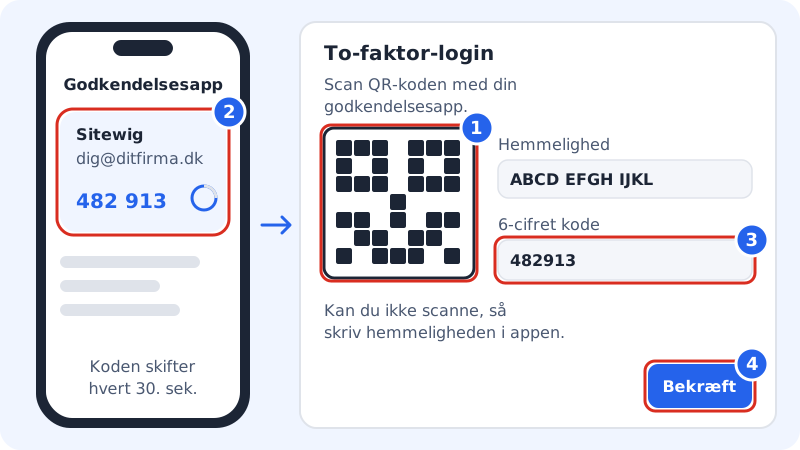
1 scan the QR code, 2 read the code in the app, 3 enter the code, 4 tap Verify Step 4: Confirm with the code
The app now shows a 6-digit code for Sitewig. Enter it in the 6-digit code field and tap Verify. The row changes to On.
Step 5: Save your backup codes if they're shown
If we show the Save your backup codes window, keep them somewhere safe before you tap Done. With them you can get in if you lose your phone. Read more in Backup codes: get in if you lose your phone.
How to sign in afterwards
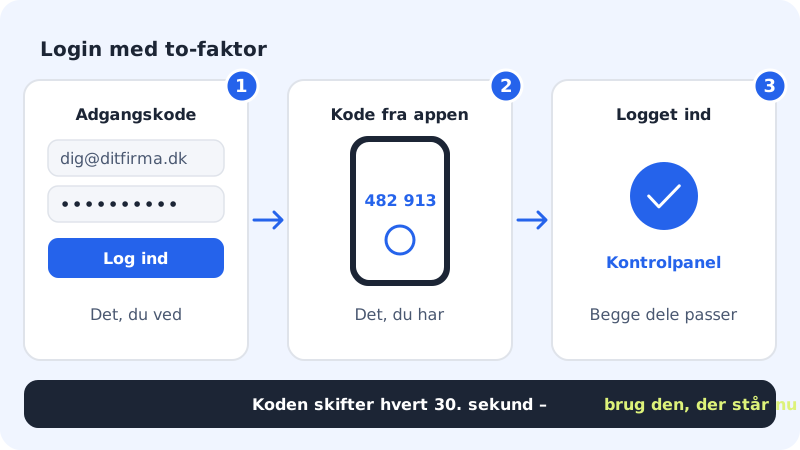
- Sign in with your email and password as usual.
- The page changes to Two-factor sign-in and asks for the code from the app. Enter the 6-digit code and tap Continue.
- If the code changes while you're typing, just use the new one.
If you're signed in to the wrong account, tap Use another account.
Turn off two-factor sign-in
Go to Settings → Sign-in and security and tap Turn off next to Two-factor sign-in. Confirm in the Turn off two-factor sign-in? window. Your account is then protected by the password alone.
Frequently asked questions
The code is rejected. What's wrong?
Most often the phone's clock is wrong. The codes depend on the time, so make sure the phone sets its clock automatically. Also check that you're using the code for Sitewig if you have several accounts in the app.
Does two-factor sign-in also cover my email?
No. It protects your sign-in to the control panel. Webmail and email programs use the mailbox's own password.
Can I get the code by text message?
No. We only use authenticator apps, because text message codes can be intercepted and depend on the mobile network.
Do my guest users also have to use two-factor sign-in?
Each user turns it on for their own account. We recommend that everyone with access to your account does so.