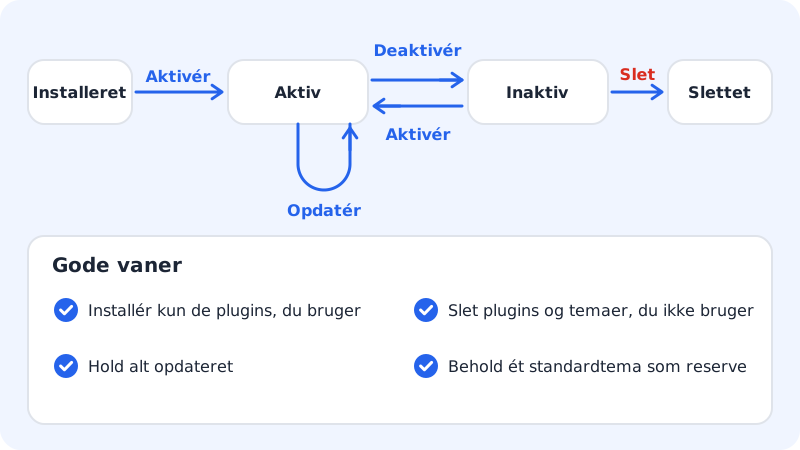
Plugins give WordPress new features, for example a contact form, SEO tools or an online shop. Themes determine how the site looks. You can have many plugins active, but only one theme at a time.
In WordPress
This works for every WordPress site at Sitewig.
Step 1: Sign in to wp-admin
Go to
https://yourcompany.com/wp-admin, and sign in.Step 2: Add a plugin
Choose Plugins → Add New Plugin in the menu. Search for what you need, click Install Now and then Activate.
Step 3: Change theme
Choose Appearance → Themes → Add New Theme. Find a theme, click Install and then Activate. If you already have the theme, hover over it and click Activate.
Step 4: Switch off or delete
Under Plugins you can Deactivate a plugin. You can then Delete a deactivated plugin. You delete themes you aren't using under Appearance → Themes.
From Sitewig's control panel
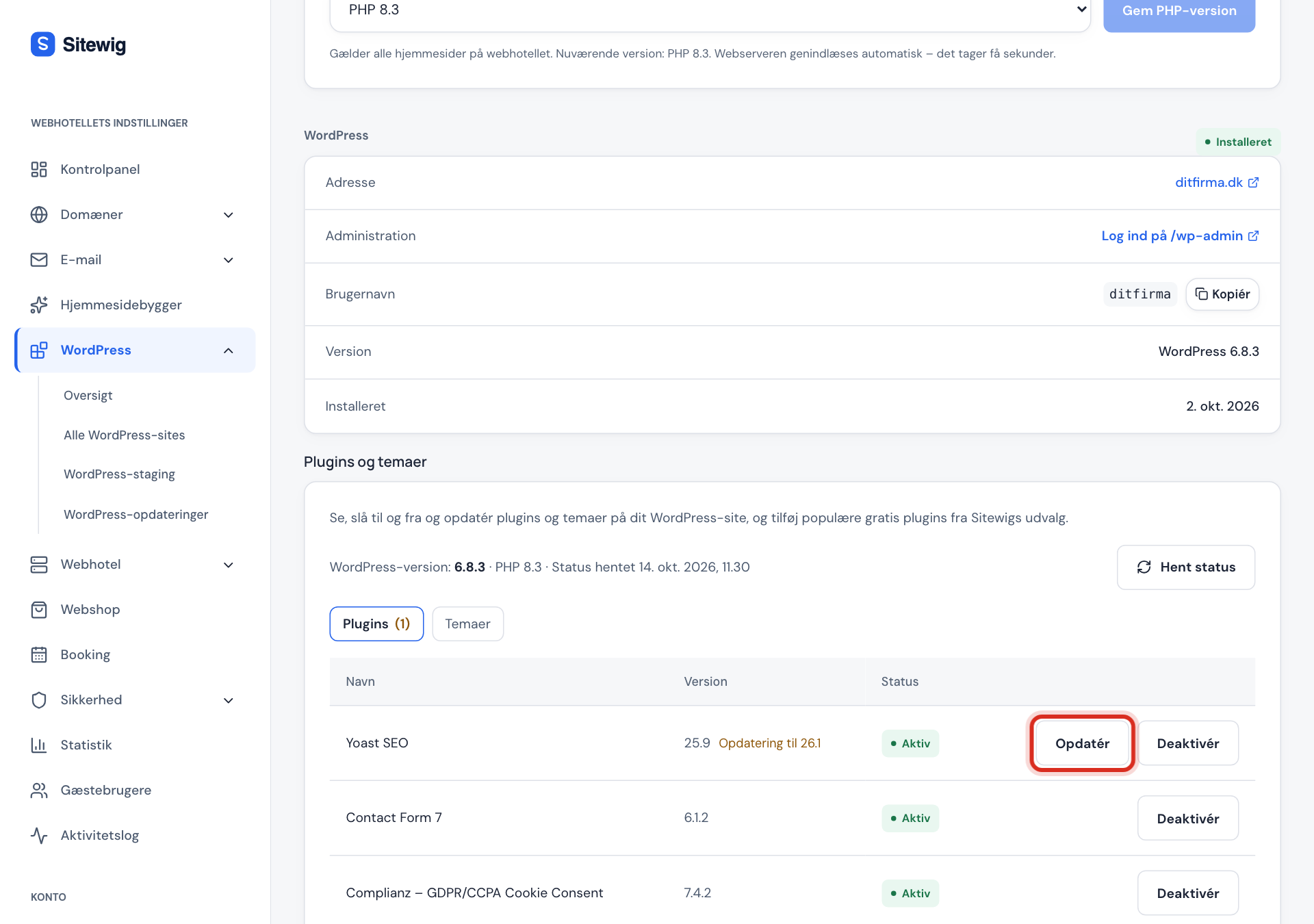
The Plugins and themes card is on the website's page. It lets you manage the most common things without signing in to WordPress.
Step 1: Open the card
Choose WordPress → Overview, click the website, and scroll down to Plugins and themes. Click Check status to get the latest list from WordPress.
Step 2: See the status
Under Plugins and Themes, each item is listed with its version and status: Active, Inactive or Always on (a plugin that WordPress always loads). If there is a new version, it's shown next to the item.
Step 3: Activate, deactivate or update
Click Activate, Deactivate or Update next to a plugin. You don't switch a theme off: you activate another theme instead. If you want to update everything at once, click Update all. The change is carried out on the server, and the list refreshes itself shortly afterwards.
Step 4: Add from Sitewig's selection
Click Add plugin or Add theme. You'll see a selection of free plugins and themes from wordpress.org, chosen by Sitewig. Click Install and activate next to the one you want.
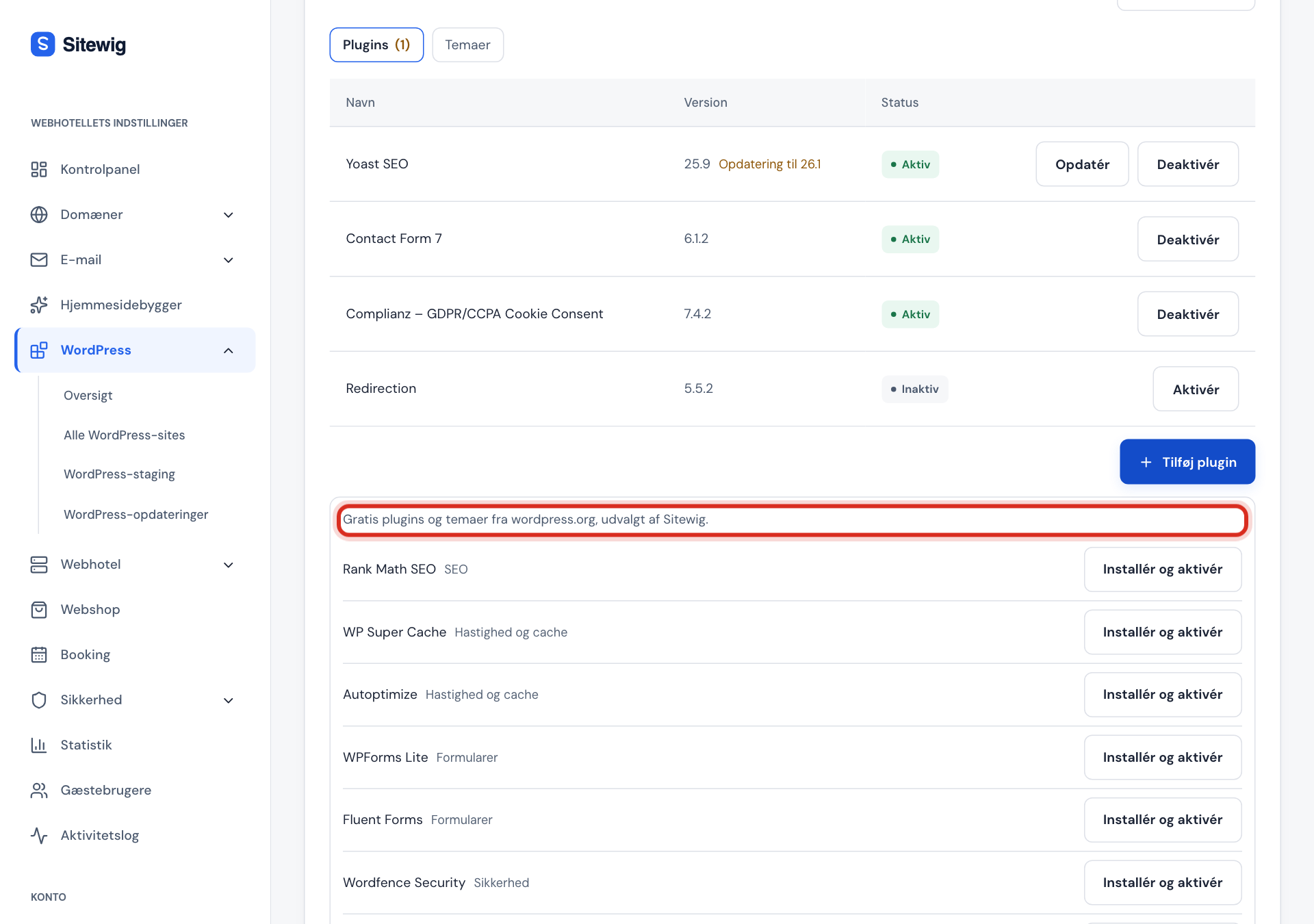
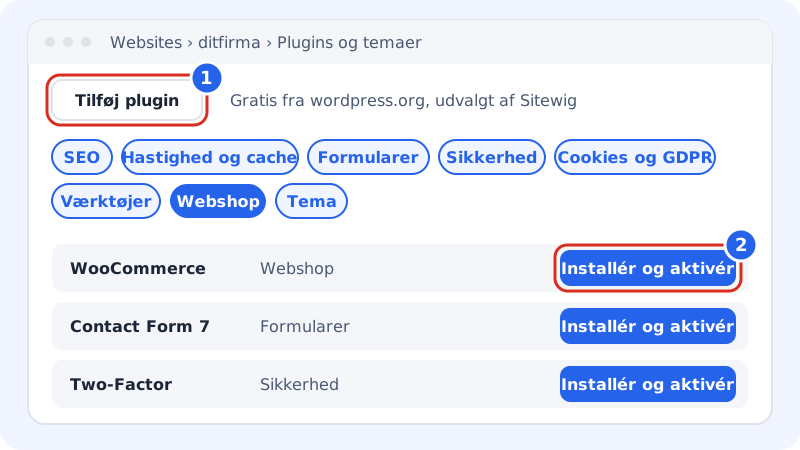
The selection is sorted into the categories SEO, Speed and caching, Forms, Security, Cookies and GDPR, Tools, Online shop and Theme. If you need a plugin that isn't in the selection, you install it in WordPress as described above.
An overview of all your WordPress sites
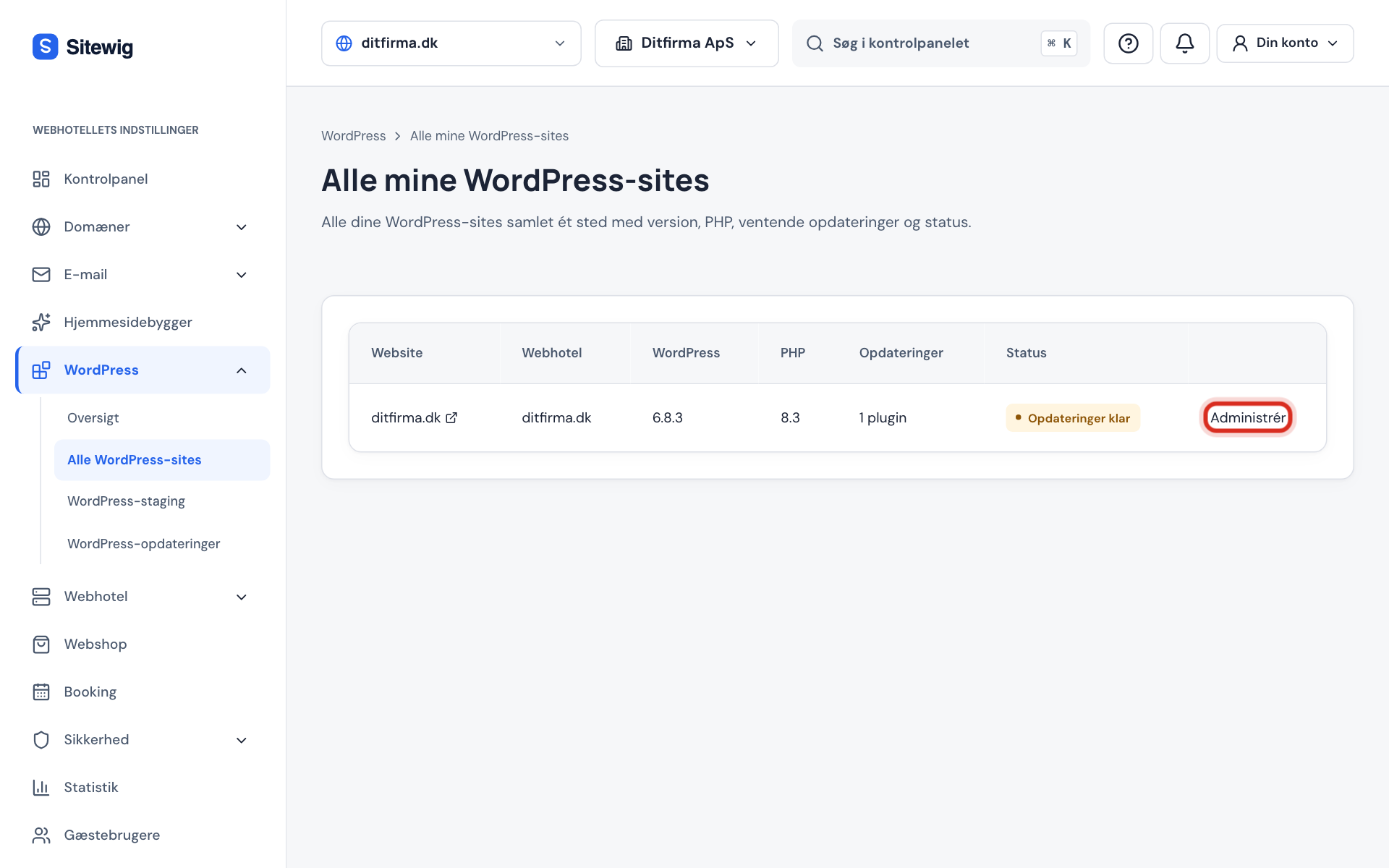
If you have several WordPress websites, WordPress → All WordPress sites shows them together with the WordPress version, PHP version, pending updates and status. Click Manage to go to a website. The page comes with the Plugins and themes card.
Frequently asked questions
May I install any plugin?
Yes, you can install the plugins and themes you like, including paid ones. Only get them from wordpress.org or directly from the developer. Free copies of paid plugins from other sites often contain malicious code.
My site broke after a new plugin. What do I do?
If you can still sign in, deactivate the plugin under Plugins. If you can't, read WordPress shows a white screen or error 500.
Are my plugins updated automatically?
If you have Pro, Business or Max, you can switch on automatic updates. See Keep WordPress up to date.
How many plugins can I have?
There is no fixed limit. But the more plugins you have, the slower the site can become, and the more there is to keep up to date.