The WordPress tools card on the website's page has two switches that make everyday life easier and safer: Maintenance mode, which closes the site to visitors while you work, and Sign-in through the control panel only, which closes WordPress's sign-in form to everyone but you.
Open WordPress tools
Step 1: Find the card
Choose WordPress → Overview, click the website, and scroll down to WordPress tools in the WordPress section.
Step 2: Install the tools if asked
If it says the tools aren't installed on the site yet, click Install the tools. This puts a small Sitewig plugin on your WordPress site, which the switches use.
Step 3: Switch it on
Tick Maintenance mode and/or Sign-in through the control panel only, and click Save. The card shows Saving the change on the server … until it has been completed.
Maintenance mode
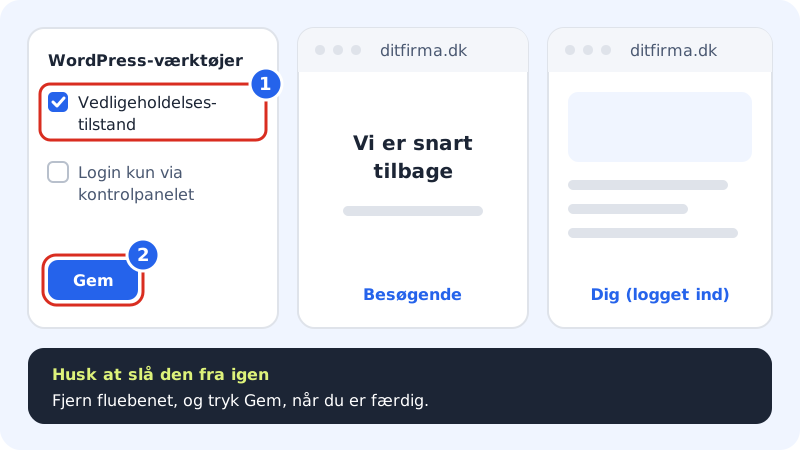
When Maintenance mode is on, visitors see a temporary page saying that the site will be back soon. If you're signed in to WordPress, you see the site as normal, so you can work and test. Remember to untick the box and click Save when you've finished.
Use it, for example, when you:
- are building a new site that isn't ready to be shown,
- are changing theme or making bigger changes,
- want to close an online shop briefly.
Sign-in through the control panel only
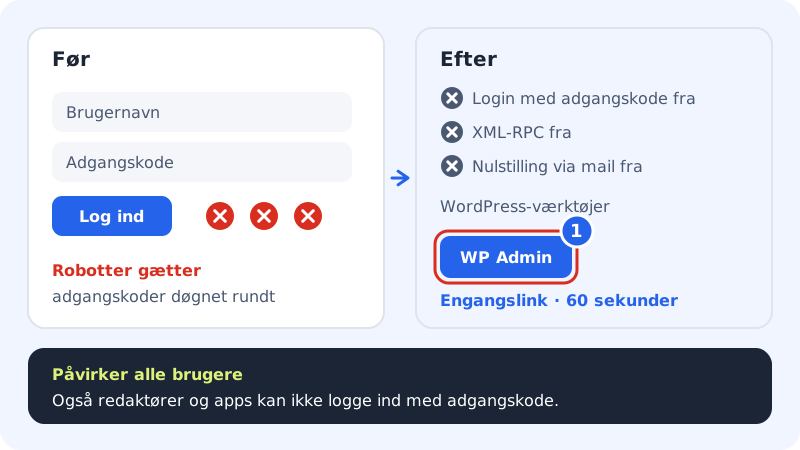
Bots constantly try to guess passwords on WordPress sites. With Sign-in through the control panel only, you switch off three things in WordPress:
- sign-in with username and password at
/wp-login.phpand/wp-admin, - XML-RPC, which old apps and many attacks use,
- password reset by email.
From then on, you sign in by clicking WP Admin on the WordPress tools card. The button creates a one-time link that works once for 60 seconds. See Sign in to the WordPress administration.
Without WordPress tools
If you don't have the card yet, you can achieve something similar in WordPress:
- Maintenance: Install a "coming soon" or maintenance page plugin under Plugins → Add New Plugin.
- Secure sign-in: Use a long, unique password, have as few administrators as possible, and install, for example, Two-Factor (two-step verification) or Limit Login Attempts Reloaded (limits sign-in attempts). Both are free and can be found in Sitewig's selection under the Security category.
- Keep everything up to date: This is still the most important thing. See Keep WordPress up to date.
Frequently asked questions
Can I switch password sign-in back on?
Yes. Untick Sign-in through the control panel only, and click Save. The sign-in form then works as before.
What if Sitewig's control panel is down and I've locked the sign-in?
Then you can't sign in to WordPress until the control panel is back. The site carries on running for your visitors. If you want a fallback way in, don't switch the option on, and use two-step verification instead.
Can visitors still see the site when the sign-in is locked?
Yes. Sign-in through the control panel only affects sign-in only. The site is shown as normal.
Does maintenance mode affect my online shop?
Yes. While maintenance mode is on, visitors can neither see products nor buy anything.