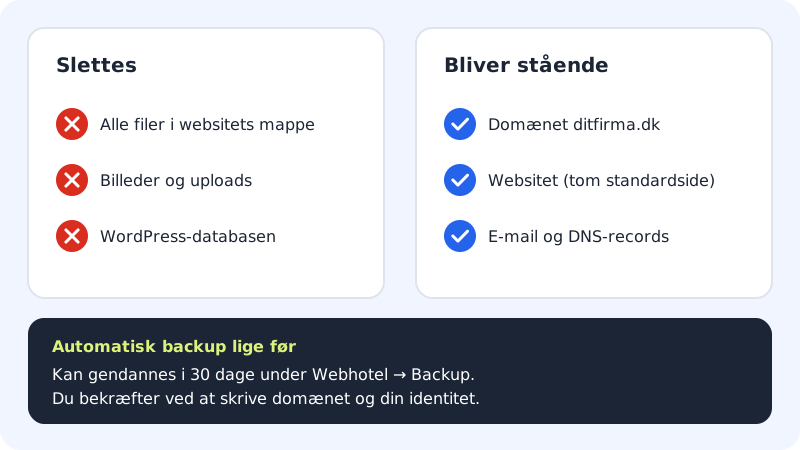
If you want to start again with WordPress, or the website is going to be used for something else, you can remove WordPress completely. The domain, the website and your email stay in place. Only WordPress's files and database disappear.
Before you uninstall
- Do you need the content? Export posts and pages in WordPress under Tools → Export, or download the files via Web hosting → Files or SFTP.
- Does anyone else use the site? Uninstalling also deletes images, uploads and any orders in an online shop.
Uninstall from the control panel
You will find the Uninstall WordPress option on the website's page. Here is how:
Step 1: Open the website
Choose WordPress → Overview, and click the website with WordPress on it.
Step 2: Click Uninstall WordPress
Scroll down to the Uninstall WordPress section below the WordPress cards, and click the Uninstall WordPress button.
Step 3: Type the domain to confirm
The Uninstall WordPress? window explains what will be deleted. Type the site's address, for example
yourcompany.com, in the field to confirm. (In some versions of the card you instead tick I understand that the files and database will be deleted.)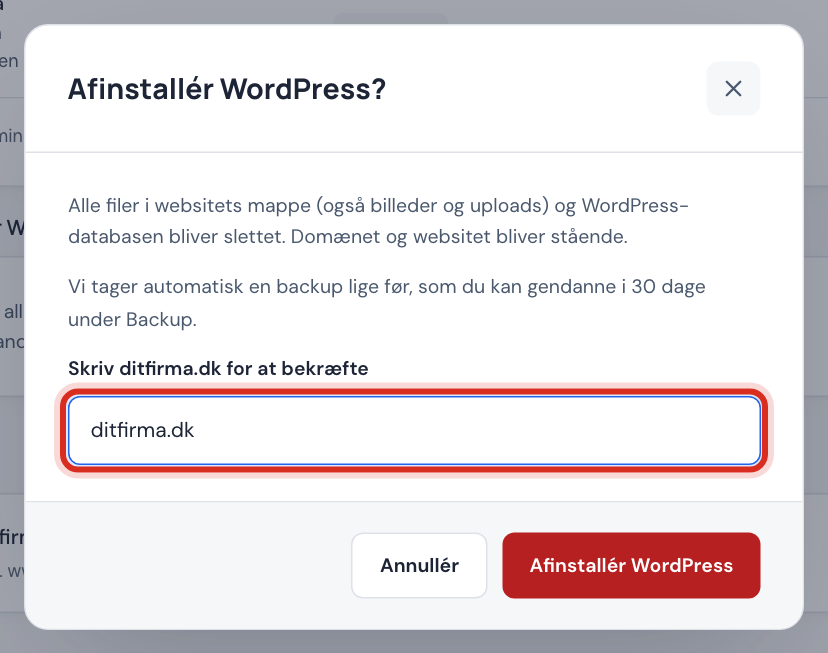
Step 4: Confirm that it's you
Because this action deletes data, the control panel always asks you to confirm your identity again before it starts.
Step 5: Wait until it's finished
WordPress is usually uninstalled in under a minute. Afterwards the website shows an empty default page, and you can install WordPress again or use the website for something else.
If you don't have the button yet
If Uninstall WordPress isn't on the website's page, you remove WordPress manually:
- Delete all files in the website's
public/folder via Web hosting → Files or SFTP. The website's web root is shown under Details on the website's page. - Delete the WordPress database under Web hosting → Databases. If you're in doubt, the database name is in the
wp-config.phpfile. - It's a good idea to take a backup first under Web hosting → Backup, or use last night's automatic backup.
Frequently asked questions
Will my domain or my email be deleted?
No. The domain, the website, email and DNS records stay in place. Only WordPress's files and database are removed.
Can I install WordPress again afterwards?
Yes. Once the website is empty, you can install WordPress again straight away. See How to get WordPress on your website in 3 clicks.
Can I get my old WordPress back?
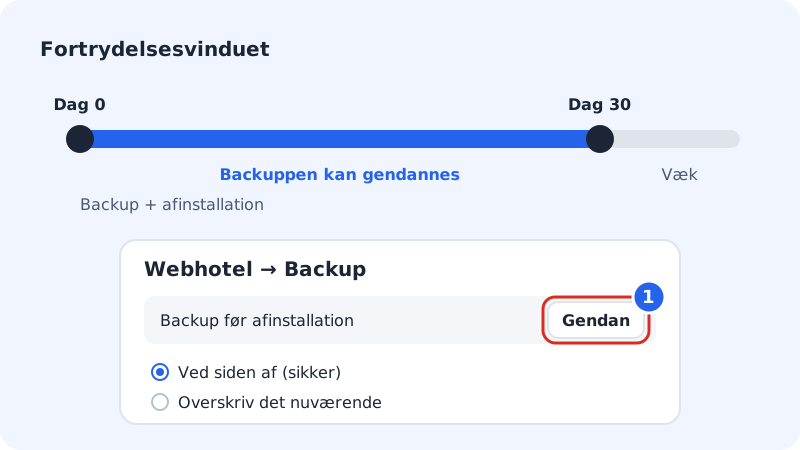
Yes, for 30 days. Restore the backup that was taken just before the uninstall, under Web hosting → Backup.
Why do I have to type the domain?
It's an extra safeguard, so that you don't delete the wrong site by mistake.