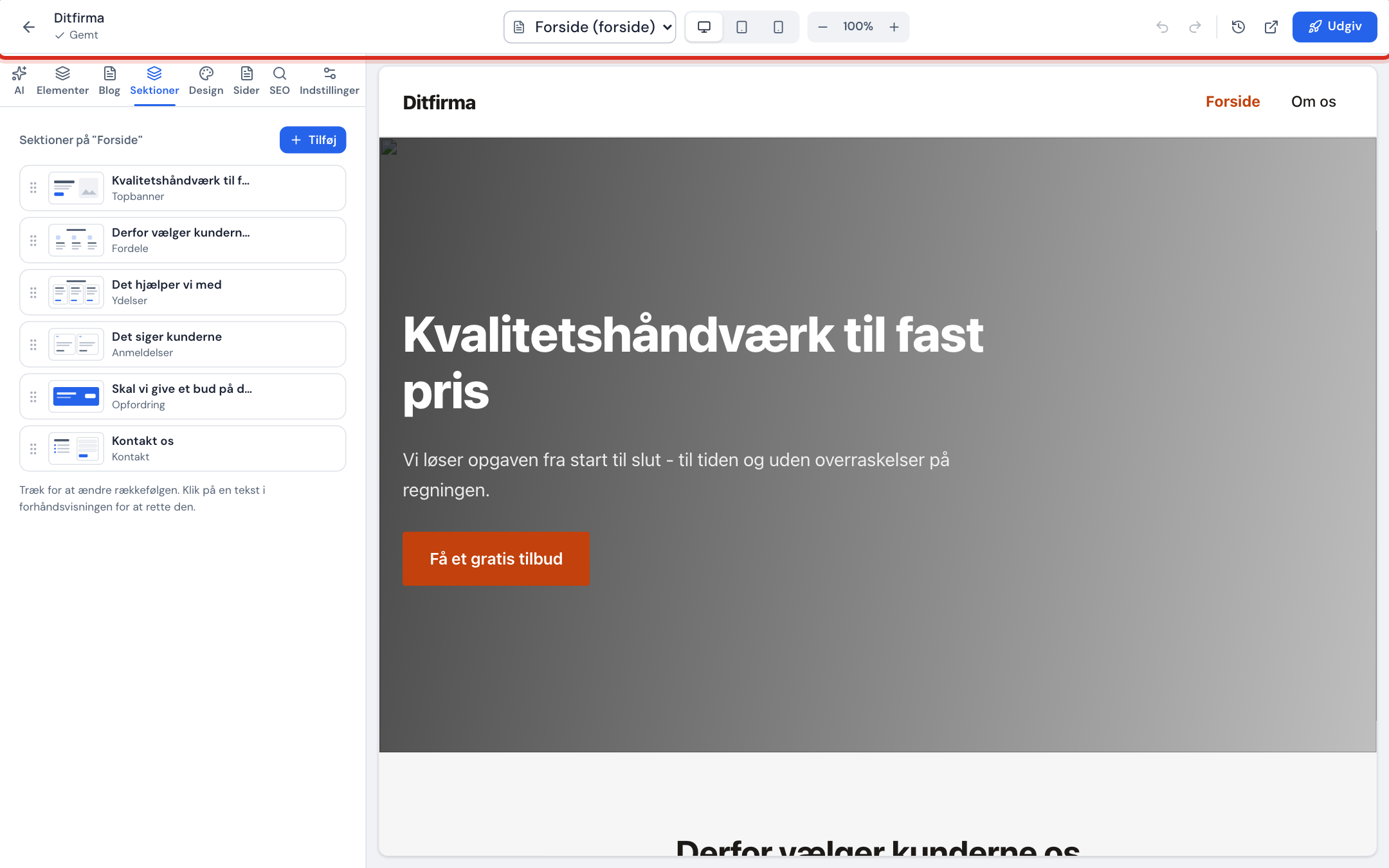
The editor has three parts: the top bar at the top, the side panel on the left and the preview on the right, where you see and edit the website itself. You open the editor from Website builder by clicking Edit on one of your websites.
The top bar
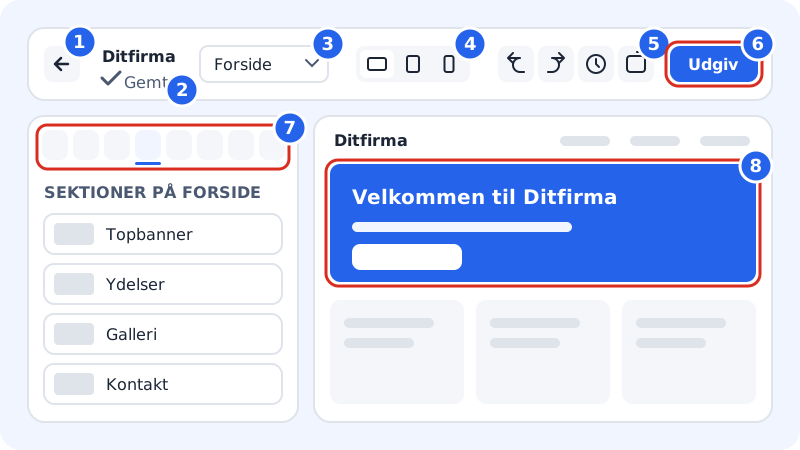
- 1 · Back arrow: Back to websites, i.e. the list in Website builder.
- 2 · Name and save status: the website's title and whether your changes are saved (see below).
- 3 · Choose page: switch between pages. The home page is marked (home page).
- 4 · Computer, Tablet and Mobile: see the preview at different widths. On a large screen you can also zoom from 50 to 125% – click the percentage to reset.
- 5 · Undo, Redo, Version history and Preview in new window: undo and redo your latest changes, go back to an older version, or open the draft in a new tab.
- 6 · Publish: put the website online.
The tabs in the side panel
7 · The tabs at the top of the side panel:
- AI: ask the AI to change the page or a section, or build the whole website from scratch.
- Elements and Blog: are about to open. Until then it says Extensions open when the server can save them safely., and the fields can't be used.
- Sections: add, move, hide and delete blocks on the page you're on.
- Design: colours, light or dark mode, fonts and corners.
- Pages: create, rename and delete pages, and manage the menu.
- SEO: a score with a checklist, the title and description for Google for each page, and your business details.
- Settings: the website's title and description, favicon, logo, footer and social media.
The preview
8 · The preview shows the draft exactly as it will look. Click a text to type in it, and click an image to change it. Point at a section to see its toolbar. If you click a menu item, the editor switches to that page.
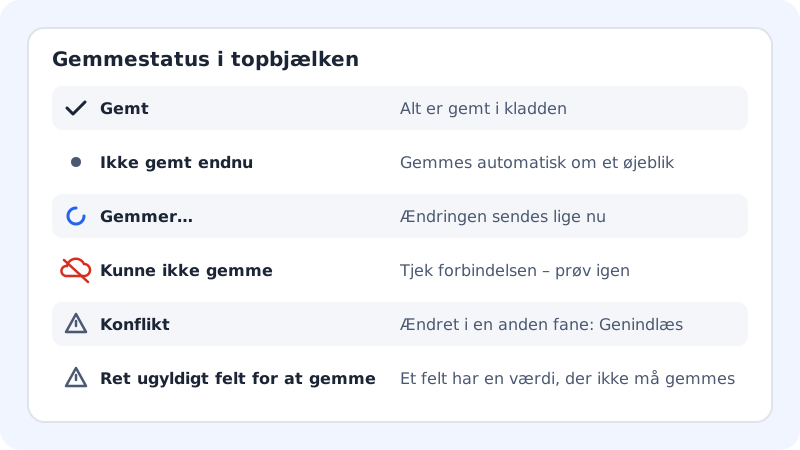
Save status
The editor saves automatically a moment after every change. You can also press Cmd+S (Mac) or Ctrl+S (Windows) to save straight away.
Keyboard shortcuts
Shortcuts in the editor
- Undo
Cmd+Z/Ctrl+Z- Redo
Shift+Cmd+ZorCmd+Y/Ctrl+Y- Save now
Cmd+S/Ctrl+S- Save a text you're typing in the preview
- Enter or click outside
- Undo the text you're typing
- Esc
Undo and Redo work across the whole editor, but not while the cursor is in a text field in the side panel – there, the browser only undoes what you typed in the field.
The editor on mobile
You can also edit from your phone. The tabs are then in a bottom menu, and the Settings tab is called More. Choose the page, device and version history in the row just below the top bar. The panel opens as a sheet that you close with the cross.
Frequently asked questions
Why does nothing happen when I click Preview in new window?
Your browser is probably blocking pop-ups. You see the message Couldn't open a new window. Allow pop-ups for the control panel and try again.
What does "Fix the invalid field to save" mean?
A field has a value that can't be saved, e.g. a link that doesn't start with https://. Find the field with the red help text and fix it, and the editor will save again.
Do my changes show to visitors straight away?
No. The editor saves a draft. Visitors only see the changes when you click Publish.