If you've deleted something by mistake or the AI has gone too far, you can almost always get back. There are three ways – choose depending on how far back you need to go.
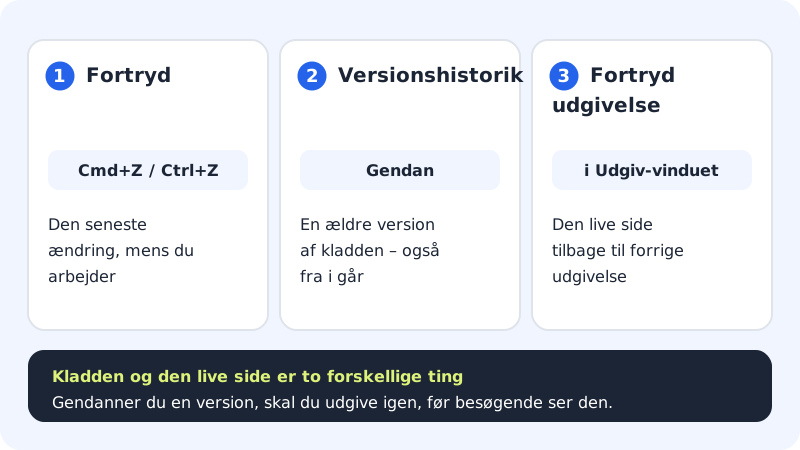
1. Undo what you just did
Press Cmd+Z (Mac) or Ctrl+Z (Windows), or click the Undo arrow in the top bar. Redo with Shift+Cmd+Z, Cmd+Y or Ctrl+Y. It works as long as the editor is open.
2. Restore an older version
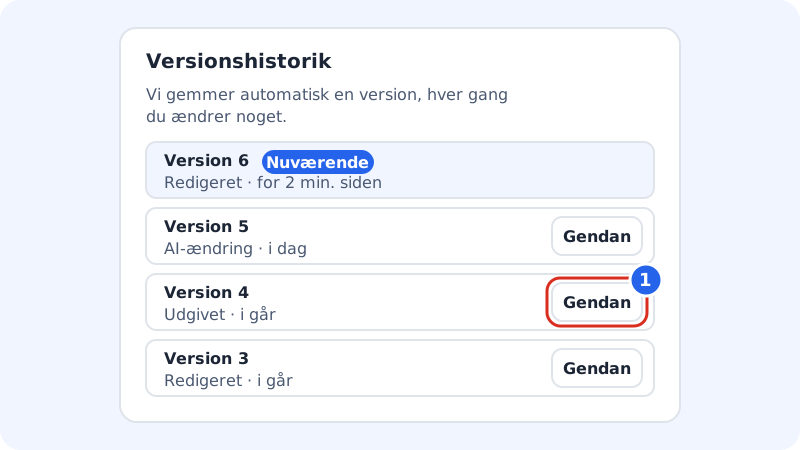
The editor automatically saves a version every time you change something. Here's how to go back:
Step 1: Open Version history
Click the clock icon Version history in the top bar. On mobile it's in the row just below the top bar.
Step 2: Find the right version
The list shows the newest at the top. Each version has a number, how it came about, and when. The version you're working in now is marked Current.
Step 3: Click Restore
Click Restore next to the version you want to go back to. You see the message The version has been restored, and the editor shows the restored version.
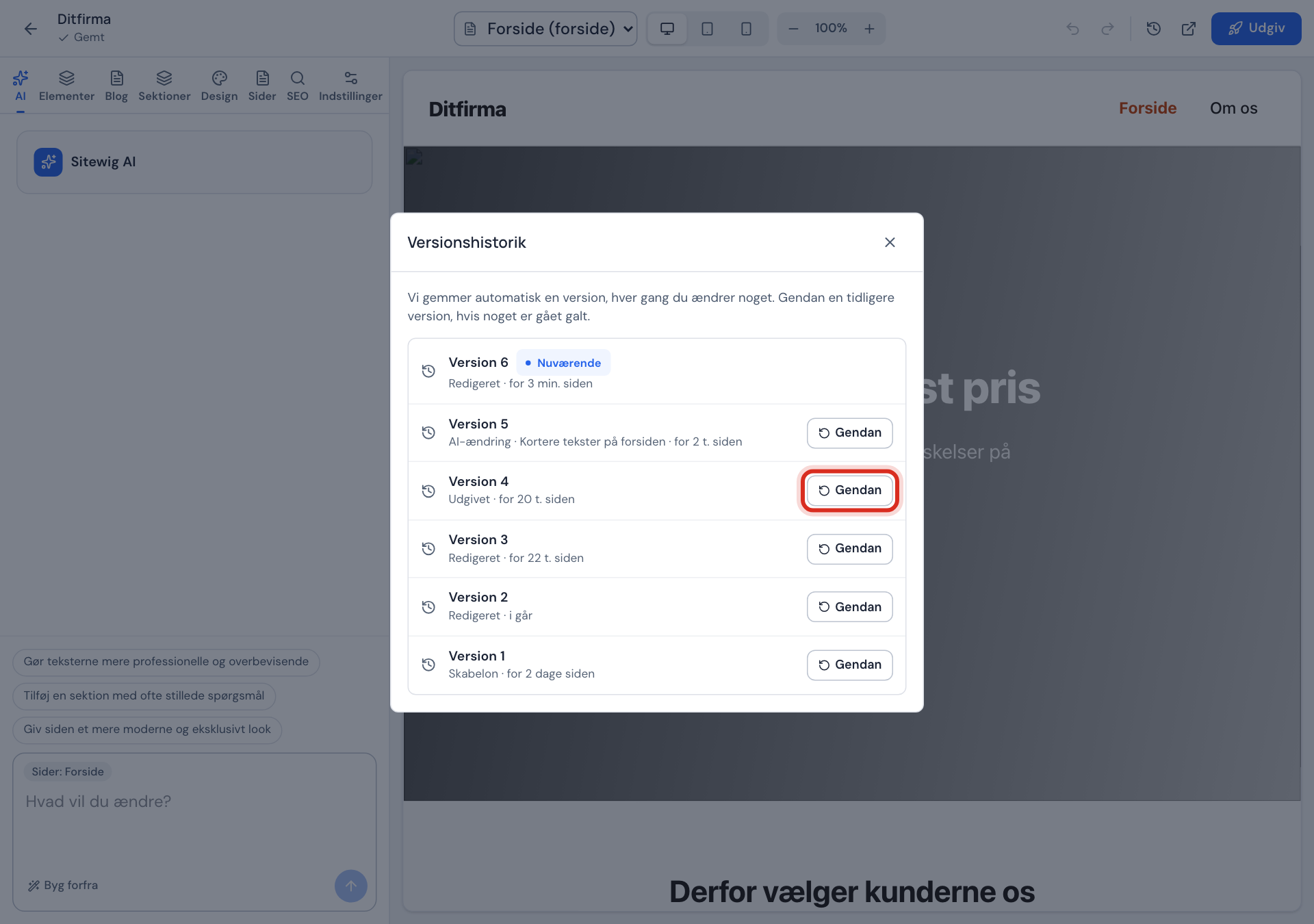
The Version history window Step 4: Publish again
Restoring only changes the draft. Click Publish and Publish now if visitors should also see the restored version.
What does it say next to each version?
- Edited
- You changed something yourself
- AI edit
- The AI changed something after your message
- Built by AI
- The website was built, or rebuilt, with AI
- Template
- The website was created from a template
- Restored
- An older version was restored
- Published
- The version was published
3. Undo a publish
If something wrong has gone out on the live site, click Publish and then Undo publish. After you confirm, the previous publish is back online, and you see Previous version restored. See Publish your website.
Frequently asked questions
How many versions are saved?
By default we save the latest 50 versions of each website. Older versions are deleted automatically.
It says "No earlier versions yet". Why?
The website is brand new and no changes have been saved yet. As soon as you change something, the first version appears.
Can I restore a website I've deleted from the builder?
No. When you delete a website from the builder, the whole version history is deleted too. The published site is still on the site, though, until you publish something new.