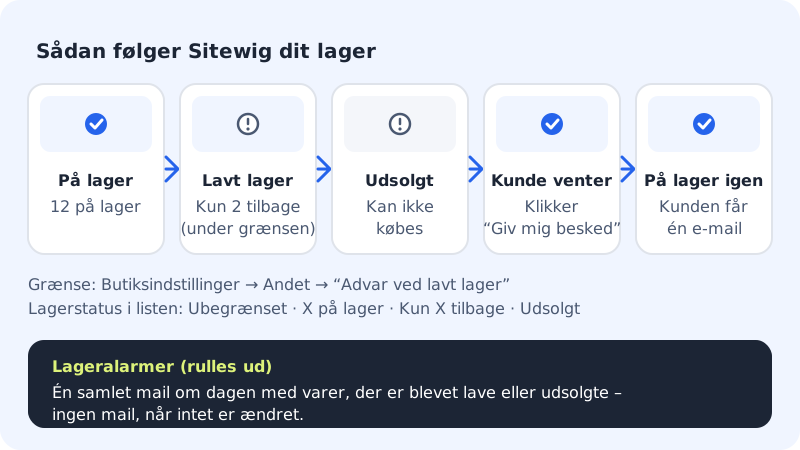
Sitewig can count stock down every time a customer buys, so you never sell more than you have. You decide which products get stock control – a product without stock control can always be bought.
Turn on stock control
Step 1: Open the product
Go to Online shop → Products and open the product.
Step 2: Tick Track stock
Tick Track stock and enter the number in Quantity in stock. If the field is turned off, the product can always be bought, and the list shows Unlimited.
Step 3: Save
Click Save. From now on, products sold are deducted from stock automatically. If the product has variants, you manage stock for each variant separately.
Get a warning when stock is low
Go to Online shop → Shop settings and find the Other card. Enter a number in Warn when stock is low, e.g. 3, and click Save. When a product reaches that number, the list shows Only 3 left instead of X in stock. If you leave the field empty, you get no warning.
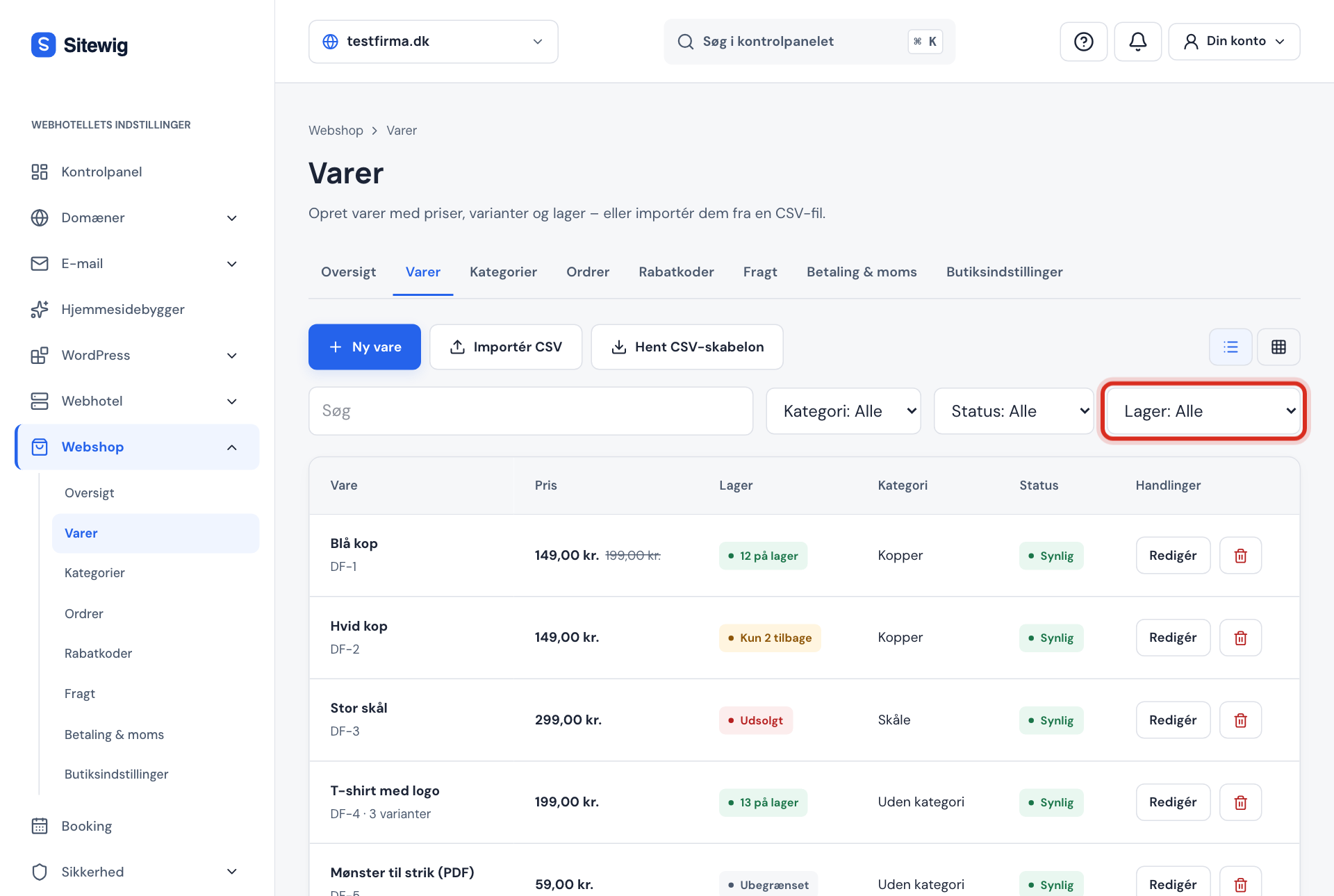
Under Online shop → Products you can use the Stock filter with the options In stock, Low stock, Sold out and Unlimited to find the products that need restocking.
Stock status in the overview
| Status | Means |
|---|---|
| Unlimited | Track stock is turned off – the product can always be bought |
| 12 in stock | The product has stock above the low-stock limit |
| Only 2 left | Stock has reached the limit from Warn when stock is low |
| Sold out | Stock is 0 – the customer can't add the product to the basket |
Stock alerts and "Notify me"
With Stock alerts you can:
- Send a daily stock status by email. You choose the time in Send stock status after. The email collects all products that have become low or sold out, and is only sent when there is something new. It goes to Email for order notifications (otherwise the shop's contact email).
- Set a limit per product. Under Low-stock limit per product, a popular product can have a higher limit than the rest. An empty field means the shop's general limit.
- Let customers ask to be notified. If you turn on Let customers ask to be notified when a sold-out product is back in stock, sold-out products get the link Notify me. The customer enters their email and gets exactly one email when the product is back. Pending sign-ups are deleted after the number of days you choose (30–365 days).
Frequently asked questions
Do products go back into stock when I cancel or refund?
That's up to you. Both Cancel order and Refund have the field Put the products back in stock. See Refund, cancel and handle withdrawals.
Can the customer buy more than I have in stock?
No. With Track stock turned on, the basket and checkout check the stock and tell the customer how many can be bought. When stock is 0, the product shows as Sold out.
Why am I not getting the daily stock email?
The email is only sent when a product has become low or sold out since last time. Also check that Send a daily stock status by email is turned on and that the email under Shop details is correct.