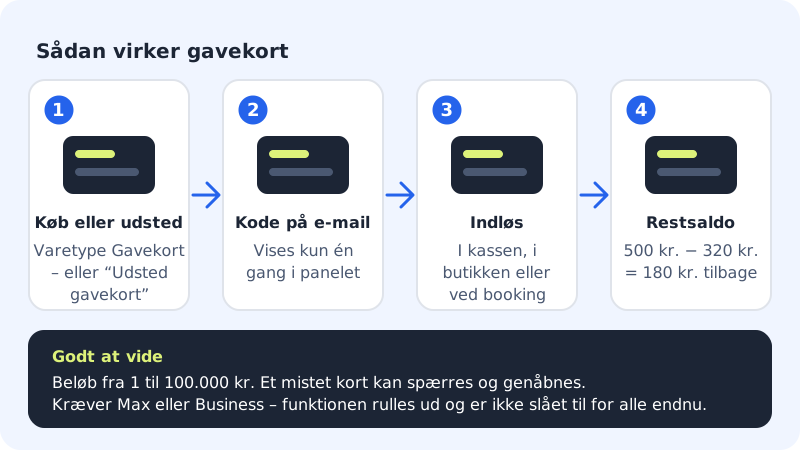
With gift cards, your customers can give your products or services as a gift. The customer gets a code that can be used at the online shop's checkout, in your physical shop or with bookings – in full or in part, so the rest of the balance can be used later.
Sell gift cards on your website
Step 1: Create a gift card product
Go to Online shop → Products and click New product. Choose Product type Gift card.
Step 2: Set the amount
Enter the gift card's value in Price, e.g.
500. If you want several amounts, you can create a product for each, e.g. 250, 500 and 1,000.Step 3: Save and show the product
Tick Visible in the shop and click Save. When a customer buys the gift card, the code is emailed as soon as payment has gone through.
Issue a gift card manually
If you've sold a gift card over the counter or want to give one as compensation, you issue it yourself:
- Go to Online shop → Shop settings and find the Gift cards card.
- Under Issue gift card, enter the Amount (kr.) – between 1 and 100,000 kr.
- If you like, fill in the Recipient's email, the Recipient's name and a Message (optional).
- Tick Email the gift card now if the recipient should get it straight away.
- Click Issue.
Redeem a gift card
- At the online shop's checkout: The customer enters the code and can pay for all or part of the order with the gift card. The receipt shows Paid with gift card and Amount due.
- In your physical shop: Under Check and redeem, enter the Gift card code and click Check balance. Enter the amount in Amount to deduct (kr.) and click Deduct amount. You see the new balance straight away.
- With bookings: The gift card can be used to pay for a service with a price, if that feature is also turned on.
Keep track of issued gift cards
The Issued gift cards list shows all cards with the status active, blocked, expired or used. Search by the last 4 characters of the code. If a card is lost or misused, click Block. You can reopen it with Reopen.
Frequently asked questions
Can I refund as a gift card instead of money?
Yes, with Refund as gift card on the order, but only if the customer has agreed. See Refund, cancel and handle withdrawals.
Do gift cards get a discount?
No. Discount codes and automatic discounts never give a discount on gift cards.
Do I need shipping for a gift card?
No. Gift cards are sent by email, and a shop that only sells gift cards and digital products doesn't need a shipping method.