Most websites do fine with a title and a description. Sometimes, though, you need more control – for example a thank-you page that shouldn't be findable on Google, or a page that has changed address. Here are the advanced SEO tools in Sitewig's website builder.
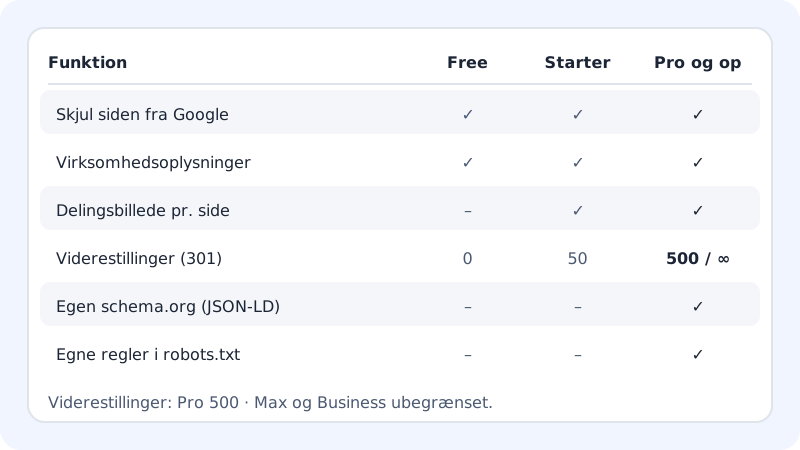
Hide a page from Google
Thank-you pages, campaign pages and customer-only pages shouldn't show up in search results.
Step 1: Choose the page
Open the editor, go to the SEO tab, and choose the page in the page selector at the top.
Step 2: Tick the box
Under This page, tick Hide the page from Google.
Step 3: Publish
Press Publish. The page tells search engines not to show it, and it is removed from
sitemap.xml.
Add business details (structured data)
Structured data is invisible information that helps Google understand who you are, such as your address and phone number. It can give you a better result in local searches.
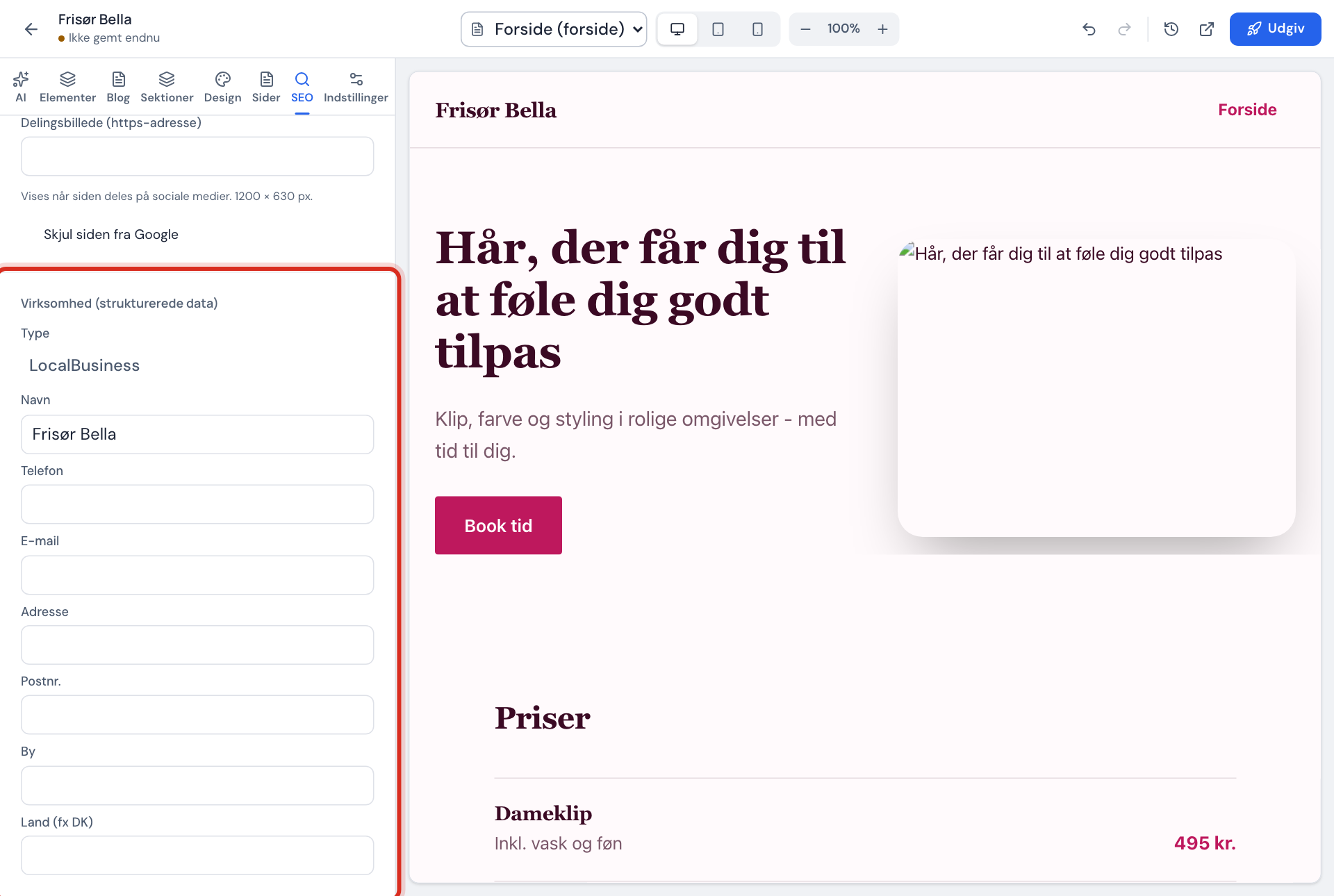
- Scroll down to the Business (structured data) section in the SEO tab.
- Press Add business details.
- Choose the Type, and fill in Name, Phone, Email, Address, Postcode, City and Country (e.g. GB).
- Publish the website.
If you have the Fetch from company profile button, Sitewig can fill in the fields for you from your customer profile. Always check the fields afterwards. If the account was created as a private individual, the address isn't fetched.
The Advanced SEO section
The Advanced SEO section in the SEO tab gives you access to:
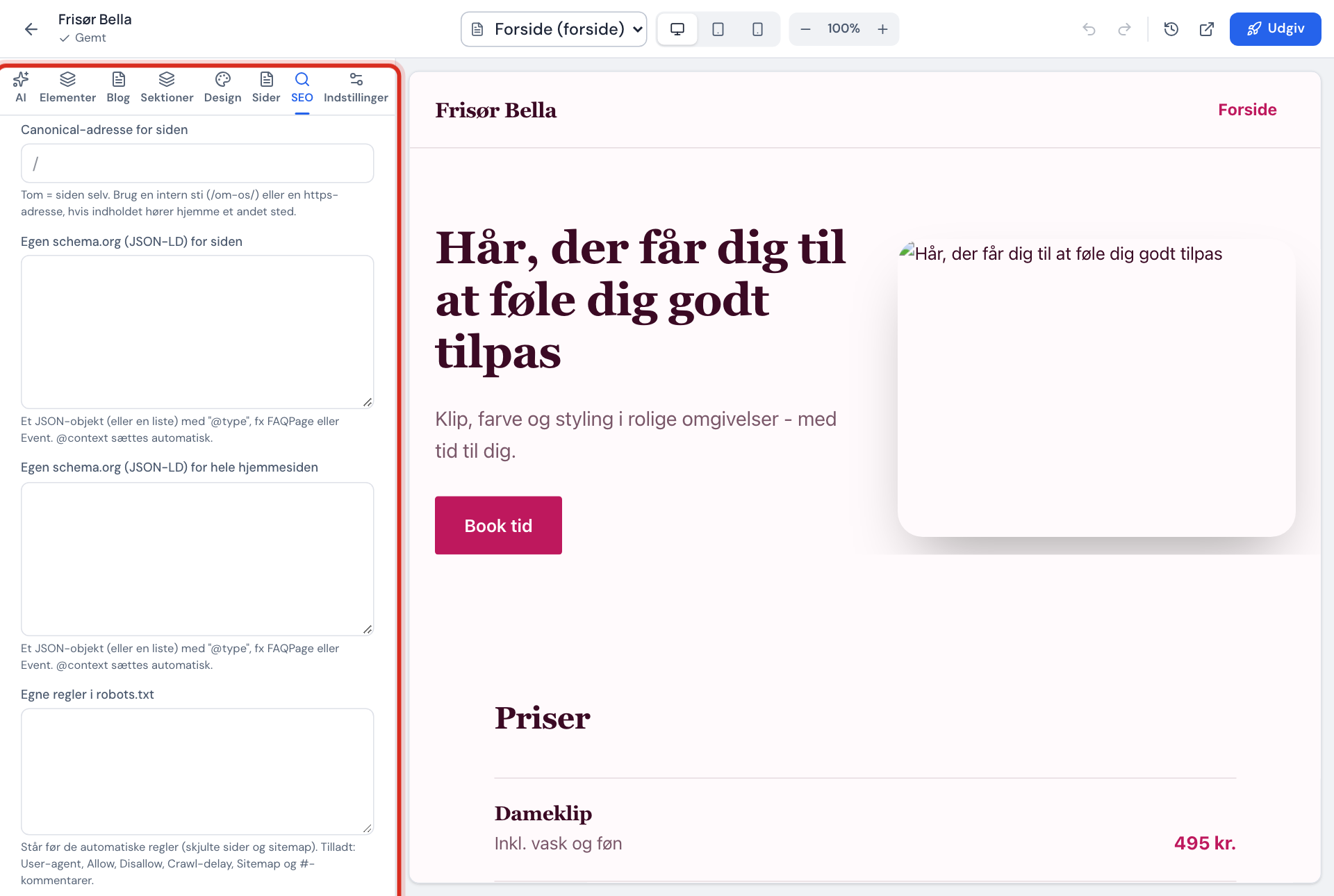
Fields in Advanced SEO
- Canonical address for the page
- Empty = the page itself. An internal path, e.g.
/about-us/, or an https address - Custom schema.org (JSON-LD) for the page
- A JSON object with "@type", e.g. FAQPage or Event (Pro and above)
- Custom schema.org (JSON-LD) for the whole website
- Same format, applies to all pages (Pro and above)
- Custom rules in robots.txt
- User-agent, Allow, Disallow, Crawl-delay, Sitemap and # comments (Pro and above)
- Sharing image for the whole website
- Used on all pages without their own sharing image
Canonical address
Only use this field if the same content exists at another address and you want Google to show the other one. If you leave the field empty, the page points to itself – which is right for almost every page.
Custom schema.org
Write a JSON object or a list of up to 10 objects. Each object must have an @type from schema.org. You don't need to write @context – Sitewig adds it itself. Maximum 8,000 characters.
Custom rules in robots.txt
Your rules come before Sitewig's automatic rules (hidden pages and sitemap). Lines that can't be used are flagged and not saved.
Search engines and AI robots for the whole website
By default, all search engines and AI robots may visit your whole website. If you want to opt out, you do it for each website in the dashboard: open the website and choose Search engines and AI robots in its settings.
- Allowed (default): all robots may visit the website, and your own robots.txt rules are used.
- Block AI robots: Google, Bing and other search engines may still visit the website, but known AI robots such as GPTBot, ClaudeBot, CCBot and Google-Extended are asked to stay away.
- Block all robots: all robots are asked to stay away, and the pages are marked noindex so they drop out of search results over time.
If you choose a block, the server answers robots.txt itself, and your own robots.txt rules are not used. Robots.txt is a request: well-behaved robots follow it, but it can't stop a robot that ignores it.
Move a page with a 301 redirect
If you've changed a page's address, the old links and the page's position on Google need to follow. A redirect takes care of that.
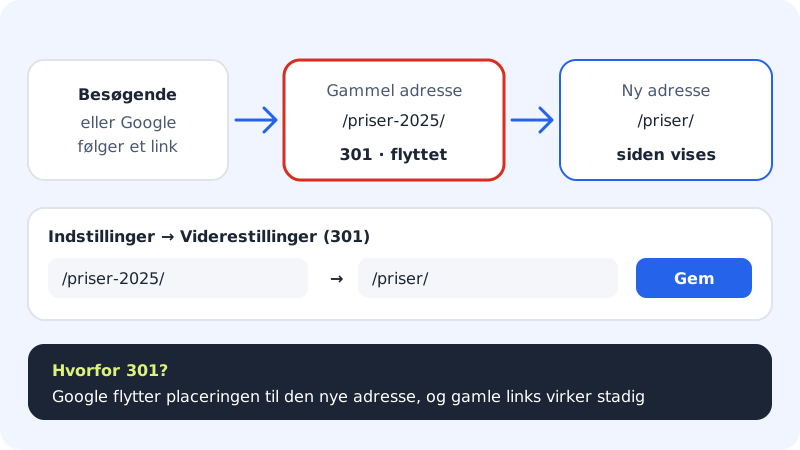
Step 1: Open Redirects
In the editor, go to the Settings tab and find the Redirects (301) section.
Step 2: Add a redirect
Press Add redirect. Enter the old address, e.g.
/prices-2025/, and the new one, e.g./prices/.Step 3: Save and publish
Press Save redirects, and publish the website. The redirect applies from the next time you publish.
Number of redirects per plan
- Free
- 0
- Starter
- 50
- Pro
- 500
- Business and Max
- Unlimited
You'll find the Redirects (301) section under the Settings tab in the website builder.
Frequently asked questions
Why can't I fill in the schema or robots fields?
They require Pro or higher. On a smaller plan, the field shows which plan you need, with a link to the plans page.
I've hidden a page, but it's still on Google?
Google has to visit the page again to see the change. That can take a few weeks. In Google Search Console you can ask for the page to be removed more quickly.
Do I lose my settings if I move down a plan?
No. The settings are saved, but features your plan doesn't include are left out the next time the website is published.