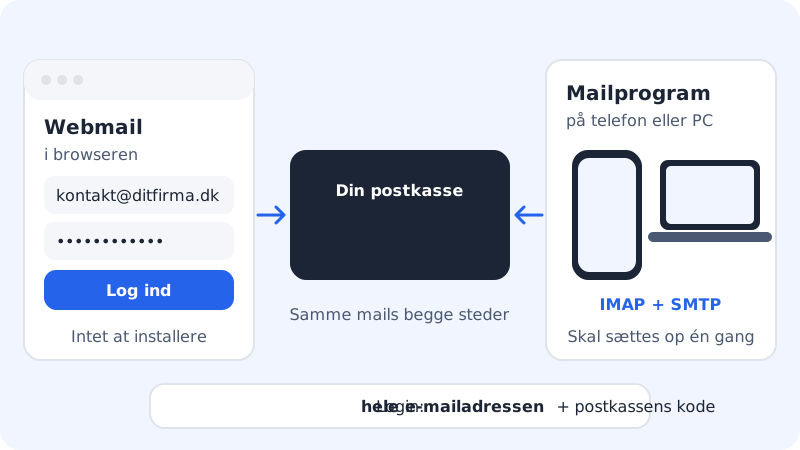
Webmail is Sitewig's email program in the browser. It shows the same mailbox as your phone and your computer, so you can read and reply to email from any computer, even when you are away from your own devices.
Sign in
Step 1: Open Webmail
Sign in to the control panel and go to Email → Mailboxes. Click Webmail ↗ in the row of tabs at the top, or Open Webmail on the Account settings card. Webmail opens in a new tab.
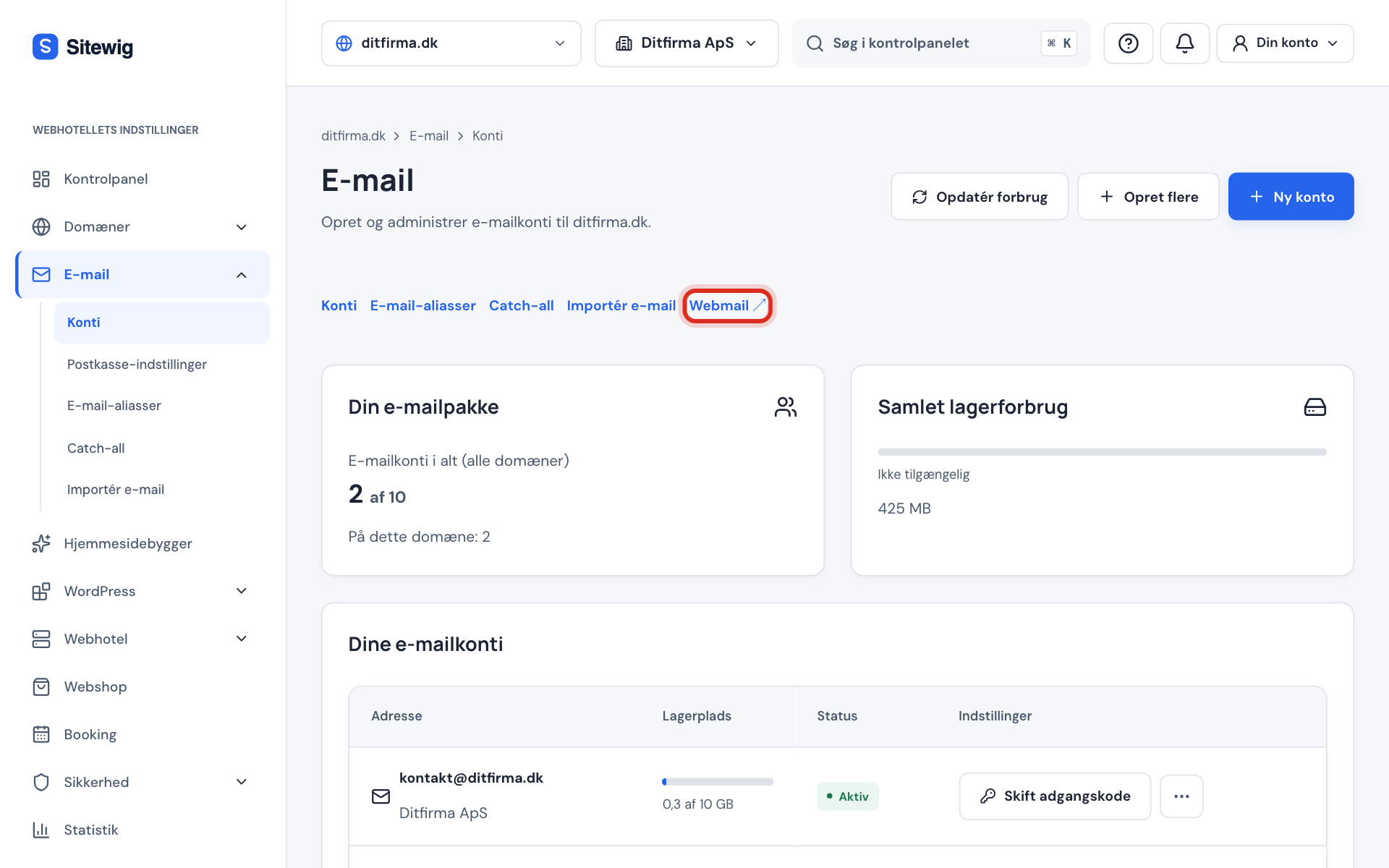
The Webmail link is in the row of tabs on Email → Mailboxes Step 2: Enter your email address
Use the whole address, e.g.
contact@yourcompany.com.Step 3: Enter the mailbox password
This is the password for that particular mailbox, not the one you use for the control panel. Sign in.
What you can do in Webmail
- Read, write, reply to and forward email.
- Create folders and move email between them: the folders also show up in email programs that use IMAP.
- Change the password for your own mailbox, once you know the current one.
Changes in Webmail take effect on every device that uses IMAP. If you delete an email in Webmail, it also disappears from your phone.
Frequently asked questions
I can't sign in to Webmail. What's wrong?
Check that you are entering the whole email address and using the mailbox password. If you have forgotten it, the owner of the Sitewig account can create a new one under Email → Mailboxes with Change password – see Change or reset the password.
Do I need to sign in to the control panel to use Webmail?
No. The link in the control panel is just a shortcut. Members of staff with a mailbox can use Webmail without access to the control panel.
Does the account show as Deactivated?
Then it is not possible to sign in. The owner can activate it again under Account status – see Pause a mailbox or delete it.