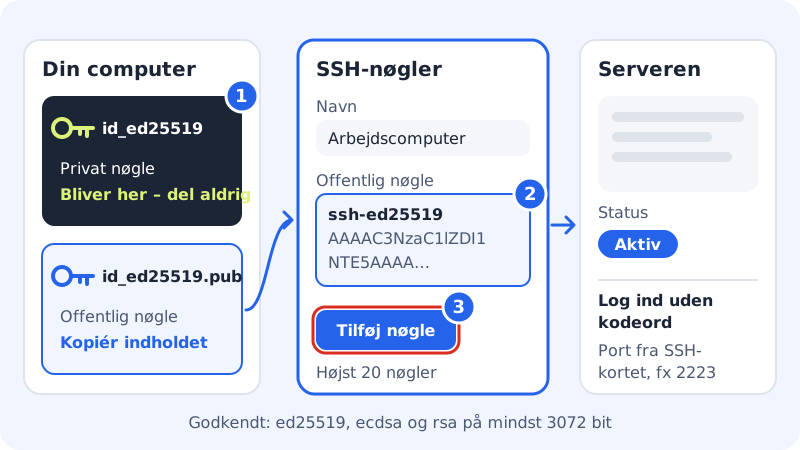
An SSH key has two parts: a private key, which stays on your computer, and a public key, which you put on the web hosting. When the two match, you log in without a password. It's both easier and more secure than a password.
You first need to turn on SSH. SSH is included in Starter, Pro, Business and Max.
Create a key on your computer
Open Terminal on Mac or Linux, or PowerShell on Windows 10 and 11, and run:
Create a key pair
- Command
ssh-keygen -t ed25519- Save as
- Press Enter for the default location
- Passphrase
- Optional, but recommended
- Public key
- The file ending in
.pub, such asid_ed25519.pub
If you already have a key, you can use that. Sitewig accepts ed25519, ecdsa and rsa of at least 3072 bits. Older 2048-bit RSA keys are rejected.
Method 1: The SSH keys card in the control panel
Step 1: Copy the public key
Open the file
id_ed25519.pubin a text editor and copy the whole line. It starts withssh-ed25519.Step 2: Open SSH keys
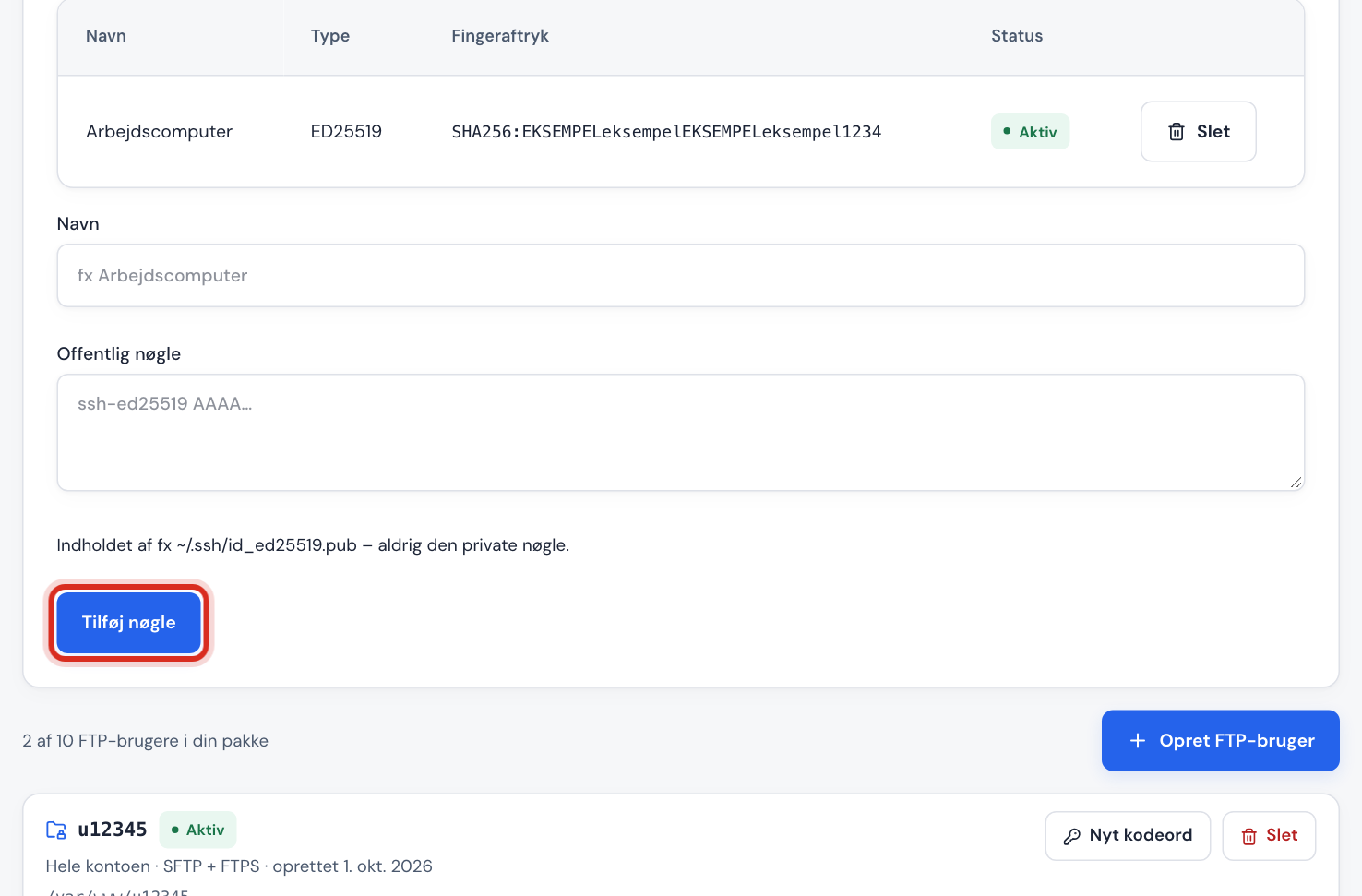
Go to Web hosting → SSH/SFTP and find the SSH keys card below the SSH card.
Step 3: Paste the key
Enter a name you'll recognise under Name, such as Work computer. Paste the key under Public key.
Step 4: Add the key
Click Add key. If you're asked to confirm that it's you, do so. The key first shows as Being added and then as Active after a moment. You can have a maximum of 20 keys.
If you want to remove a key, for example from a computer you no longer use, click Delete next to it.
Method 2: ssh-copy-id from your computer
This works on Mac and Linux, where ssh-copy-id is built in. Use the server and port from the SSH card:
Copy the key with one command
- Command (example)
ssh-copy-id -p 2223 u12345@web1.sitewig.net- Password
- Your SSH password, just this once
The command puts your public key in the .ssh/authorized_keys file in your home folder. Keys you've added there yourself are not touched by the control panel.
Log in
Connect as you normally would, for example ssh -p 2223 u12345@web1.sitewig.net. You're now not asked for the password, only for the key's passphrase if you chose one.
Frequently asked questions
The control panel says the RSA key is too short. What do I do?
Create a new key with ssh-keygen -t ed25519 and paste the new .pub file. RSA keys must be at least 3072 bits.
I'm still asked for a password. Why?
Check that the key has the status Active, that you're connecting on the right port, and that your computer is using the right private key. If you have several keys, specify the one to use with -i, for example ssh -i ~/.ssh/id_ed25519 -p 2223 u12345@web1.sitewig.net.
Does the key also apply to my FTP users?
No. The SSH key belongs to your SSH login (u12345 on the SSH port). FTP users on port 22 continue to log in with a user name and password. See connect with FileZilla.