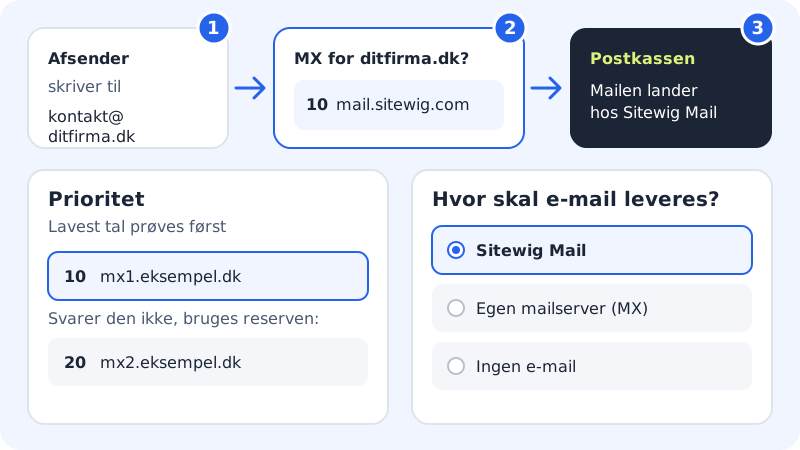
MX records tell other mail servers where email to @yourcompany.com should be delivered. Each MX record has a host name and a priority: the lowest value is tried first, and higher numbers are used as a fallback.
Choose where your email should go
You control your email under Change target → Where should email be delivered?. There are three choices:
| Choice | What Sitewig does |
|---|---|
| Sitewig Mail | MX, SPF, DKIM and DMARC are set up automatically, and the domain is created in Sitewig Mail. |
| Own mail server (MX) | Email is delivered to the mail servers you enter. Sitewig does not create SPF, DKIM and DMARC. |
| No email | The domain rejects email. SPF and DMARC are set to reject, so no one can send email in the domain's name. |
Sitewig Mail – what we create for you
- MX
mail.sitewig.comwith priority 10- SPF (TXT on @)
v=spf1 mx a:mail.sitewig.com ~all- DKIM (TXT)
- on the name
dkim._domainkey - DMARC (TXT)
- on the name
_dmarc
Use Sitewig Mail
Step 1: Open Change target
Choose Domains → My domains, click the domain, and press Change target.
Step 2: Choose Sitewig Mail
Under Where should email be delivered?, choose Sitewig Mail. Mailboxes on your own domain require a plan with email – the window tells you if your plan does not include it.
Step 3: Save
Press Save. The records are created automatically. Then create your mailboxes under Email → Mailboxes, and set them up in your email program – for example on iPhone.
Send your email to another provider
If you use, for example, Microsoft 365 or Google Workspace, MX must point to their servers. Find the values in the provider's own guide.
Step 1: Choose Own mail server (MX)
Press Change target, and choose Own mail server (MX) under Where should email be delivered?.
Step 2: Enter the mail servers
Enter one mail server per line in the Mail servers (one per line) field – first the priority, then the host name. For example:
10 mx1.example.com20 mx2.example.com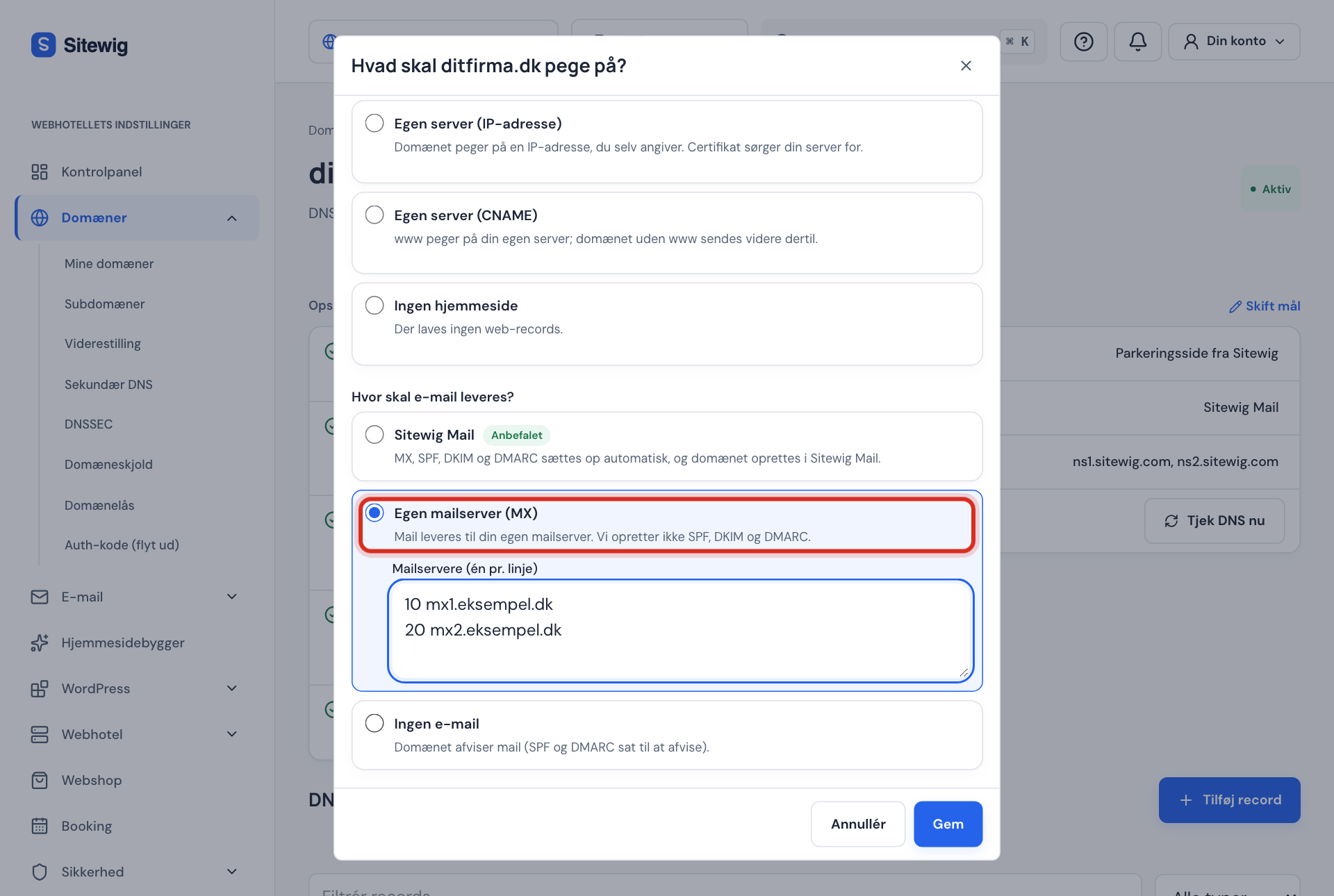
Change target → Own mail server (MX) Step 3: Save
Press Save. Sitewig replaces the MX record for Sitewig Mail with your mail servers.
Step 4: Add the provider's SPF, DKIM and DMARC
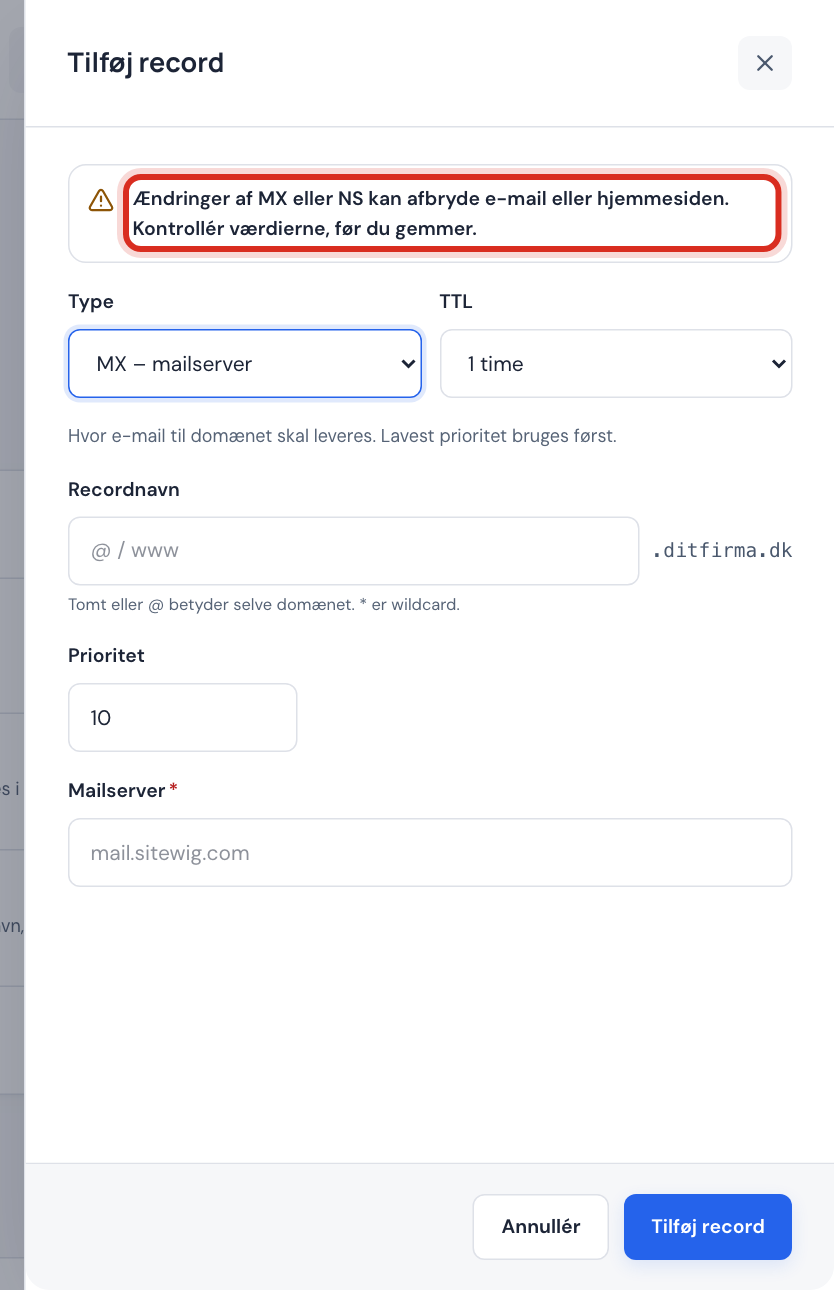
Sitewig does not create these records when you use another provider. Create them with Add record in the DNS section – the provider tells you what they should contain. See TXT records: SPF, DKIM and DMARC.
Frequently asked questions
Can I point MX to an IP address?
No. An MX record must point to a host name, for example mail.example.com. If your mail server only has an IP address, first create an A record (for example mail → the IP address) and use mail.yourcompany.com as the mail server.
How long does it take before email arrives in the new place?
Sitewig's name servers have the change within a few minutes, but other mail servers can remember the old MX for up to an hour (the standard TTL). Keep the old mailbox open for a day or so. See TTL and waiting time.
How do I set up Microsoft 365 or Google Workspace?
Follow the steps above with the MX values from the provider's own guide, and then create their SPF, DKIM and DMARC records with Add record.
Does changing the email target affect my website?
No. The email target only changes MX and the related email records.