A TXT record is a piece of text stored in the domain's DNS. It is mainly used for two things:
- Proving ownership: Google, Microsoft, Facebook and many others ask you to create a TXT record with a code, so they can see that you own the domain.
- Email security: SPF, DKIM and DMARC help recipients see whether a message from
@yourcompany.comis genuine – and keep your messages out of the spam filter.
Verify your domain with a service
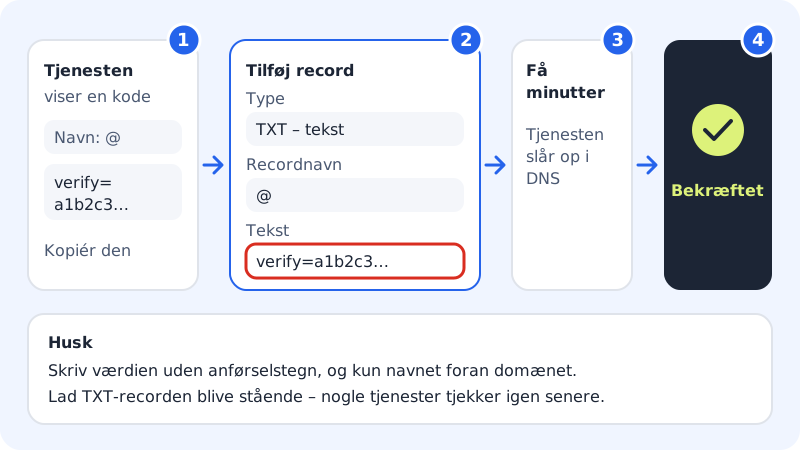
Step 1: Copy the code from the service
The service shows a name (often
@, host or empty) and a value, for examplegoogle-site-verification=…. Copy the value.Step 2: Open DNS at Sitewig
Choose Domains → My domains, click the domain, scroll down to DNS, and press Add record.
Step 3: Fill in the TXT record
Choose Type TXT – text. Enter the name in Record name – leave it empty or enter
@if the service says @ or the domain itself. Paste the code into the Text field without quotation marks.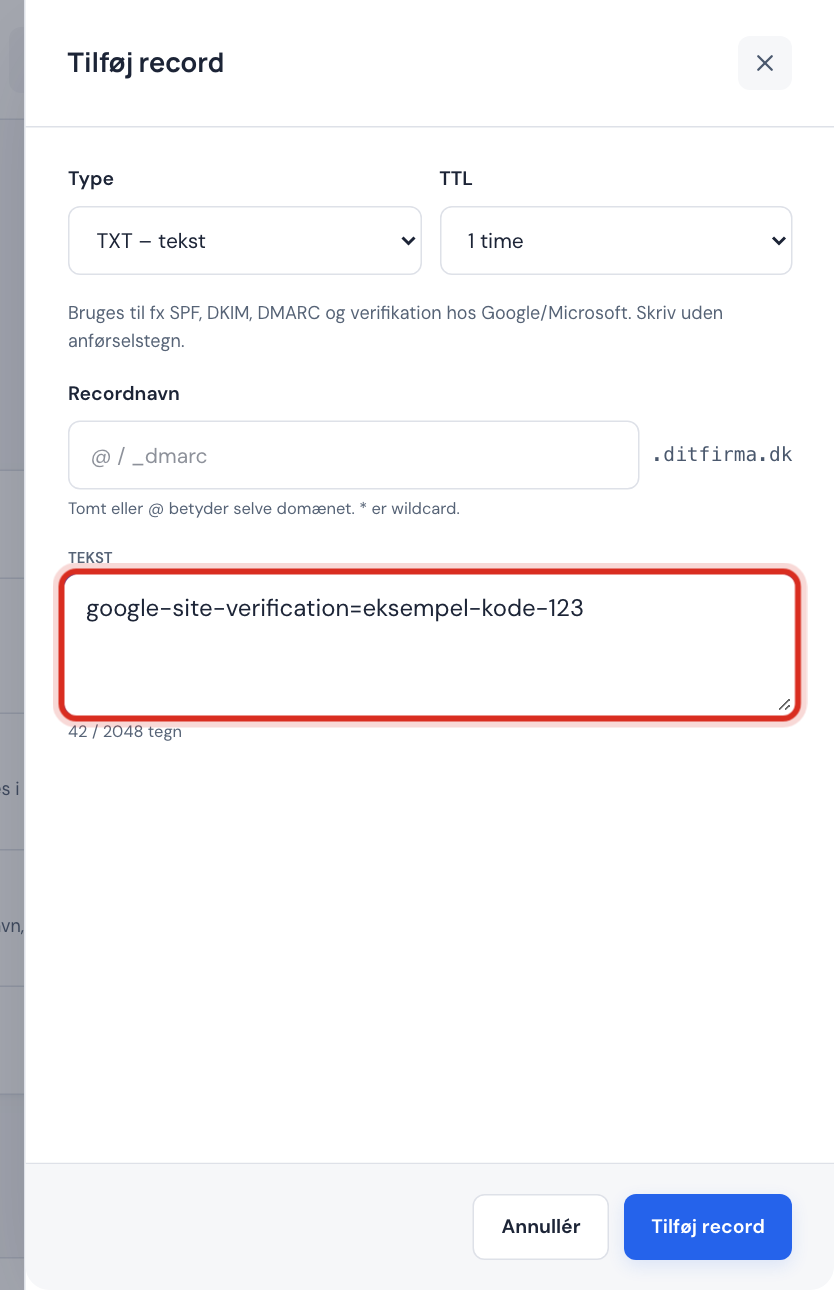
TXT record with a verification code Step 4: Save and verify
Press Add record. The change is live on the name servers within a few minutes. Go back to the service, and press its button to verify.
SPF, DKIM and DMARC
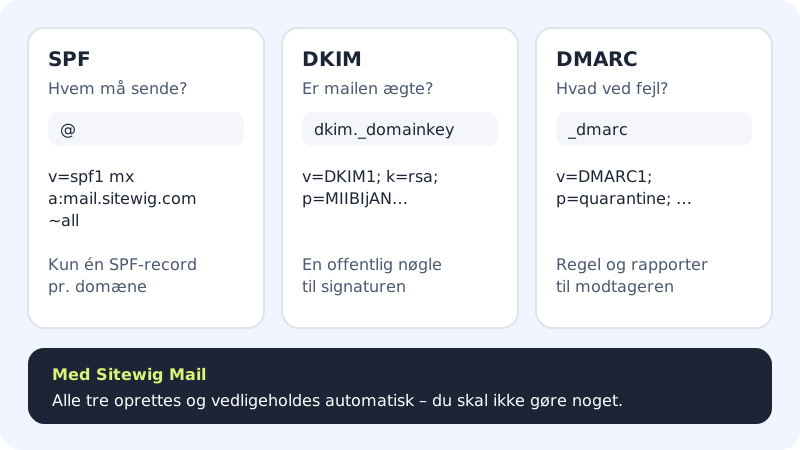
| Record | Name | What it does |
|---|---|---|
| SPF | @ | Lists the servers that are allowed to send email from the domain |
| DKIM | e.g. dkim._domainkey | Public key, so the recipient can check the message's digital signature |
| DMARC | _dmarc | Tells the recipient what to do with email that fails SPF or DKIM |
If you use Sitewig Mail, Sitewig creates and maintains all three automatically. You do not need to do anything, and they cannot be edited in the table.
If you use another email provider (the Own mail server (MX) choice), Sitewig creates none of them. Create them yourself with Add record based on the provider's guide. DKIM is often given as a CNAME instead of a TXT – see CNAME.
Requirements for the TXT value
- At most 2048 characters. The field shows a character counter. Long values such as DKIM keys are automatically split into chunks of 255 characters.
- Enter the value without quotation marks.
- No line breaks. If you copy a key that is split over several lines, join it into one line first.
Frequently asked questions
The service says it cannot find my TXT record – what now?
Wait 10–15 minutes and try again. Check that the name is correct (@ or empty for the domain itself), and that there are no spaces before or after the code. If the domain does not use Sitewig's name servers, the record must be created at the provider that hosts the DNS.
Can I delete the TXT record once the domain is verified?
Preferably leave it. Many services check again later and remove the verification if the record is gone.
Can there be several TXT records on the same name?
Yes. You can have several verification codes on @ at the same time – only SPF must be a single record.