Each PHP version receives security fixes for a fixed period. When the period ends, new vulnerabilities are no longer closed, and plugins start to require a newer version. So you should switch in good time, and know what to do if something misbehaves afterwards.
How long are the versions supported?
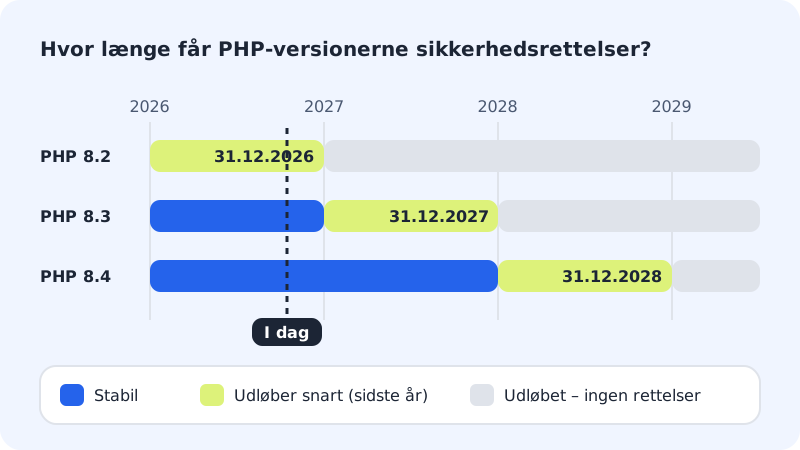
| Version | Security fixes up to and including | Status in October 2026 |
|---|---|---|
| PHP 8.2 | 31 December 2026 | Expiring soon |
| PHP 8.3 | 31 December 2027 | Stable |
| PHP 8.4 | 31 December 2028 | Stable |
A version is called Expiring soon in the last year of its support period and Expired afterwards. If you run 8.2, plan a switch to 8.3 or 8.4 before the new year. Here's how: Change the PHP version on your web hosting.
Get ready for a switch
Step 1: Make a copy
Export the database, or check that there is a recent backup under Web hosting → Backup.
Step 2: Update everything in WordPress
Update WordPress, all plugins and your theme. Delete plugins you don't use – they can still cause errors.
Step 3: Change the version
Go to Web hosting → PHP, choose the new version and click Save.
Step 4: Test thoroughly
Click around the site, try the contact form and sign in to the admin area. If you have an online shop, place a test order.
If the site fails after the switch
If you get a white page, There has been a critical error on this website or a 500 error, it is almost always a plugin or theme that doesn't suit the new version.
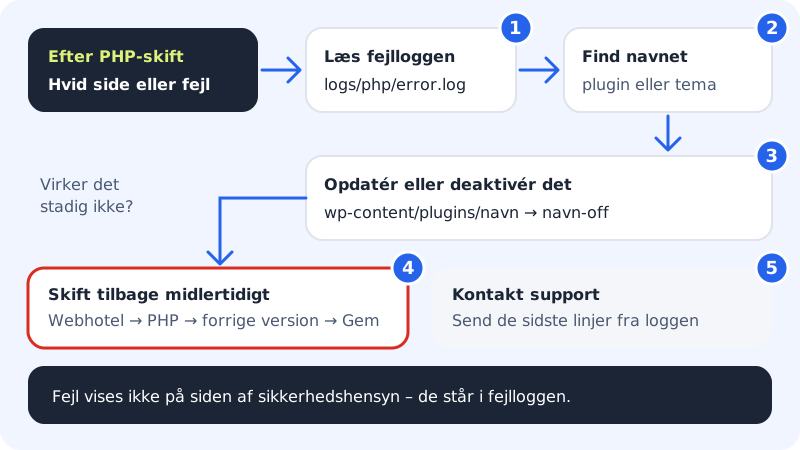
- Read the error log. For security reasons, PHP errors aren't shown on the page. They are written to the file
logs/php/error.login your web hosting's home folder. Open it with the File manager or SFTP and look at the last lines. - Find the culprit. The error message contains a path: if it says e.g.
wp-content/plugins/name/, the plugin is name. - Update or deactivate. Update the plugin or theme. If you can't sign in to WordPress, rename the plugin's folder, e.g. to
name-off, using the File manager, and WordPress will switch it off. - Switch back temporarily. If it still doesn't work, choose the previous version under Web hosting → PHP and click Save. The site is then back up while you find a solution.
- Contact support. Send the last 10–20 lines from
error.log, and we'll help you further.
Frequently asked questions
Can I turn on the display of PHP errors on the page?
Not from the control panel. Errors are never shown to visitors, as they can reveal details about your website. Use the error log instead.
Does Sitewig offer extended support for old PHP versions?
No. We only offer versions that still receive security fixes, and we are happy to help you move up to a newer one.
What happens when PHP 8.2 has expired?
It will no longer receive security fixes, and more and more plugins will stop supporting it. Ideally switch before then, so that you decide the timing yourself.
Can I see the status of my version in the control panel?
Yes. The control panel shows the status (Stable, Expiring soon, Expired) of the PHP version for each website. The table above shows the same.