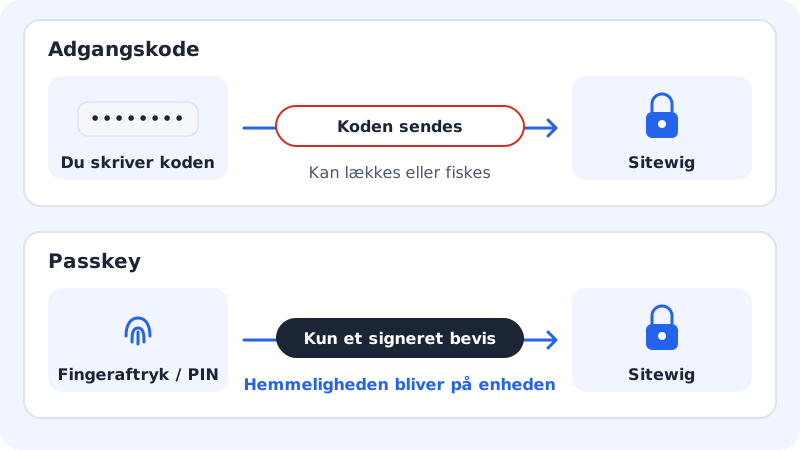
A passkey is a digital key stored on your computer, phone or in your password manager. When you sign in, you unlock it with a fingerprint, your face or the device PIN: you don't need to type a password. Passkeys can't be guessed and can't be used on fake sign-in pages.
What you need
- A recent browser and a device that supports passkeys, e.g. a Mac or iPhone with Touch ID or Face ID, an Android phone or a Windows PC with Windows Hello
- To be signed in to the control panel with your password the first time
Add a passkey
Step 1: Open Sign-in and security
Go to Settings and scroll down to the Sign-in and security card. At the bottom of the card is the Passkeys section.
Step 2: Tap Add passkey
Tap Add passkey. The Name field is filled in with a suggestion based on your device. Feel free to change it to something you'll recognise, e.g.
Work MacBook(up to 60 characters).Step 3: Save and approve on the device
Tap Save. Your device asks you to confirm with a fingerprint, your face or a PIN. Once you've approved, the passkey appears in the list.
Sign in with your passkey
- Go to
sitewig.com/log-ind. - Tap Sign in with a passkey at the top of the sign-in card.
- Choose your passkey and approve on the device. While we wait, it says Confirm on your device….
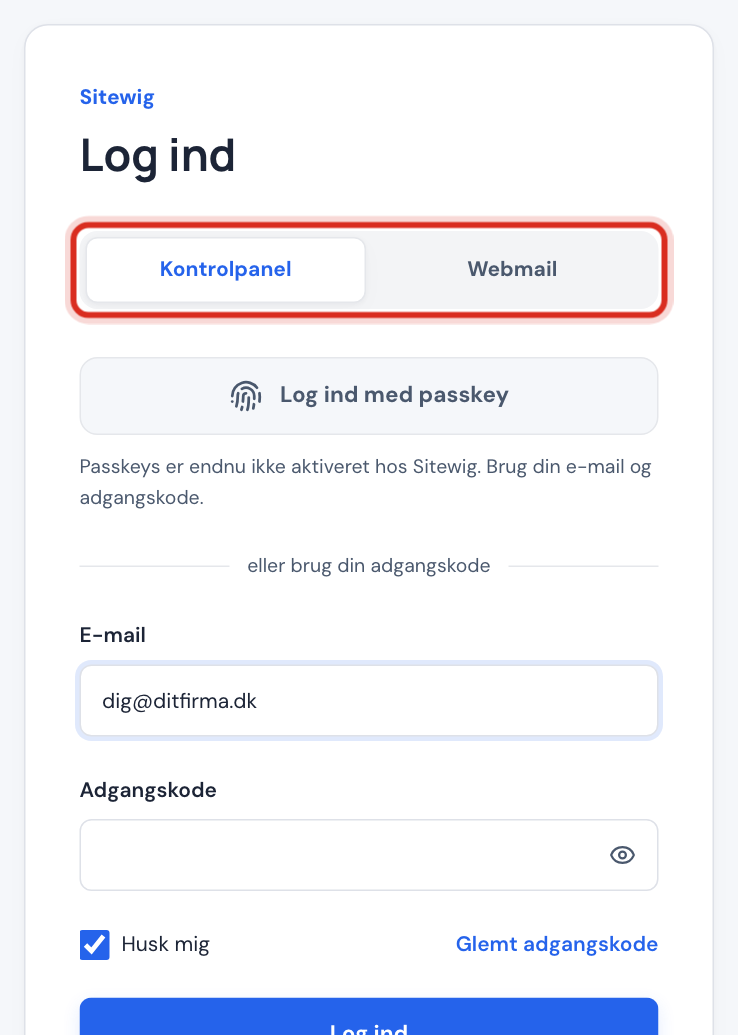
You can always choose or use your password instead.
Rename or remove a passkey
Under Passkeys you'll see each key with its name, the date it was created and when it was last used. A cloud icon means the key is synced between your devices, e.g. via iCloud Keychain or Google Password Manager.
- Rename: change the name and tap Save.
- Remove: confirm in the Remove passkey? window. You can then no longer sign in with that key. Always remove passkeys from devices you've sold or lost.
If it doesn't work
- Your browser can't use passkeys. Use your email and password. Update the browser, or use another device.
- The passkey was cancelled or timed out. Try again, or use your password. You closed the window or waited too long. Try again.
- This device already has a passkey for your account. Use the one you have. If you want to start again, remove the old one first.
- If you don't see the Passkeys section at all under Sign-in and security, your account can't use passkeys today. Use two-factor sign-in instead.
Frequently asked questions
Can I use my passkey on several devices?
Yes, if it's synced, e.g. via iCloud Keychain or Google Password Manager. Otherwise you add a passkey on each device. You can also often use your phone to sign in on a computer by scanning a QR code that the browser shows.
Does Sitewig store my fingerprint?
No. Your fingerprint and face stay on your device. We only receive proof that the key has been unlocked, never your biometric data.
Does the passkey also cover my email?
No. Passkeys apply to signing in to the control panel. Webmail and email programs use the mailbox password.