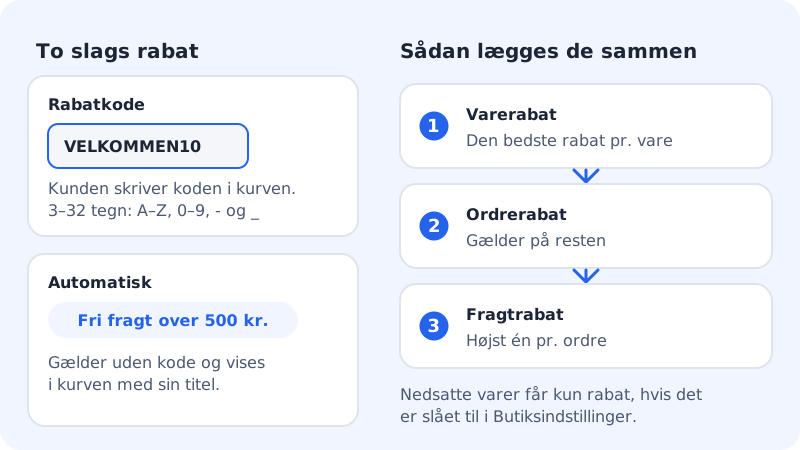
Under Online shop → Discount codes you create two kinds of discount: a discount code that the customer enters in the basket, and an automatic discount that applies to everyone without a code. Discounts are included from Pro.
Create a discount
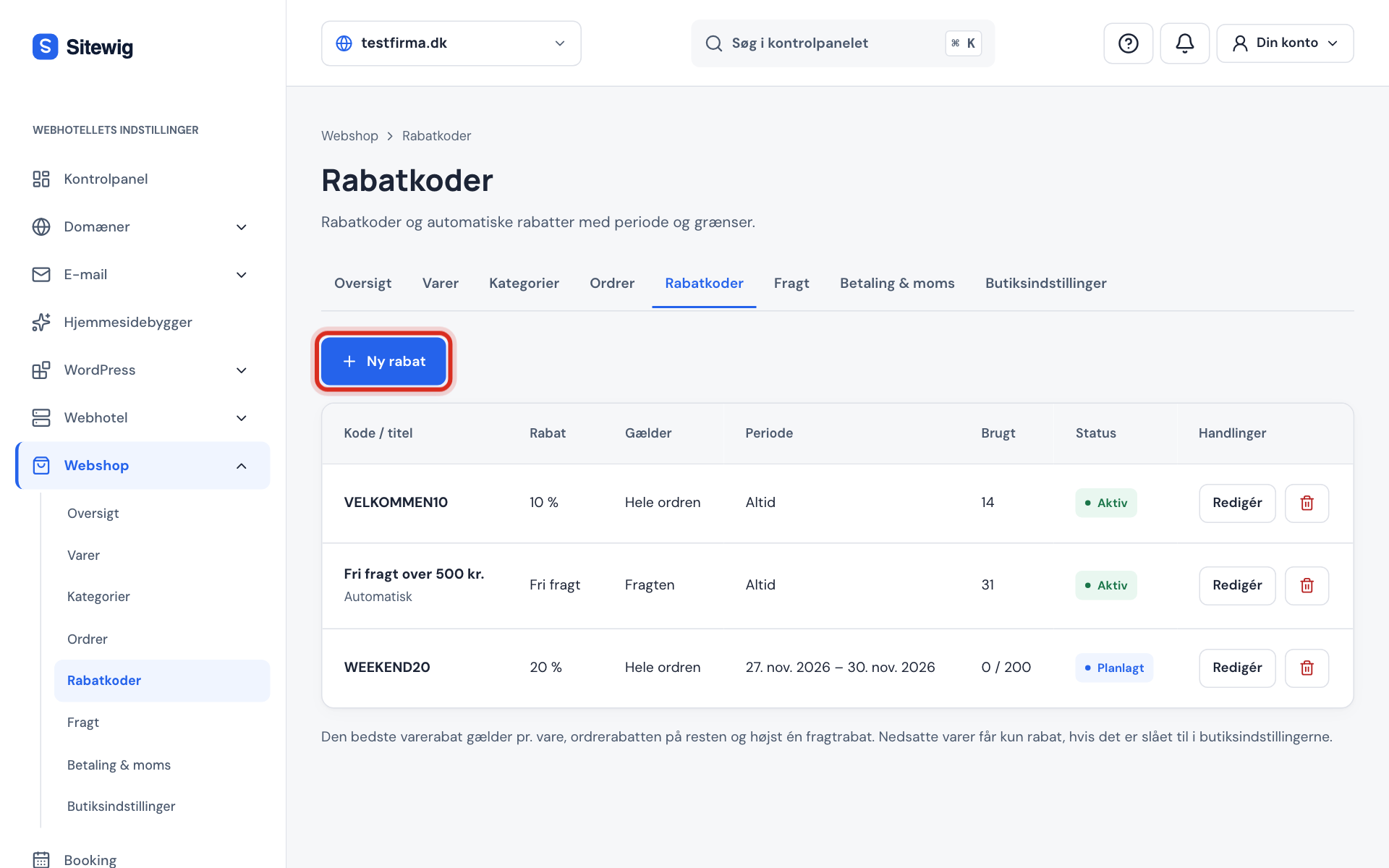
Step 1: Click New discount
Go to Online shop → Discount codes and click New discount.
Step 2: Choose a type
Under Type, choose Discount code or Automatic. A discount code must be 3–32 characters using A–Z, 0–9, hyphens or underscores, e.g.
WEEKEND20. An automatic discount gets a Title, e.g.Free shipping over 500, which is shown in the basket.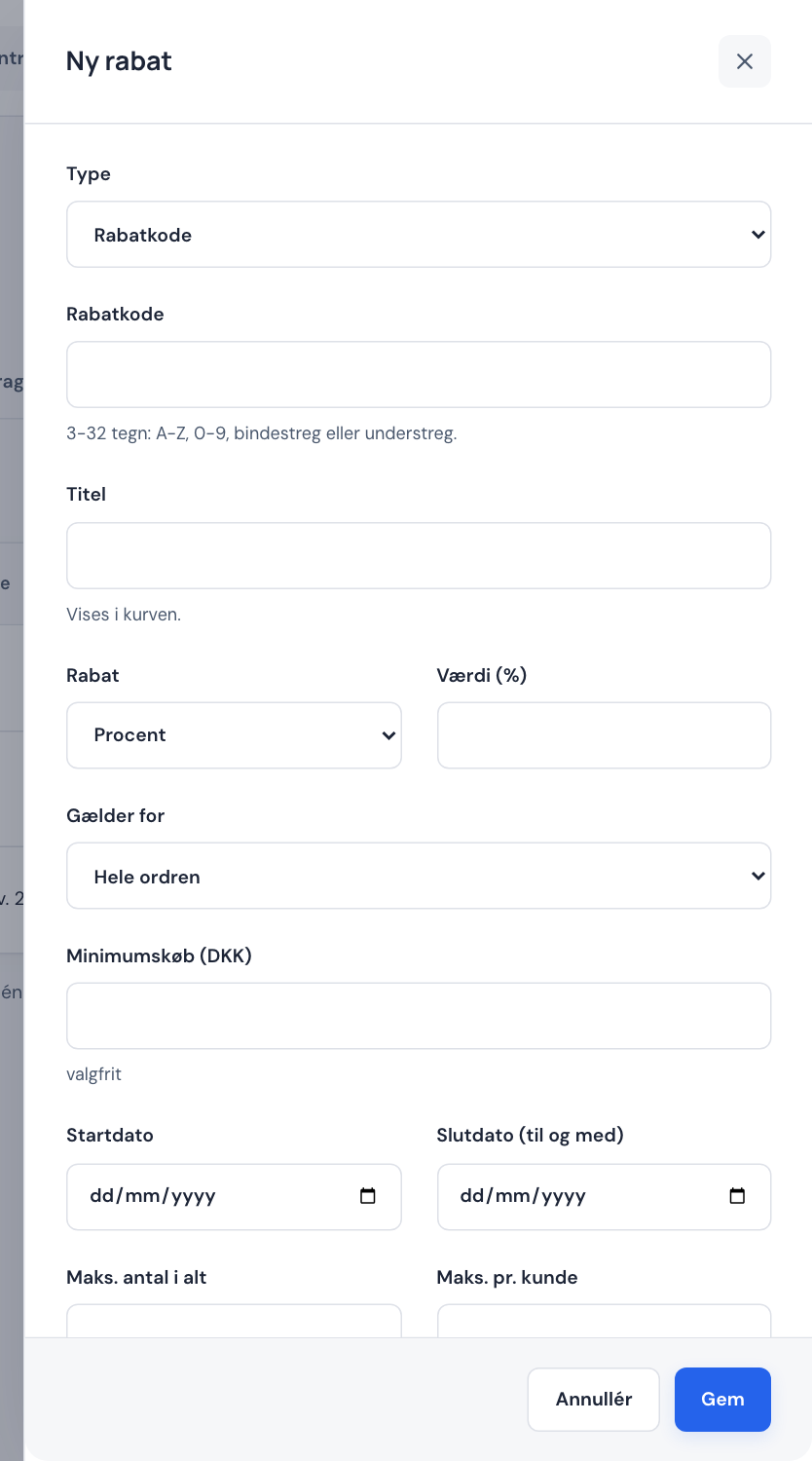
Step 3: Choose the discount
Under Discount, choose Percentage, Fixed amount or Free shipping, and enter the Value, e.g.
20for 20%.Step 4: Choose what it applies to
Under Applies to, choose Whole order, Selected products or Shipping. For selected products, tick the Products or Categories the discount should apply to.
Step 5: Set limits
All fields are optional:
- Minimum purchase – the basket must be at least this amount.
- Start date and End date (inclusive), e.g. a weekend.
- Max. uses in total – e.g. the first 100 customers.
- Max. per customer – e.g.
1for a welcome discount.
Step 6: Save and test
Make sure Active is turned on and click Save. Add a product to the basket on your website and try the code.
Discount status
| Status | Means |
|---|---|
| Active | The discount can be used now |
| Scheduled | The start date hasn't been reached yet |
| Expired | The end date has passed |
| Used up | Max. uses in total has been reached |
| Turned off | You've turned off Active |
How several discounts combine
- Product discount: If a product has several discounts, the best one applies.
- Order discount: applies to the rest of the order.
- Shipping discount: at most one is given per order.
Buy X get Y and quantity discounts
- Buy X get Y – e.g. 3 for 2: Buy (quantity)
2and Get (quantity)1with a 100% discount. The cheapest products are the ones that become free. - Quantity discount – the more products, the bigger the discount. Enter one tier per line, e.g.
3 = 5%and6 = 10%. - Minimum number of products – the discount only applies once the basket has at least that many products.
- Combining with other discounts – choose between The best discount wins, Added on top of other discounts and Cannot be combined.
Frequently asked questions
How do I offer free shipping over a certain amount?
Create an Automatic discount with Discount set to Free shipping and a Minimum purchase, e.g. 500. You can also use the Free shipping over field directly on the shipping method – see Set up shipping.
Why isn't my discount code working?
Check the status in the list. If it's Scheduled, Expired, Used up or Turned off, it can't be used. Also check the Minimum purchase and whether the products are reduced.
Can the customer use two discount codes on the same order?
No, the basket takes one discount code at a time. Automatic discounts can apply at the same time as the code, however, under the rules above: the best product discount per product, the order discount on the rest and at most one shipping discount.