The customer chooses a shipping method at checkout, and the price is added to the order. The shop needs at least one active shipping method before it can open, unless you only sell digital products or gift cards.
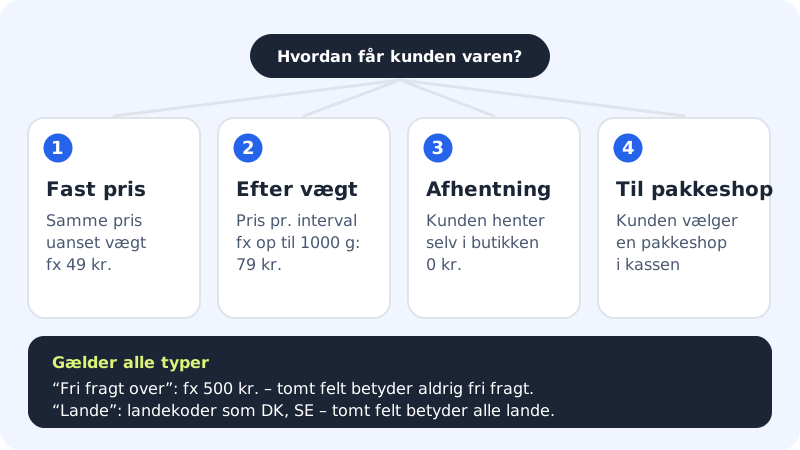
The shipping types
| Type | Used for |
|---|---|
| Flat price | The same price whatever the customer buys, e.g. 49 |
| By weight | The price depends on the total weight of the products, in ranges |
| Collection | The customer collects it themselves, typically free |
| To a pickup point | The customer has the parcel delivered to a pickup point |
Create a shipping method
Step 1: Open Shipping
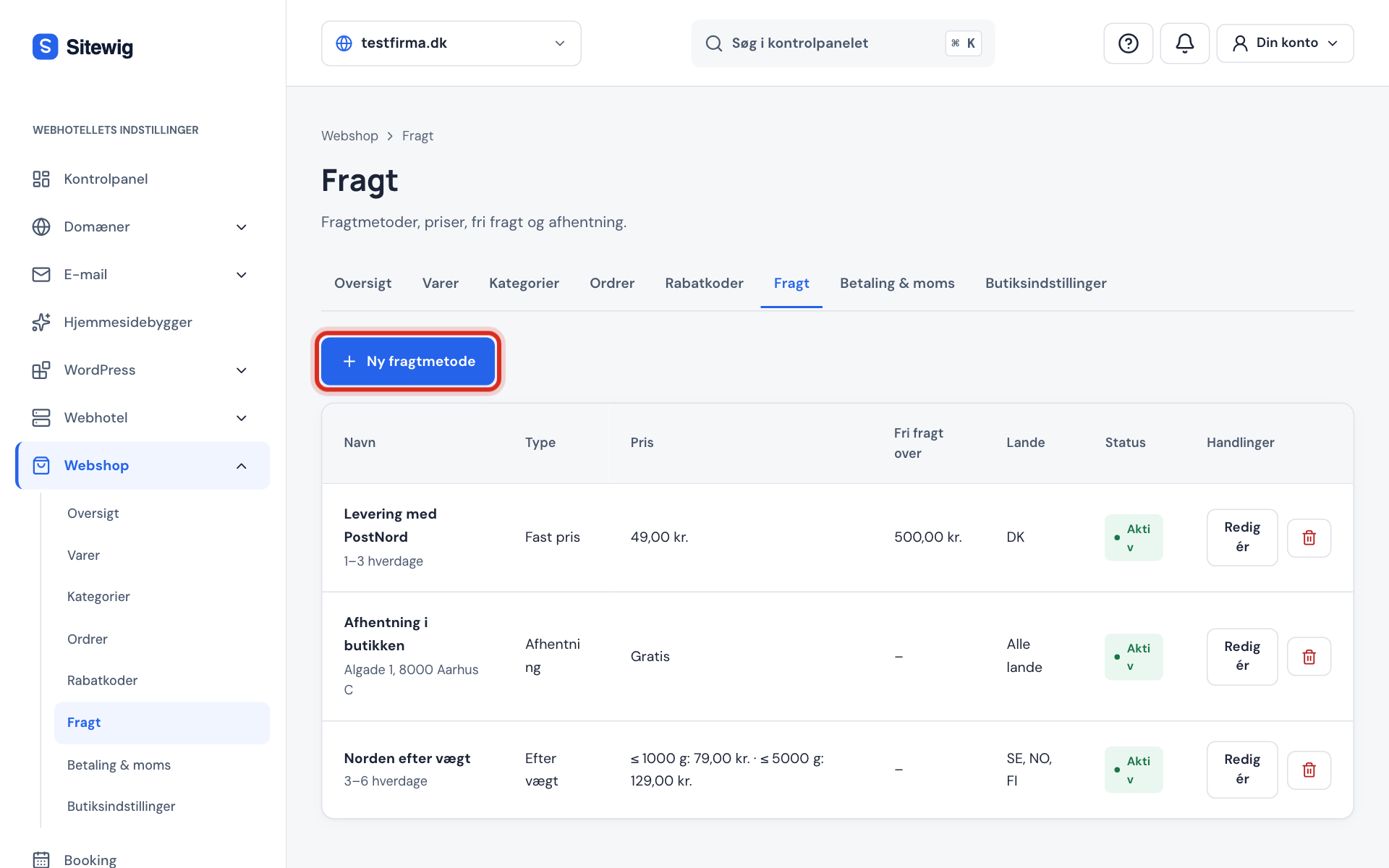
Go to Online shop → Shipping and click New shipping method.
Step 2: Choose a type and name
Choose the Type and enter a Name the customer will understand, e.g.
Delivery with PostNord. In Description you can enter the delivery time or the collection address, e.g.1–3 working days.Step 3: Set the price
Enter the price in Price. If you've chosen By weight, fill in Weight ranges instead: enter Up to (grams) and Price for each range, and click Add range for the next one. For example, up to
1000grams for 79 and up to5000grams for 129.Step 4: Offer free shipping if you like
Enter an amount in Free shipping over, e.g.
500. When the products in the basket cost at least that amount, shipping becomes free. An empty field means never free shipping.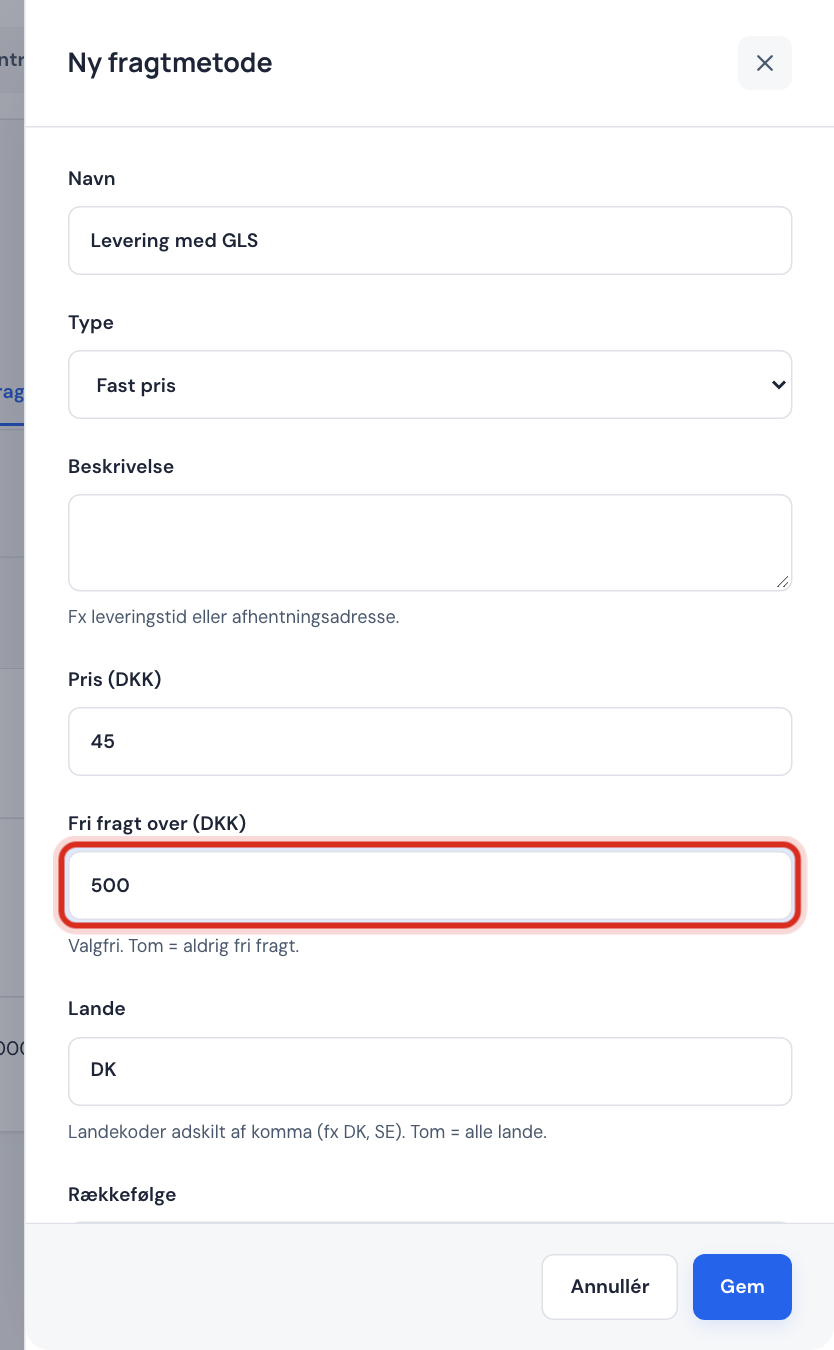
Step 5: Choose countries
Enter country codes separated by commas in Countries, e.g.
DKorDK, SE, NO. An empty field means all countries.Step 6: Save
Make sure Active is turned on and click Save. If you have several methods, Order decides which one appears first at checkout.
Carriers, pickup points and shipping labels
With Carriers you can connect the online shop to GLS, PostNord and DAO:
- Customers can search for pickup points by postcode at checkout.
- You can set Zone prices per country or group of countries.
- You can create shipping labels directly on the order with Create label and download them with Download label (PDF). The tracking number is included in the email to the customer.
Under Connection you choose None, Test mode or Shipmondo. In test mode, pickup points and labels are just examples: labels are marked TESTLABEL and can't be used to send parcels. Real labels require your own Shipmondo account: enter the API user and API key from Shipmondo. You also need to fill in the Sender address, which appears on all labels.
Frequently asked questions
Can I offer free shipping with a discount code instead?
Yes. Under Discount codes you can create a discount of the type Free shipping – either as a code or as an automatic offer. See Discount codes and offers.
Can I have different shipping prices for Denmark and abroad?
Yes. Create one shipping method with Countries set to DK and another set to e.g. SE, NO, FI with a higher price. The customer only sees the methods that suit the delivery country.
Do I need a shipping method if I only sell digital products?
No. The checklist only requires a shipping method when the shop has physical products.
How do I turn off a shipping method temporarily?
Open the shipping method and turn off Active. Click Save. The method shows as Turned off and isn't shown at checkout.