If you want to know quickly whether your account and websites are well protected, start on the Security page. It shows the most important protections in one place, and each row has a link to where you change the setting.
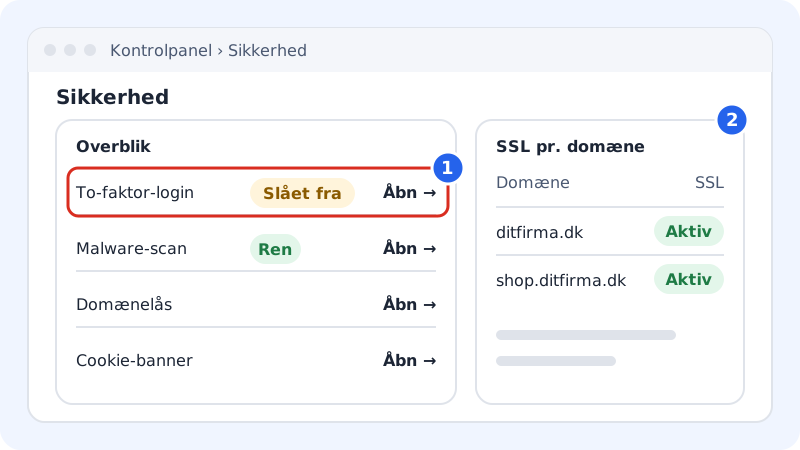
Find the page
Click Security in the menu on the left of the control panel and choose Security at the top of the submenu. Under the same menu item you'll also find:
- Malware scan: scanning your files for malicious code
- Cookie consent: cookie banner and policy pages for your website
- Guest users: give a colleague or an agency access to selected parts of the account
- Activity log: see who has changed what, and when
The Overview card
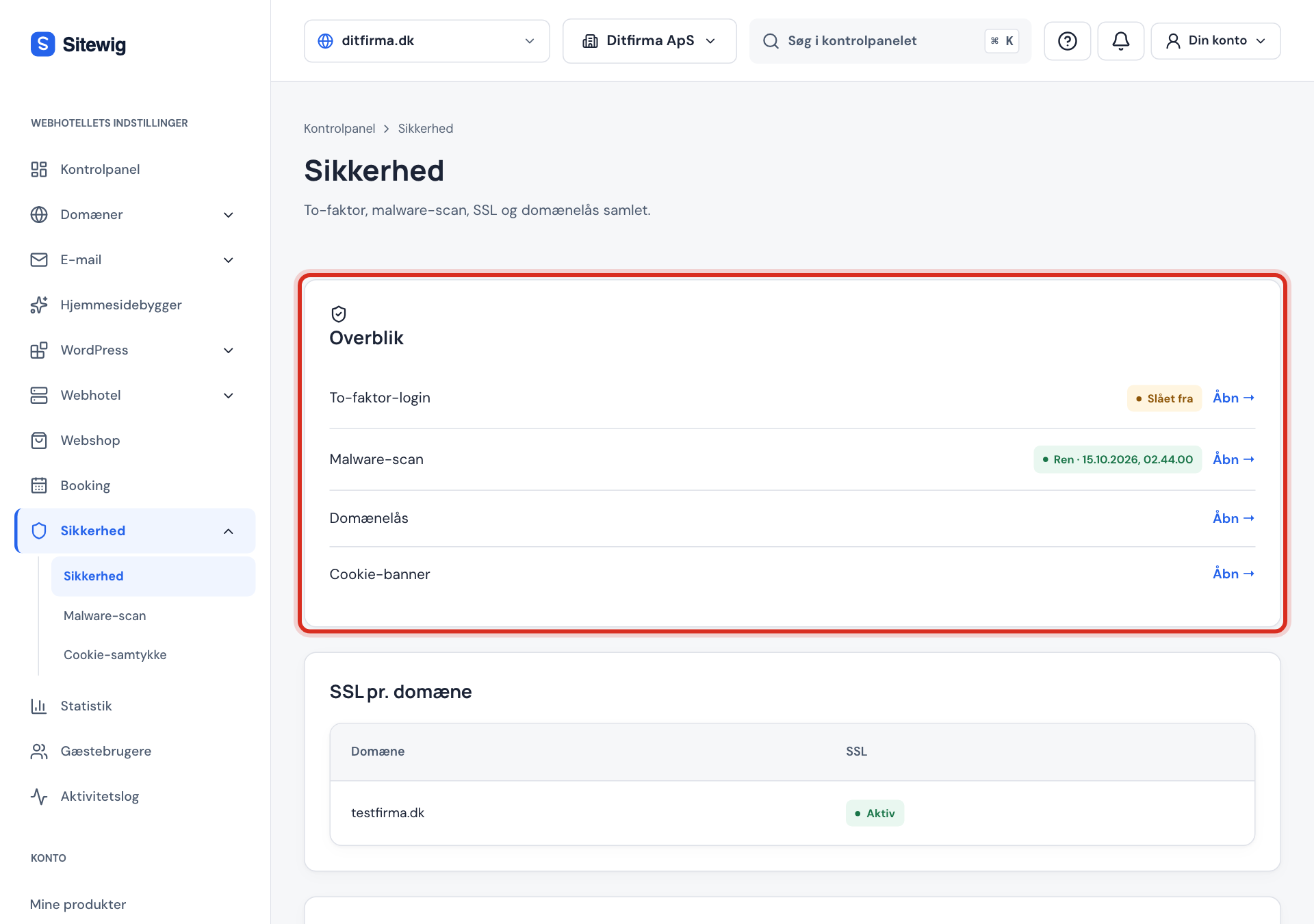
Step 1: Two-factor sign-in
Shows On (green) or Off (yellow). If it says Off, turn it on right away – it's the single most important protection for your account. See Turn on two-step sign-in (2FA).
Step 2: Malware scan
Shows the result of the latest scan, e.g. Clean with a time. On Starter it says Requires Pro, because the malware scan is included in Pro, Business and Max. If it says No scan yet, the first nightly scan hasn't run yet.
Step 3: Domain lock
With domain lock we require an extra password before anyone can be given the domain's auth code – the code needed to move the domain to another provider. Click Open to see the setting.
Step 4: Cookie banner
A link to setting up the cookie banner on your websites.
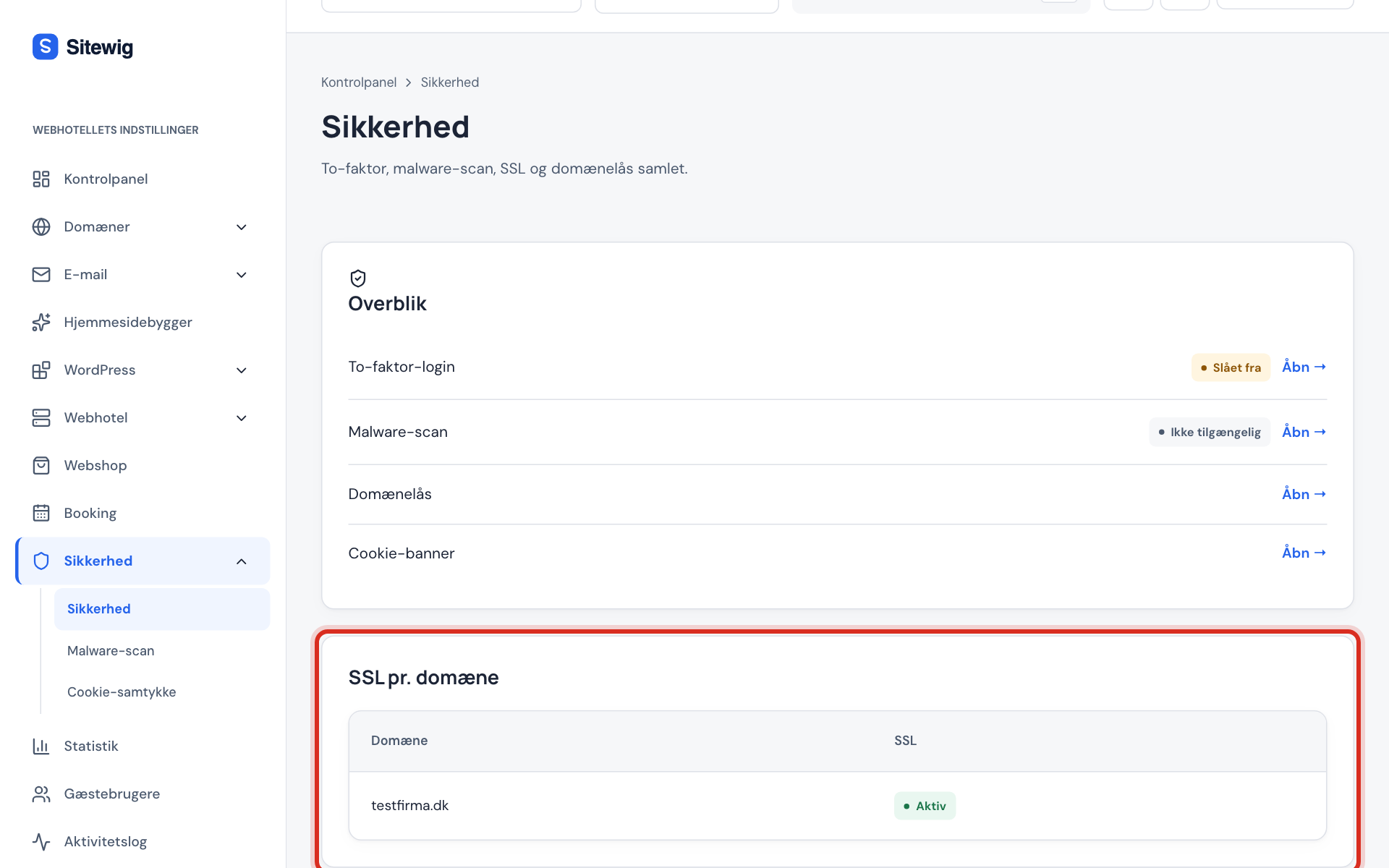
The SSL per domain card
Here are all the domains on the selected web hosting with their SSL status. Active means the domain has a valid certificate and is shown over https. If it says anything else, open the domain under Domains and the SSL tab to see the details. Read more in How your domain gets a free SSL certificate.
Latest scans
Once malware scans have run on your web hosting, the Latest scans card appears at the bottom with the time, status (Clean or Malware found) and number of detections.
Frequently asked questions
Why does the home page say "Protect your account"?
The card appears on the control panel's home page when you're missing two-factor sign-in or a recovery email. Follow the link and turn it on, and the card disappears.
Can my guest users see the Security page?
It depends on the areas you've given them access to. Manage this under Security → Guest users.
Where do I see who has signed in or changed something?
Under Security → Activity log you'll find changes to the account with the time and who made them.