A passkey is a digital key that's stored securely on your phone or computer. You unlock it with your fingerprint, face recognition or the device PIN, and then you're signed in without typing a password. Passkeys can't be phished from you on a fake sign-in page, because they only work on Sitewig's real address.
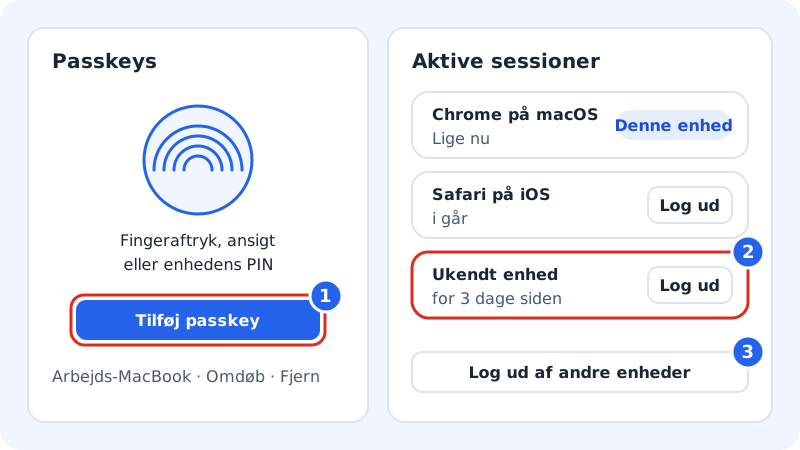
Add a passkey
Step 1: Open Sign-in and security
Click Settings at the top of the control panel and find the Passkeys section in the Sign-in and security card.
Step 2: Press Add passkey
Press Add passkey. If you've turned on two-factor sign-in, we first ask you to confirm with the code from your authenticator app.
Step 3: Approve on the device
Your browser or phone asks whether you want to save a passkey. Approve with your fingerprint, face or the device PIN.
Step 4: Give it a name
Give the passkey a name of 1–60 characters, e.g. "Work MacBook", so you can recognise it later. You can always Rename or Remove it.
Passkeys work alongside your password and two-factor sign-in. You can still sign in with a password if you're using a device without your passkey.
See and sign out of active sessions
Under Active sessions in Sign-in and security you see all the devices signed in to your account, with browser, operating system and when they were last active. Your current device is marked This device.
- If you don't recognise a device, press Sign out next to it.
- To be completely sure, press Sign out of other devices. All other devices have to sign in again, while you stay signed in.
- Then change your password if you think someone has got hold of it.
Add a recovery email
In the same card you'll find the Recovery email row. Press Add and enter a different email address from the one you sign in with. We send a confirmation, and until you've pressed the link, the address shows as Awaiting confirmation. The address is used if you lose access to your sign-in email.
Frequently asked questions
What happens if I lose the phone with my passkey?
Sign in on another device with your password (and two-factor code), and press Remove next to the lost passkey. It can then no longer be used to sign in.
Can I have more than one passkey?
Yes. Feel free to add one on both your computer and your phone, so you always have one to hand.
Do I get notified about new sign-ins?
Under Settings → Notifications you can manage emails in the Security and sign-in category, which covers new sign-ins, a changed password and two-step verification.