A newsletter is one of the cheapest ways to keep in touch with your customers. With Sitewig's website builder you can collect sign-ups on your website and send newsletters without a separate tool.
How sign-up works
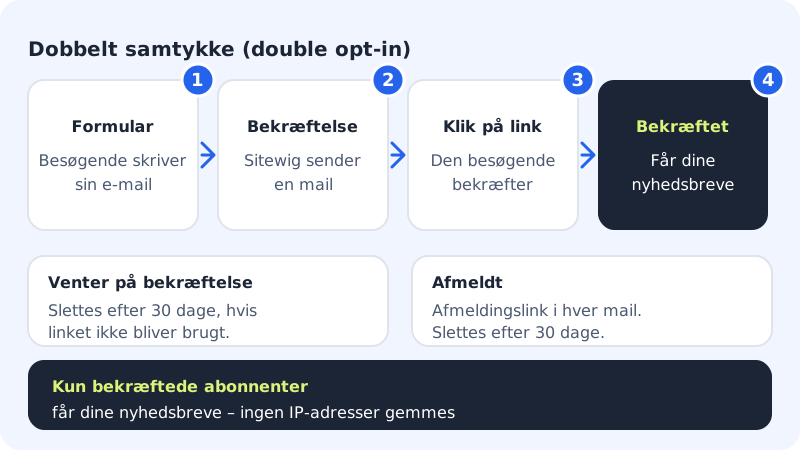
Sitewig always uses double consent (double opt-in). The visitor enters their email, receives an email and has to click a link to confirm. Only confirmed subscribers receive your newsletters, so you avoid fake sign-ups and comply with the marketing rules.
Collect sign-ups
Step 1: Add the Newsletter section
In the editor, go to the Sections tab and press Add section. Choose Newsletter, and place it where you want it, for example at the bottom of the home page.
Step 2: Edit the heading and consent text
Write a short heading, and check the consent text. The default text says that the visitor will receive the newsletter and can unsubscribe at any time.
Step 3: Publish the website
Press Publish. The sign-up form only becomes active on the published page.
Send a newsletter
The Newsletter section is in the Marketing tab, or at the bottom of the Settings tab if you don't have a Marketing tab.
Step 1: Check your subscribers
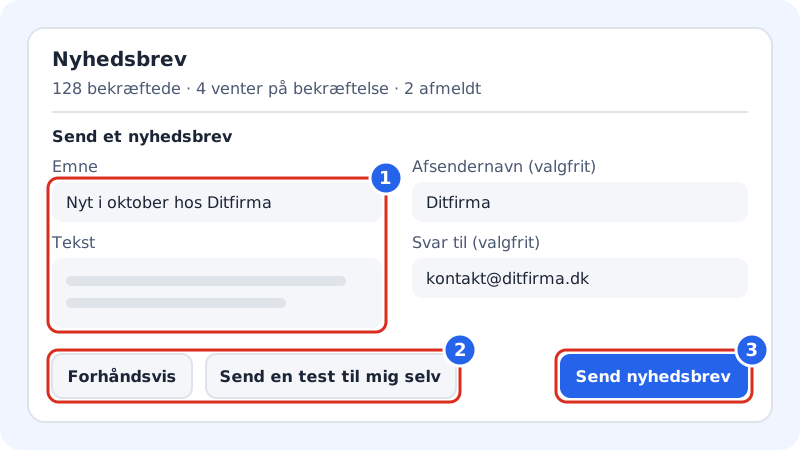
At the top you'll see, for example, 128 confirmed · 4 awaiting confirmation · 2 unsubscribed. You can filter the list by status.
Step 2: Write the newsletter
Under Send a newsletter, fill in Subject (maximum 150 characters) and Text (maximum 20,000 characters). If you like, fill in Sender name (optional), which is shown as Yourcompany via Sitewig, and Reply to (optional), e.g.
contact@yourcompany.com.Step 3: Preview and test the email
Press Preview to see the email. Press Send a test to myself, and check the links, line breaks and the unsubscribe link in your own inbox.
Step 4: Send
Press Send newsletter. You'll be asked to confirm the number of recipients. A newsletter that has been sent can't be recalled.
Step 5: Follow the sending
While the email is being sent you'll see Sending… x of y. You can press Stop sending. Under Sent newsletters you can see how many were sent, failed or skipped.
This happens automatically
- Unsubscribe link
- Added at the bottom of every email
- Unconfirmed sign-ups
- Deleted after 30 days
- Unsubscribed subscribers
- Deleted after 30 days
- IP addresses
- Not stored
When a subscriber asks to be deleted
Find the subscriber in the list and press Delete. The subscriber is deleted completely, including the proof of consent. If you want to keep a copy of the list, press Export CSV.
Do you use Mailchimp or Klaviyo?
If you have an online shop on Sitewig, customers who have said yes to marketing can be synchronised to Mailchimp or Klaviyo via the Sync to newsletter tool card under the shop's customers and contacts. The card shows whether the connection is running properly or in test mode.
Frequently asked questions
Why aren't my new subscribers included in the send?
They haven't confirmed their sign-up yet. Only subscribers with the status Confirmed receive the newsletter.
Can I import a list of email addresses?
No. All subscribers must sign up and confirm themselves, so you can document the consent.
What happens if I stop a send?
Emails that have already been sent can't be recalled. The rest are not sent. You can continue the send later with Continue sending.