If you have built your app or website on an external platform, for example an AI app builder, your domain at Sitewig can show it. The domain, your DNS records and your email stay at Sitewig – only the app itself is hosted by the platform. You need a Sitewig account with the domain and access to your project on the platform.
How it fits together
The platform usually asks for two things: that the domain points to the platform's server with an A record, and a TXT record with a code that proves you own the domain. You save both at Sitewig.
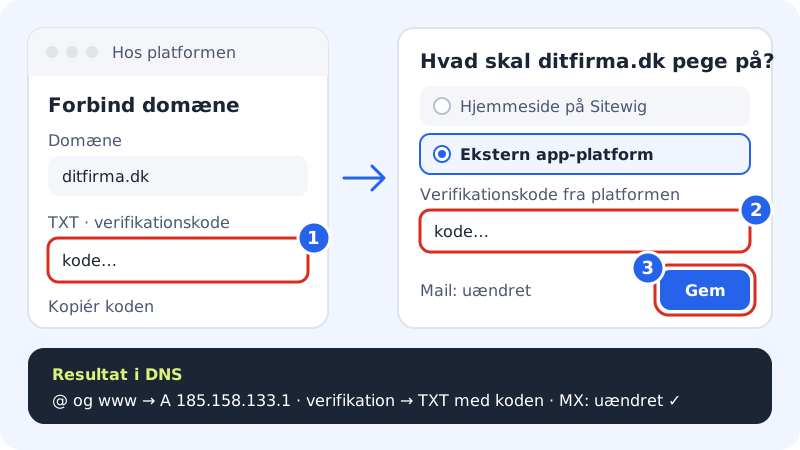
If your platform uses the IP address 185.158.133.1, Sitewig has a ready-made choice for it: External app platform under Change target. If the platform shows a different IP address, use the manual route further down.
Records Sitewig creates for you with the External app platform choice
- Name @ (the domain itself)
- A record
185.158.133.1 - Name www
- A record
185.158.133.1 - Verification
- TXT record with the code from the platform, under the name the platform requires
- Mail (MX)
- Unchanged – your email works as before
Point the domain to the platform
Step 1: Start on the platform
Open your project on the platform, go to the project's domain settings and choose to connect your own domain. Enter your domain, e.g.
yourcompany.com, and addwww.yourcompany.comas well. The platform now shows an IP address and a TXT value. Copy the TXT value.Step 2: Open the domain at Sitewig
Sign in to the control panel and choose Domains → My domains. Click the domain that should show the app.
Step 3: Choose External app platform as the target
Tap Change target. In the window What should yourcompany.com point to? choose External app platform under What should the domain show?. Leave the choice under Where should email be delivered? as it is.
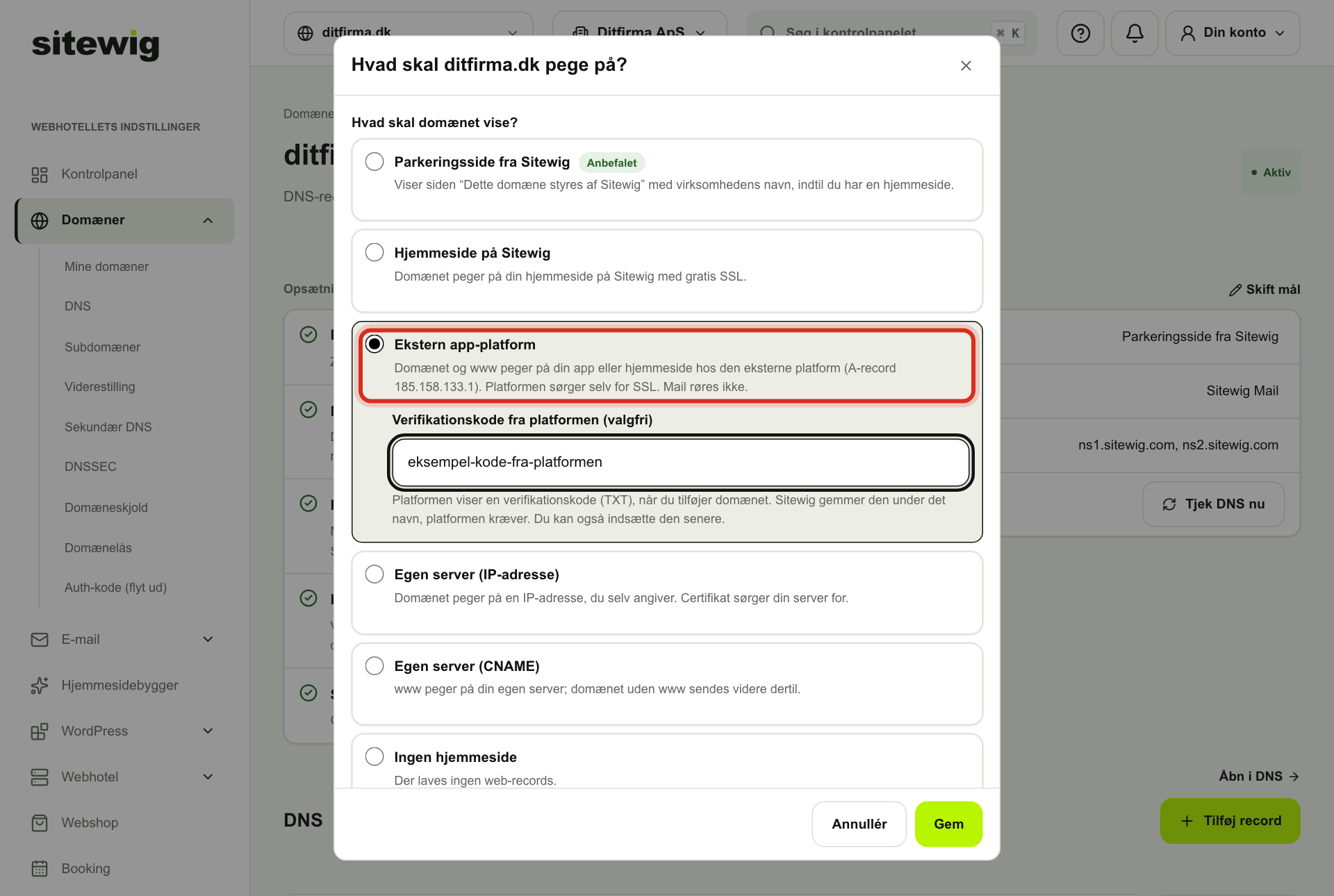
Change target: choose External app platform and paste the code from the platform Step 4: Paste the verification code
Paste the code into the field Verification code from the platform (optional) and tap Save. If you do not have the code yet, you can save without it and add it afterwards.
Step 5: Confirm on the platform
Go back to the platform and ask it to check the domain. The change is normally live on the name servers within a few minutes. The platform issues the SSL certificate itself, so the site runs on
https://.
If the platform uses a different IP address, or you cannot choose External app platform
You can achieve the same thing manually with the values the platform shows:
- Tap Change target, choose Own server (IP address), enter the platform's IP address as the IPv4 address and tap Save. This points the domain itself to the platform.
- Scroll down to the DNS section on the domain page and tap Add record. Create an A record with the name
wwwand the same IP address, or a CNAME record if the platform asks for one. - Add another record of type TXT with exactly the name and value the platform shows.
Switch back to a website at Sitewig
Tap Change target and choose, for example, Website on Sitewig or Parking page from Sitewig. The A records switch immediately. Your TXT record for the platform stays in place, so you can easily switch back again – you can delete it in the DNS section if you do not need it.
Frequently asked questions
Do I need to move the domain to the platform?
No. The domain stays registered and renewed at Sitewig. You simply point it to the platform's server.
Why does the platform say the domain is not verified?
Check that the TXT record's name and value are exactly what the platform shows – with no extra spaces. Sitewig removes quotation marks around the code by itself. Also check that both the domain and www are added on the platform. Wait a few minutes and try again.
Does my email still work?
Yes. Sitewig only changes records for the website (@ and www). The MX and SPF records for your email stay where they are.