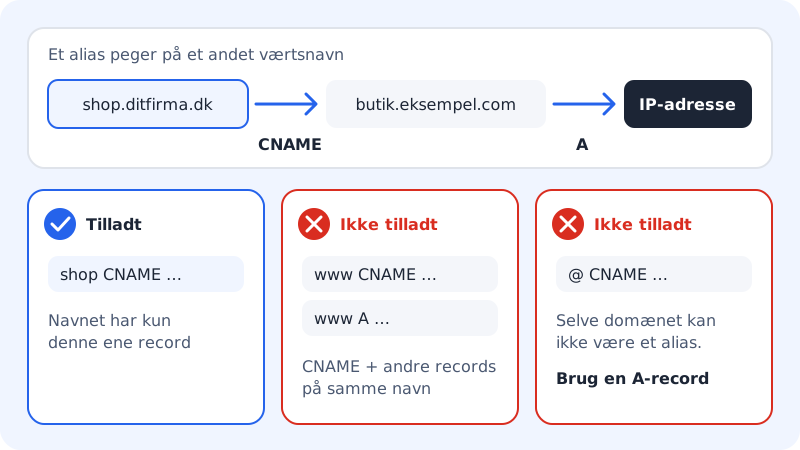
A CNAME makes a name an alias for another host name. If you create shop.yourcompany.com as a CNAME to store.example.com, DNS always answers with whatever IP address store.example.com has – even if the service changes IP. That is why many web services, CDNs and email providers ask for a CNAME rather than an IP address.
Create a CNAME
Step 1: Open DNS
Choose Domains → My domains, click the domain and scroll down to DNS. Tap Add record.
Step 2: Choose CNAME
Choose Type CNAME: alias.
Step 3: Enter the name and target
Enter the name in Record name, e.g.
shoporblog. Enter the service's host name in Points to, e.g.store.example.com. Enter only the host name – nothttps://or a path.Step 4: Save
Tap Add record. The change reaches the name servers within a few minutes.
Example: blog with an external service
- Type
- CNAME, alias
- Record name
blog- Points to
blog.example.com- TTL
- 1 hour
Two rules for CNAME
A CNAME must stand alone
If the name already has another record (e.g. an A, MX or TXT record), you cannot add a CNAME to it. Conversely, you cannot add other records to a name that is a CNAME. The panel then shows Conflict with existing records.
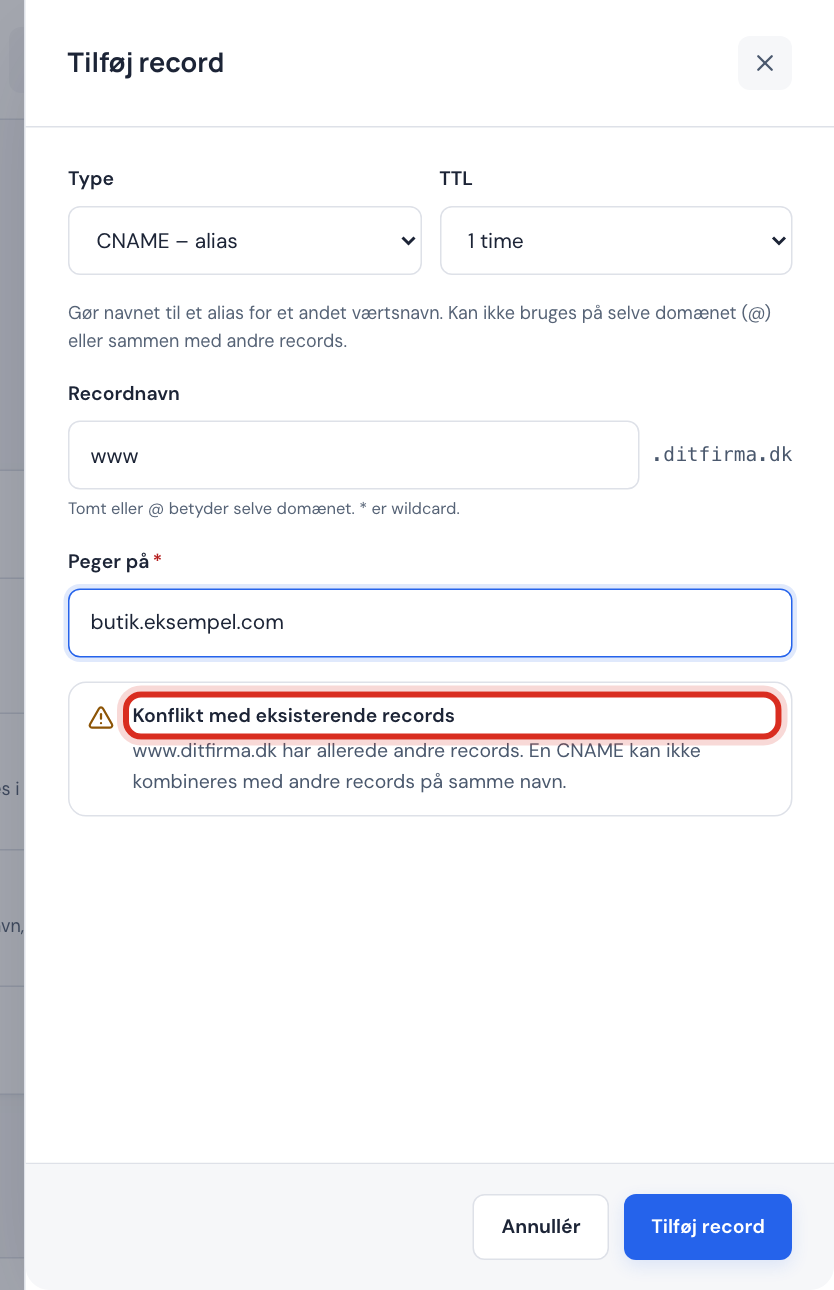
Solution: delete the other records on the name first, or choose another name. If the other records are default records from Sitewig (e.g. on www), they cannot be deleted – use Change target instead, as described below.
The domain itself cannot be a CNAME
yourcompany.com (the name @) always has other records, such as name servers and email, and therefore must not be an alias. If you try, you get the message The domain itself (@) cannot have a CNAME. Use an A record. Sitewig does not support ALIAS or ANAME records.
Point www to a host name with Change target
If a service asks you to point www to a host name, use Change target:
- Tap Change target on the domain page.
- Choose Own server (CNAME) and enter the service's host name in Host name.
- Tap Save.
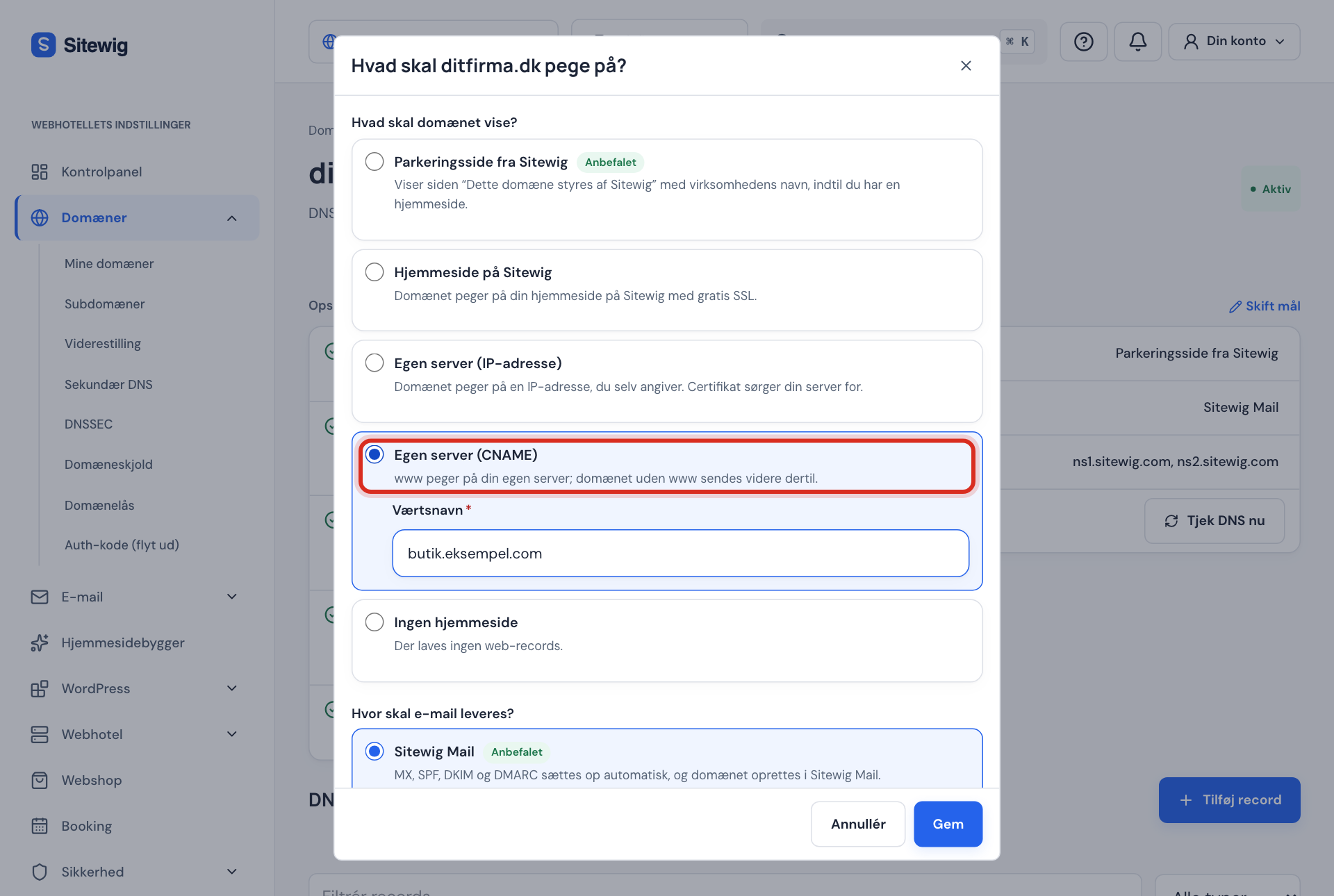
Sitewig then makes www a CNAME to the host name, and visitors to the domain without www are sent on to www.yourcompany.com. Your email is not affected.
Frequently asked questions
Can I create a CNAME to a host name on my own domain?
Yes, e.g. store → shop.yourcompany.com. Enter the full host name in Points to.
Why does my CNAME not work straight away?
Others may have the old answer stored for up to the old TTL. See TTL and waiting time. Also check that the service at the other end has added your domain on its side.
Can I use a CNAME for verification with a service?
Yes. Some services ask for a CNAME with a special name, e.g. a long code. Create it just as described here – the name is simply longer.