You can see at any time how many AI edits you have used and how many you have left. The overview is called AI this month and is found in the app builder, both on the overview page and inside each individual app.
Find the AI this month card
Step 1: Open the app builder
Go to Website builder in the control panel, and click Build an app or Continue with … on the App builder with its own CMS card. You land on the App builder page (the address
/apps).Step 2: Find the card
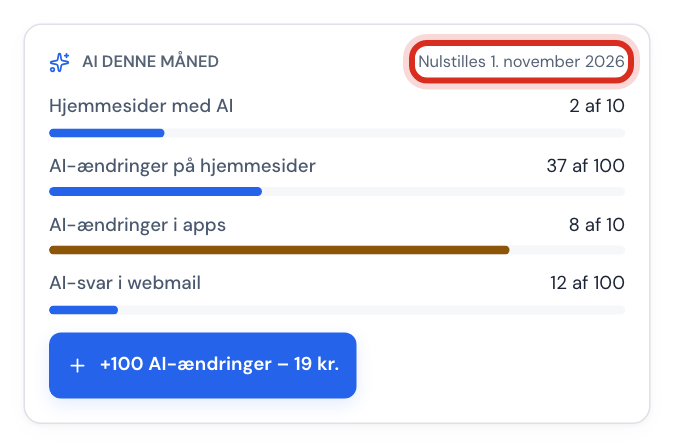
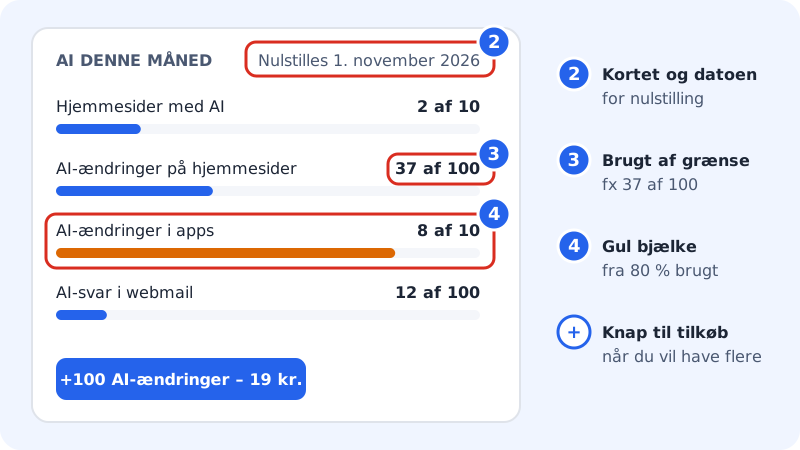
The AI this month card sits above the list of your apps. In the top right of the card it says when the limits reset, for example Resets 1 November 2026.
How to read the AI this month card Step 3: Read the rows
Each row is one kind of AI usage. On the right it shows how much of your limit you have used, for example 37 of 100. Below each row is a bar that shows the usage as a percentage. Rows that your plan does not include are not shown.
Step 4: Check the colour
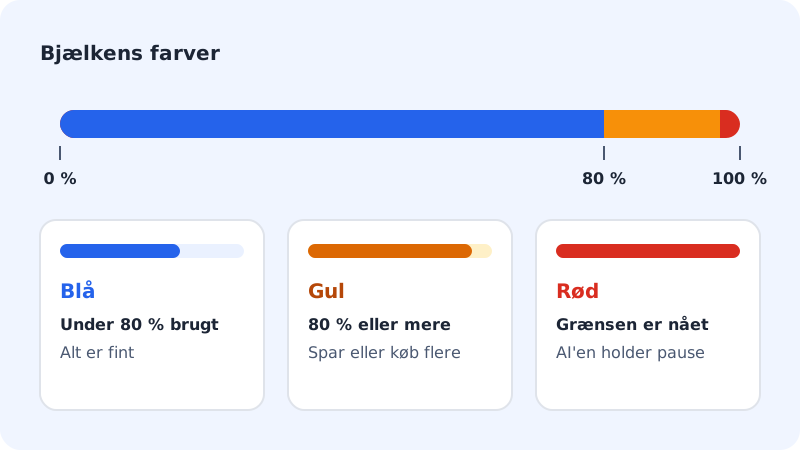
The bar changes colour so you can see when you are getting close to the limit.
The colours of the bar
- Blue
- Under 80% used, all is well
- Yellow
- 80% or more used, consider saving or buying more
- Red
- The limit is reached, the AI is paused for that kind of task
See your usage inside an app
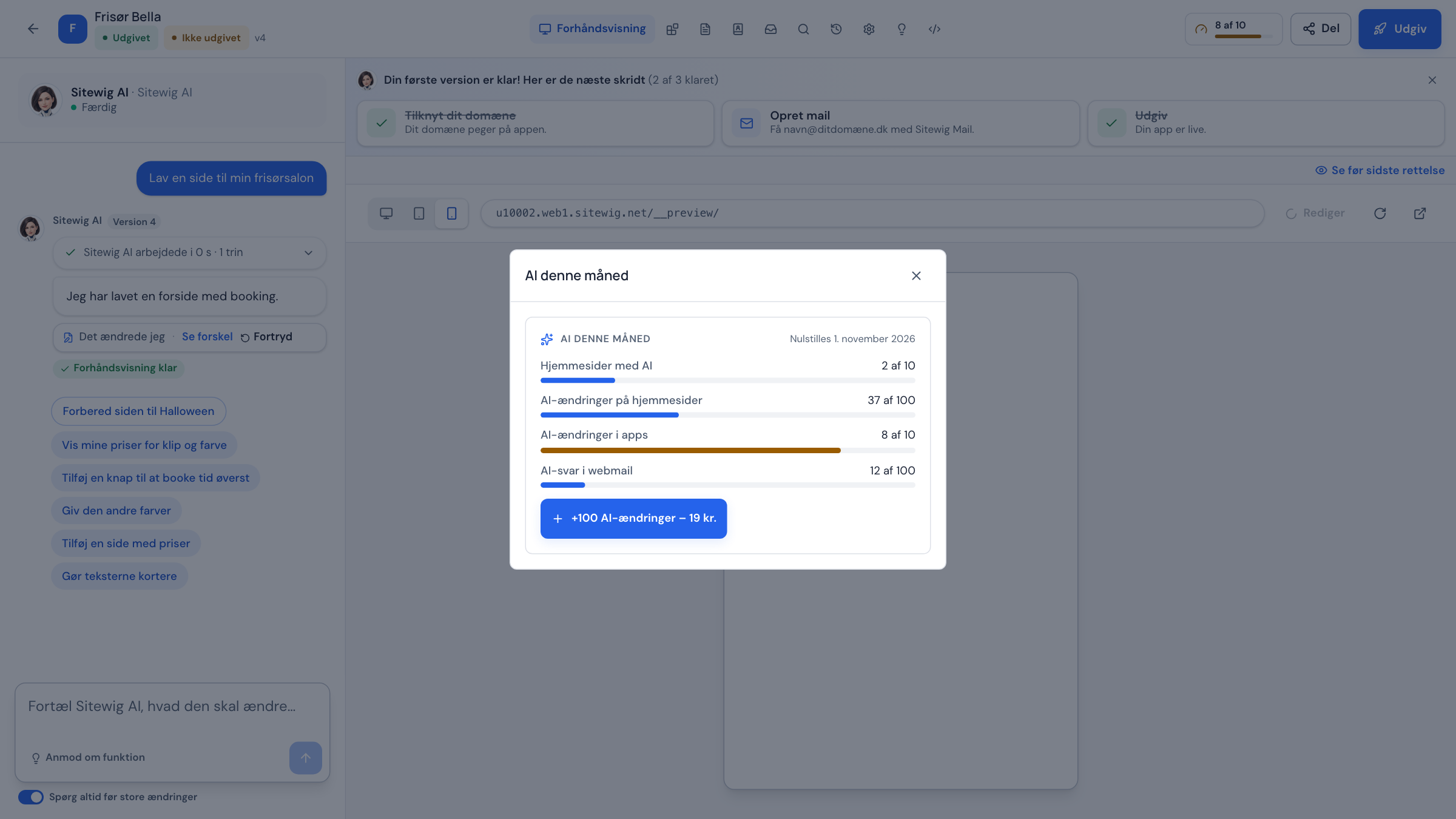
When you work in an app, a small meter sits in the toolbar at the top, for example 6 of 10. It shows your AI edits with AYAAI. If your plan does not include AYAAI, it shows the limit you have used the most of instead.
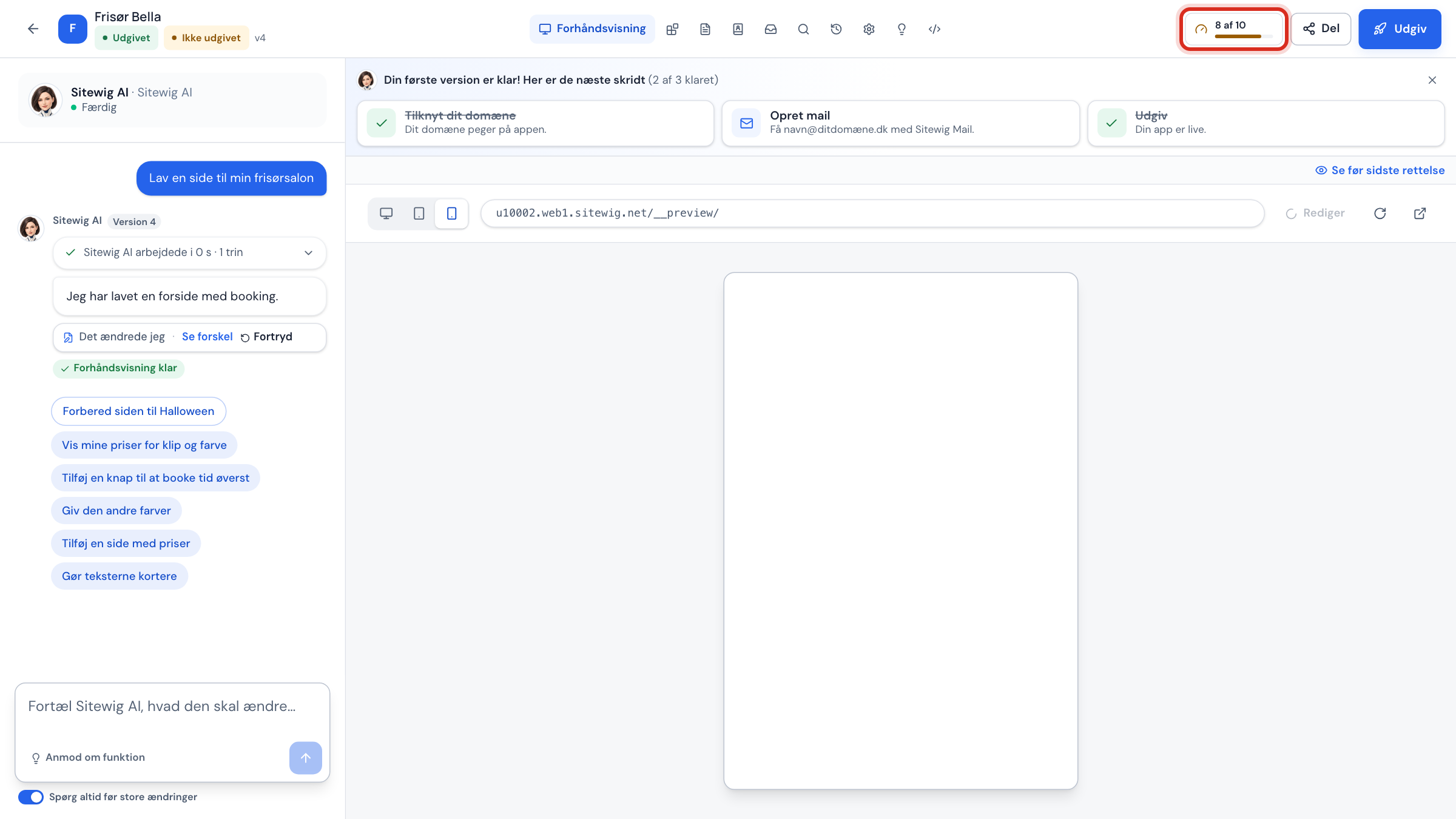
Click the meter to open the whole AI this month card in a window. You can also buy more AI edits from there.
Add-ons and special messages in the card
- Extra: … (valid until …): you have bought the +100 AI edits add-on. The line shows what you have received and when it expires.
- (incl. +100 extra): appears on a row if the limit has been raised by an add-on.
- +100 AI edits: the button for buying more. It is shown when the add-on can be bought.
- AI is paused until … or a message about a faster model, see AI error messages and what they mean.
Frequently asked questions
When does my usage reset?
On the 1st of every month at midnight UTC. The date is shown at the top of the card.
Why can I not see the AYAAI row?
Rows with a limit of 0 are hidden. If your plan does not include AYAAI (only Max does), you only see the rows for NinaAI and, if applicable, webmail.
Can my colleagues see the same usage?
Yes. The limits apply to the whole web hosting account, so everyone who works on it sees and uses the same figures.