Here are the messages you may see when you work with NinaAI and AYAAI, and what to do about them. In the control panel, both assistants may be called Sitewig AI.
The messages one by one
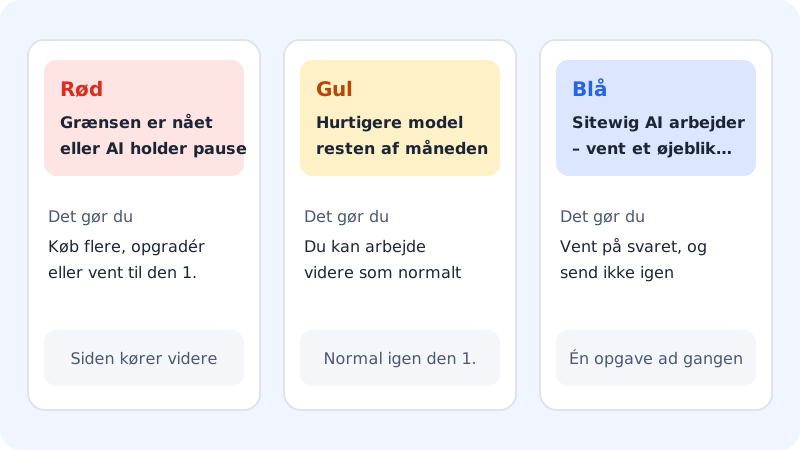
This month's limit is reached
- Meaning
- You have used this month's AI edits of one kind. The message says which, for example You have used this month's 100 AI edits with NinaAI
- Your website
- Carries on running as normal
- What to do
- Buy +100 AI edits, click Upgrade your plan, or wait until the 1st
AI is paused
- Meaning
- Your plan's total AI usage for the month has been used up. The AI starts again on the 1st.
- Your website
- Carries on running as normal
- What to do
- Wait until the 1st, or upgrade your plan. The add-on does not help here
The app builder uses a faster model for the rest of the month.
- Meaning
- Your plan is close to its total AI usage. Larger tasks are now also handled by NinaAI's fast model (with the names switched on, the message reads AYAAI uses NinaAI's fast model for the rest of the month.)
- What to do
- You can keep working. Big rebuilds may be less precise. Everything is back to normal on the 1st.
… is not included in your plan.
- Meaning
- The feature is not part of your plan, for example New apps with AYAAI is not included in your plan.
- What to do
- Upgrade your plan under Change plan (
/pakke)
Sitewig AI is working: wait a moment…
- Meaning
- The AI is busy with a task. Only one task can run at a time in an app
- What to do
- Wait until the answer is finished. Do not send the same message again
Buying extra AI edits opens soon.
- Meaning
- The add-on cannot be bought on your account yet
- What to do
- Upgrade your plan, or wait until the 1st
Payment could not be started. Try again.
- Meaning
- Something went wrong before you reached the payment page
- What to do
- Try again in a little while. If it happens again, contact support
Limit reached or paused: what is the difference?
This month's limit is reached is about the number of AI edits in your plan. You can solve it with the +100 AI edits add-on.
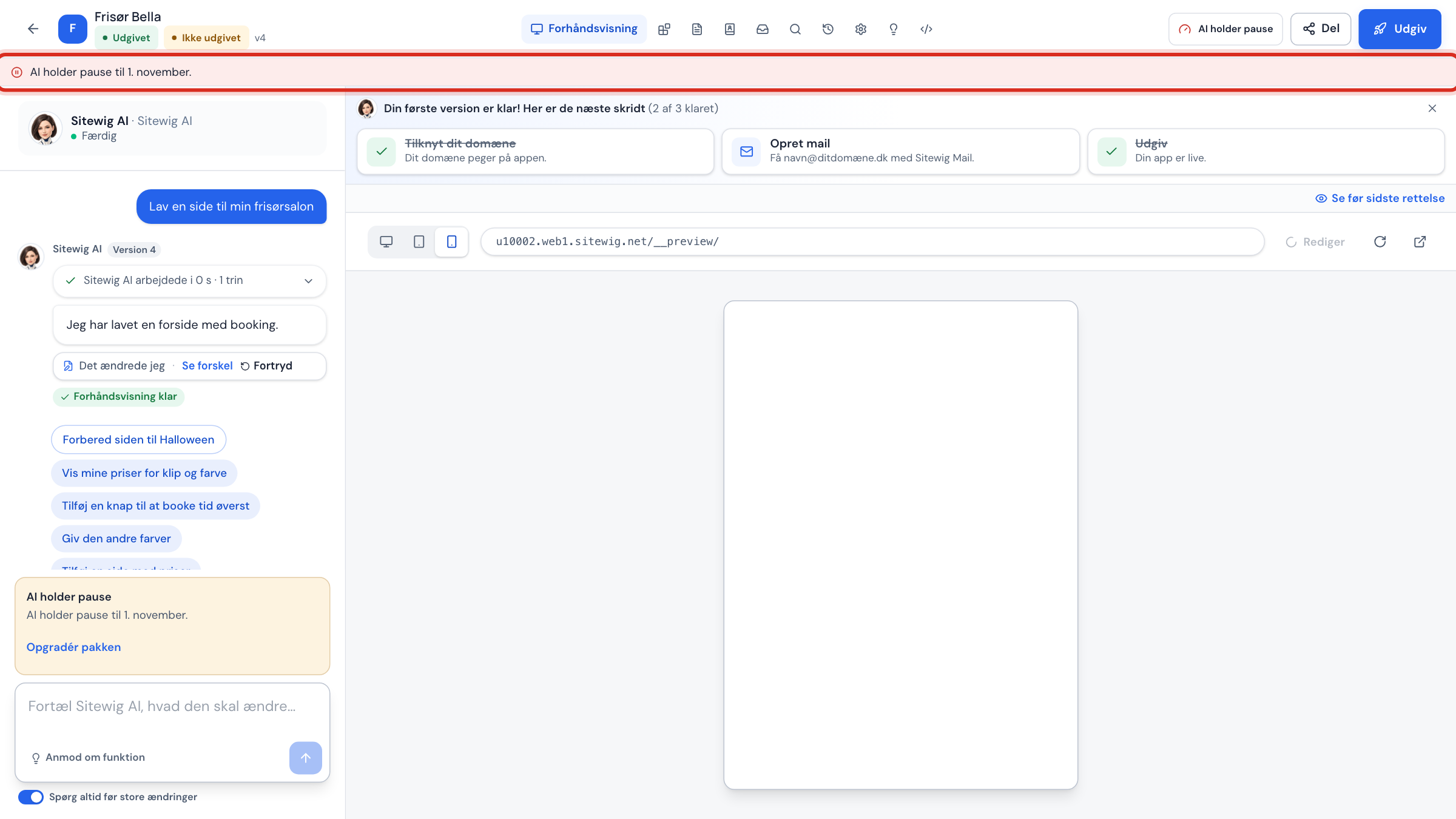
AI is paused is about how much AI your plan may use in total in a month. The add-on does not help here, and the button to buy it is hidden. You can wait until the 1st or choose a larger plan.
When a build fails
Step 1: The AI fixes it itself
If the preview fails after a change, the AI automatically tries to fix the error. The chat says that the preview failed and that the error is being fixed automatically (attempt 1 of 2). Automatic fixes are free, up to a maximum of six per day.
Step 2: If it still fails
After two attempts the AI stops and asks you to describe the problem in the chat. Write briefly what you see and what you expected.
Step 3: Go back
If you cannot get any further, click Undo under the change that went wrong, or restore a version on the Versions tab. See Undo an AI edit.
Other errors
- Sitewig AI ran into a problem. Try wording the message a little differently. The AI could not complete the task. Try splitting it into smaller parts, or be more specific. If the task failed on Sitewig's side or at the AI provider, you get the AI edit back.
- The message was not sent: … The message did not get through, for example because of your connection. Try sending it again.
- The message is too long (max. 4,000 characters). Split the message up, or shorten it.
Contact support
If none of this helps, create a case under Support (/support) in the control panel. Write the name of your app, roughly when the error happened and what the message said. A screenshot helps too.
Frequently asked questions
Do I lose an AI edit when an error occurs?
If the task does not start, or fails on Sitewig's side or at the AI provider, you get the AI edit back. The automatic fixes after a failed build are also free, up to a maximum of six per day.
Why does the message say NinaAI when the panel says Sitewig AI?
Some messages come straight from Sitewig's server, which always uses the names NinaAI and AYAAI. They are the same assistants.