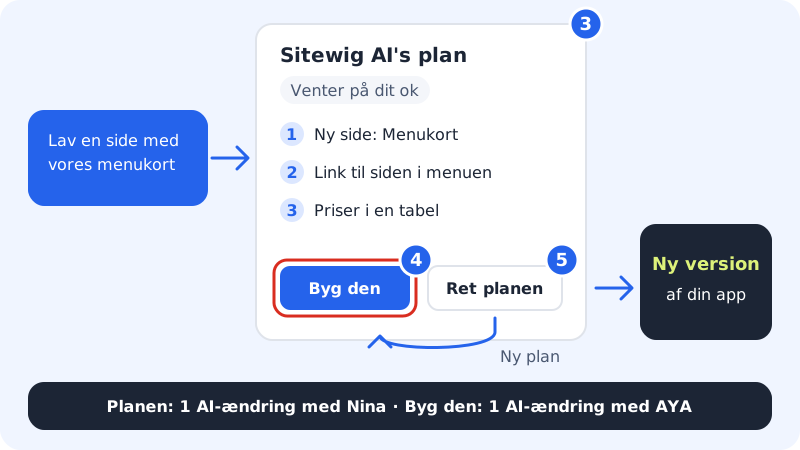
Do you want to see what the AI intends to do before it changes your app? Then switch on the Always ask before big changes setting. For bigger changes, the AI first shows a short plan with items that you can approve or adjust.
Use the plan
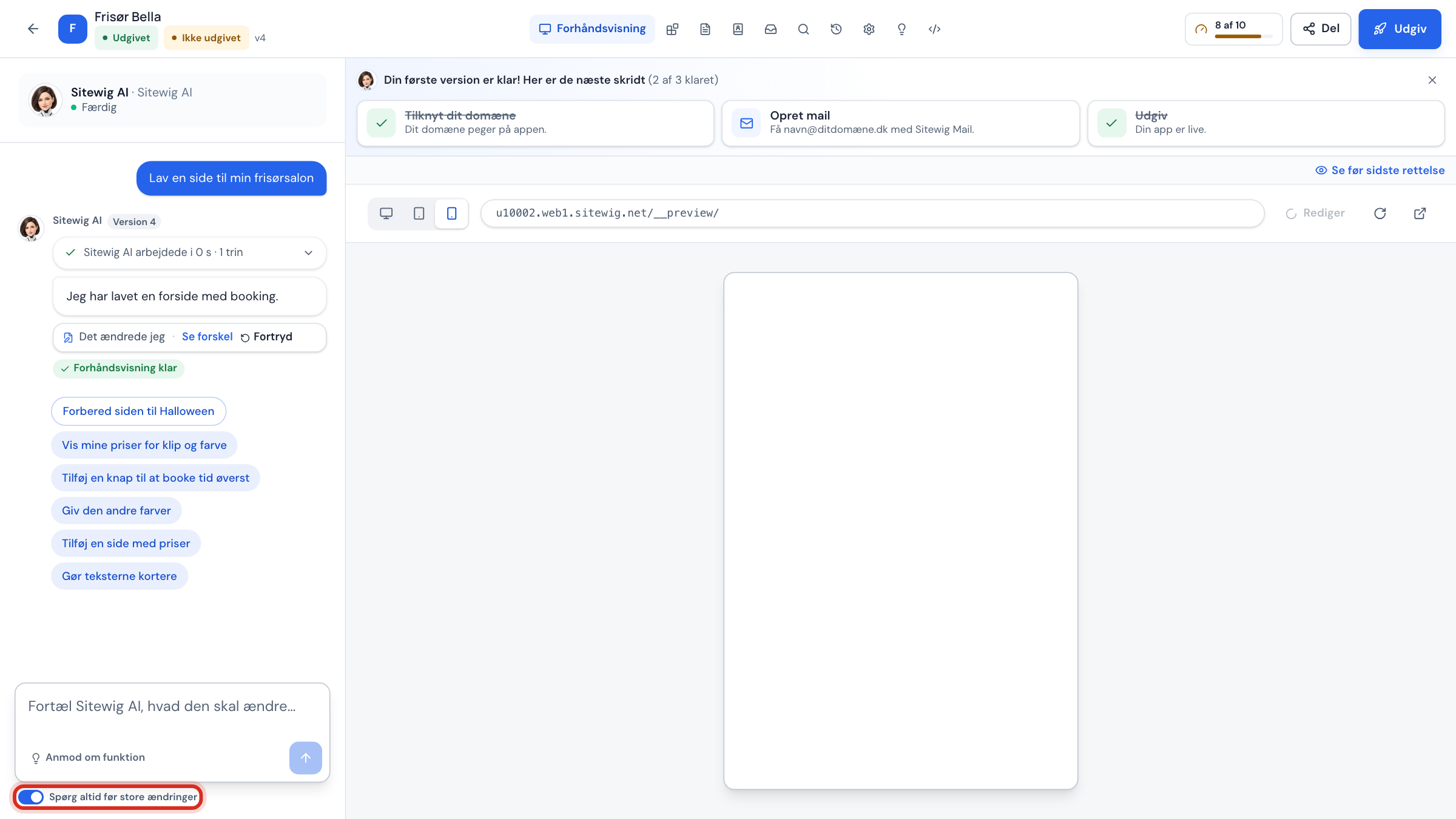
Step 1: Switch the setting on
Open your app in the app builder. Under the chat field is the switch Always ask before big changes. Click it so that it turns blue. The setting applies to the app you are working in and is remembered.
Step 2: Write your change
Describe the change in the chat field as you usually do. If it is a bigger change, the AI replies with a plan instead of building straight away. Small fixes are still made immediately.
Step 3: Read the plan
The plan shows the items the AI will carry out, and above the items a short overview of whether they concern pages, look or features. The plan is marked Waiting for your OK.
Step 4: Approve with Build it
If you are happy, click Build it. The AI now builds the change, and you get a new version of your app.
Step 5: Or adjust the plan first
Click Edit the plan. You can change the items yourself: one item per line, and click Build the edited plan. You can also write what should be different in the field Tell Sitewig AI what should be different and click New plan. There are also quick choices such as Make it simpler, Other colours and Add contact form.
How the plan counts towards your limits
- The plan is made by NinaAI's fast model and counts as one AI edit with NinaAI, not with AYAAI.
- New plan (when you ask the AI to adjust the plan) also counts as one AI edit with NinaAI.
- Editing the items yourself is free.
- Build it (or Build the edited plan) uses your Energy, which is only included in Max. With AYAAI Max it counts as an AYAAI Max run.
Switch the setting off again
Click the Always ask before big changes switch again so that it turns grey. The AI then builds straight away when you write. If it says Could not be saved next to the switch, try again in a little while.
Frequently asked questions
Why did I not get a plan?
The plan is only shown for bigger changes. Small fixes and questions are handled straight away, even when the setting is switched on.
Can I undo after I have clicked Build it?
Yes. Click Undo under the AI's answer, or restore an earlier version on the Versions tab. See Undo an AI edit.