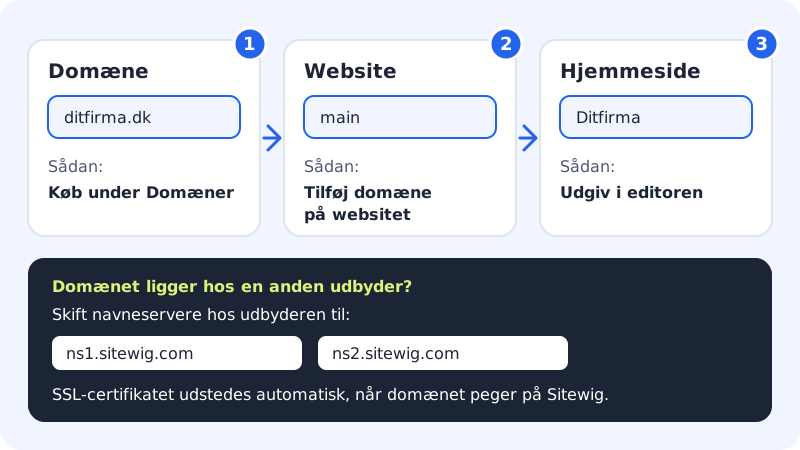
The website from the builder is published to a site on your web hosting. It is the site's domains that decide which address visitors use. So to get the website on yourcompany.com, the domain must be added to the site that the website is published to.
Before you start
- You need a plan with your own domain (Starter or higher). The Free plan only uses the preview address.
- You need a domain: buy a new one under Domains, or use one you already own elsewhere.
Domain prices at Sitewig (first year)
- .dk
- £8.49/yr no VAT charged
- .com
- £9.49/yr no VAT charged
- .eu
- £6.49/yr no VAT charged
Domains cost what Sitewig itself pays the registrar, with no mark-up. Prices follow the registrar's prices and are updated daily. See all endings and renewal prices at Domain prices.
Add the domain to the site
Step 1: Open the site
In the control panel, open WordPress → Overview (the page is called Websites) and click the site that the website is published to. If you're unsure, open the website in the builder and click Publish – the window shows the site's name. The main site is called main.
Step 2: Click Add domain
Next to Domains, click Add domain. The Add existing domain window opens with the site selected.
Step 3: Fill in the domain
Type the domain in the Domain field, e.g.
yourcompany.com. Leave Include www turned on so the site also works onwww.yourcompany.com. Leave Use Sitewig's nameservers (recommended) turned on, and Sitewig will set up the site, www, SSL and email for you.Step 4: Click Add domain
The Next step for yourcompany.com window shows the nameservers the domain should use.
Point the domain to Sitewig
If the domain is with another provider, you need to log in there and change the nameservers to:
Sitewig's nameservers
- Nameserver 1
ns1.sitewig.com- Nameserver 2
ns2.sitewig.com
It can take up to 24 hours for the change to take effect. Sitewig checks the domain again by itself – under Domains you can follow the Setup list, where the Nameservers row changes to Ready. Once the domain points to Sitewig, the SSL certificate is issued automatically, so the site runs on https://.
Publish again
Open the website in the builder and click Publish. Your domain should now appear under Will be visible on. Click Publish now. The domain is shown as soon as it is active or waiting for the SSL certificate.
Frequently asked questions
Why isn't my domain under "Will be visible on"?
The domain hasn't been added to the site that the website is published to, or the domain hasn't been confirmed yet. Check the site's Domains, and look under Domains in the menu to see whether the domain's setup says Ready.
Can I have two domains on the same website?
Yes. Add both domains to the same site. The website is then shown on both.
What does it cost to move my domain to Sitewig?
Moving a domain to Sitewig is free – you only pay the domain's yearly renewal. You don't have to move the domain, though – it's enough to point it to Sitewig with the nameservers.
What is the preview address?
The main site on your web hosting has a temporary address, so you can see the website before you have a domain. Only the main site has a preview address.