Sometimes you only need one file – an image that was deleted, or a configuration file that was changed by mistake. Then there's no need to restore the whole website. With Restore individual files you pick exactly the files and folders you want back, or download them as a single copy.
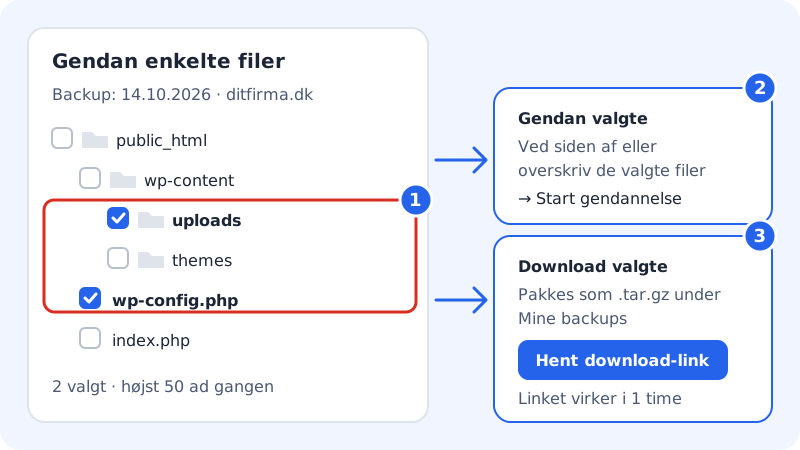
Restore individual files
Step 1: Find the card
Go to Web hosting → Backup and scroll down to the Restore individual files card.
Step 2: Choose a backup and website
Choose the backup from the right date and the website the files belong to. Press Show files.
Step 3: Select files and folders
Browse through the folders and tick the files or folders you want back. You can choose at most 50 at a time.
Step 4: Restore or download
Press Restore selected and choose between Alongside (safe – nothing is overwritten) and Overwrite the selected files on the website. Press Start restore. You get an email when it's finished.
If you'd rather have a copy, press Download selected, or Download the whole backup if you want everything.
Get your copy under My backups
When you've chosen to download, we pack the files as a .tar.gz file. The copy appears in the My backups card, first with the status Packing and then Ready.
- Press Get download link next to the copy.
- Press Download to save the file to your computer.
- The link works for 1 hour. If it has expired, press Get download link again.
Frequently asked questions
How do I open a .tar.gz file?
On Mac and Linux you can double-click the file. On Windows 11, File Explorer can open it directly; on older versions of Windows you can use a free extraction program.
Can I restore individual tables from a database?
No, not from the control panel. Databases are restored as a whole from the Database tab on the Backup page.