There are three ways to connect Sitewig Booking with your own calendar. Choose according to what you need:
- Calendar link (ICS): your Sitewig bookings appear in your calendar. One way only.
- Connect Google Calendar or Outlook: both ways – busy times in your calendar block bookings, and new bookings can be written into the calendar. Not switched on yet.
- Add ICS address: Sitewig reads when you are busy from a calendar that isn't Google or Outlook (e.g. Apple iCloud).
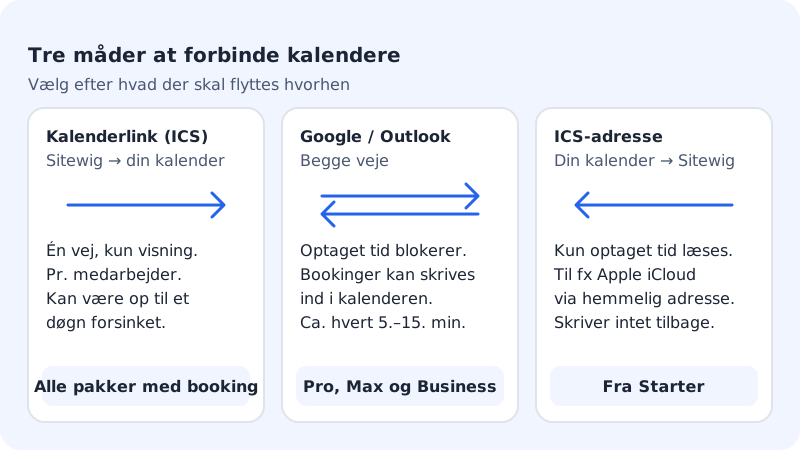
| Method | Starter | Pro, Business and Max |
|---|---|---|
| Calendar link (ICS) per staff member | Yes | Yes |
| ICS address (read busy time) | Yes | Yes |
| Google Calendar and Outlook | No | Not switched on yet |
Calendar link: see bookings in your calendar
The calendar link is found on each staff member under Booking → Services → Staff. Tap Calendar link (ICS), copy the link, and add it in your calendar app as a calendar you subscribe to. The link is shown only once. Read more in Add staff and choose who does what.
The calendar link works for all plans with booking, but it only goes one way, and Google can take up to a day to update.
Connect Google Calendar or Outlook
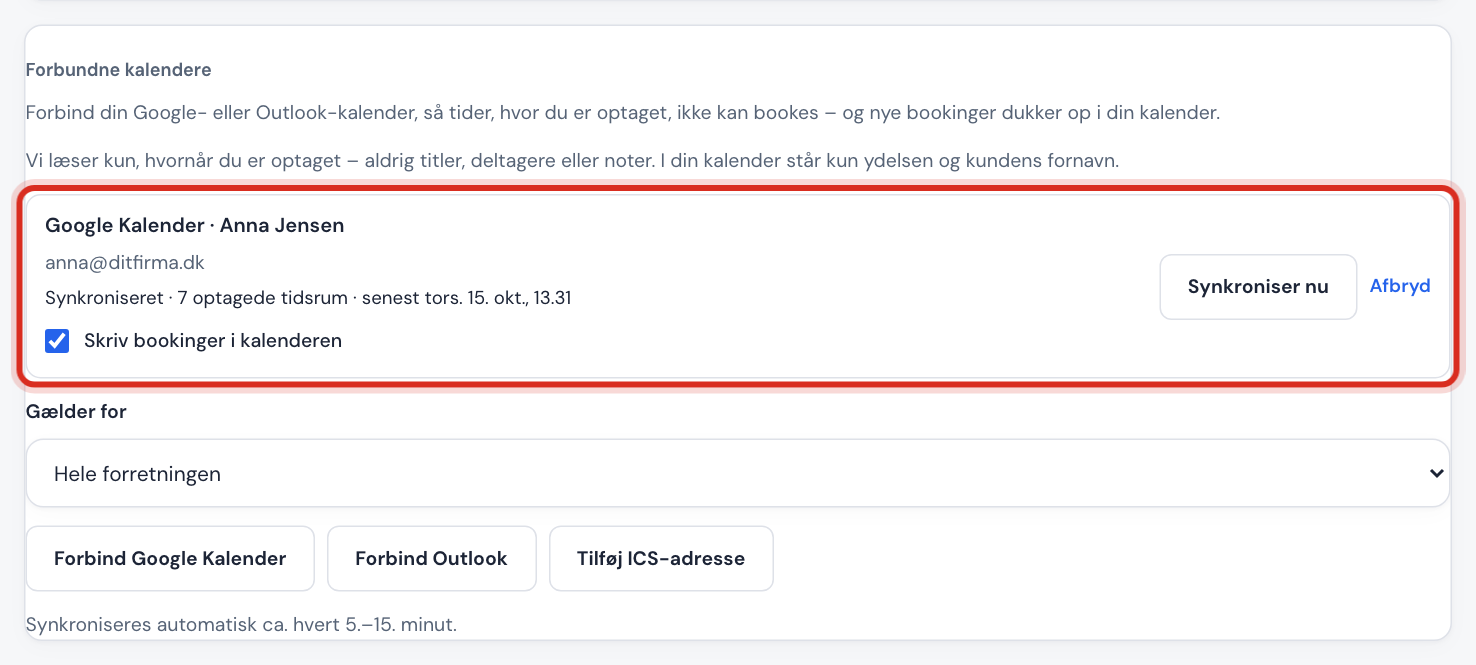
Step 1: Open Connected calendars
Go to Booking → Settings and scroll down to the Connected calendars card.
Step 2: Choose for whom
In Applies to, choose Whole business or a specific staff member. Busy times only block the person the calendar is connected to.
Step 3: Connect
Tap Connect Google Calendar or Connect Outlook. You are sent to Google or Microsoft, where you sign in and give Sitewig access. Afterwards you come back, and it says The calendar is connected.
Step 4: Write bookings to the calendar (optional)
Turn on Write bookings to the calendar if new bookings should also appear in your Google or Outlook calendar.
Step 5: Check the status
When the row shows Synced, everything is ready. Sitewig syncs automatically about every 5-15 minutes. If you have just added an appointment, you can tap Sync now.
If you want to stop syncing, tap Disconnect. Busy times then no longer block bookings, but appointments already written to your calendar stay there. If it says Access has expired – connect again, tap Connect again.
Apple Calendar and other calendars
There is no direct connection to Apple iCloud. Use the calendar's secret iCal address instead:
- Find the calendar's secret address in iCal format in your calendar app (it typically starts with
https://orwebcal://). - In Connected calendars, tap Add ICS address, paste the address into The calendar's secret address (iCal/ICS) and tap Add.
An ICS address is Read-only: Sitewig reads your busy times but doesn't write bookings back. Use the calendar link if you also want to see the bookings in Apple Calendar.
Bookings in your Sitewig mail calendar
If you have a mailbox with Sitewig, bookings can be placed in the Bookings calendar in the mailbox, so you see them in webmail and on your phone. You turn this on under Booking → Settings with Bookings in your Sitewig calendar.
Frequently asked questions
My private appointment doesn't block a time. Why?
If you only use the calendar link, syncing goes one way. Connect the calendar with Connect Google Calendar, Connect Outlook or Add ICS address, and check that Applies to is set to the right staff member.
How quickly does a new booking appear in Google Calendar?
With a connected calendar and Write bookings to the calendar turned on, it comes through at the next sync – normally within 5-15 minutes. With the calendar link, Google decides how often the link is fetched – it can take up to a day.