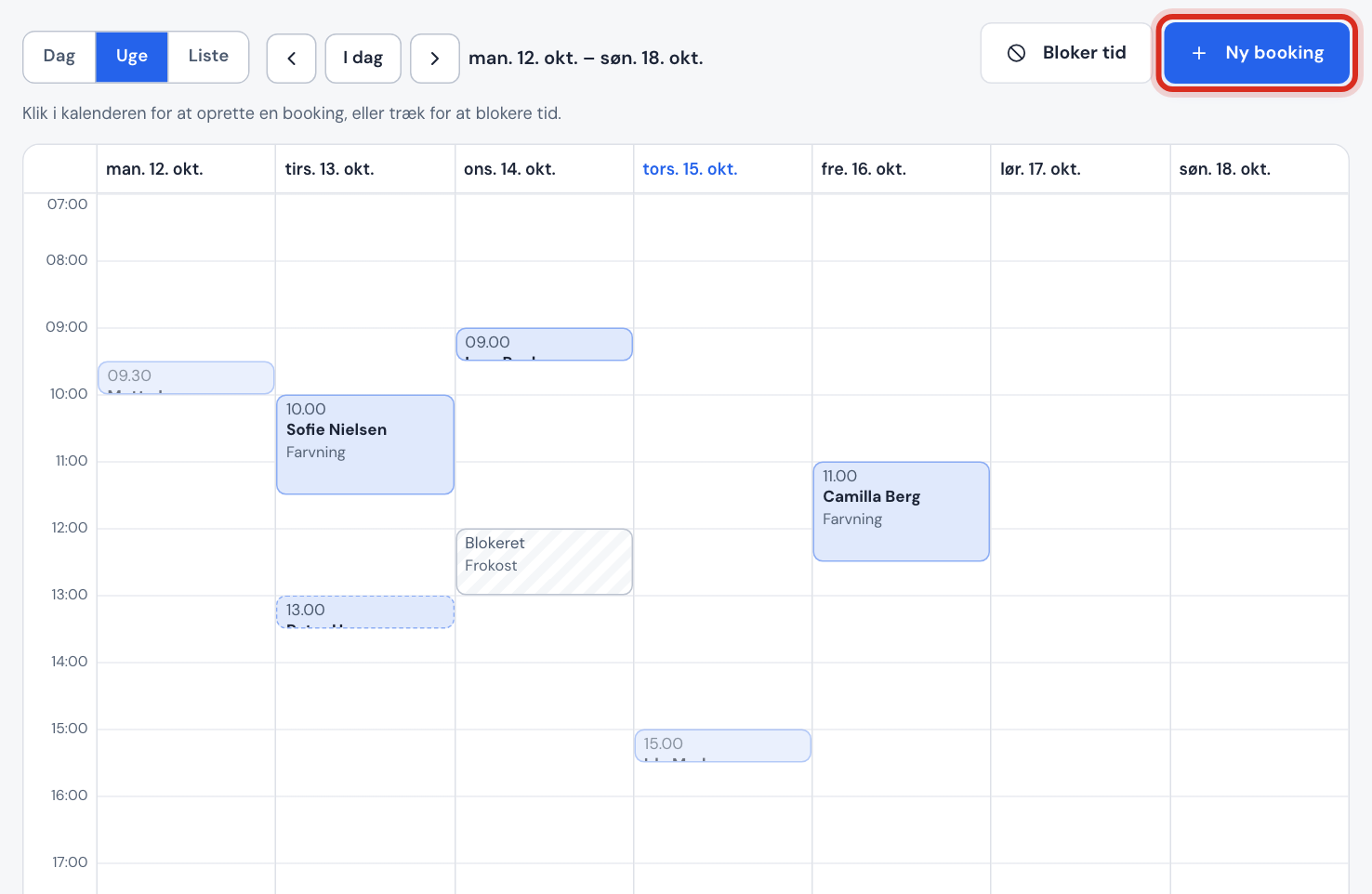
All bookings (both those customers make online and those you add yourself) appear in Booking → Calendar. Here you can also create appointments for customers who phone, and keep track of who turned up.
Finding your way around the calendar
- Choose a view: Day, Week or List.
- Change the period with Previous and Next, or jump back with Today.
- Cancelled bookings are hidden. Tick Show cancelled to see them.
Create a booking for a customer
Step 1: Start a new booking
Click the time in the calendar where the booking should go, or tap New booking.
Step 2: Choose service and time
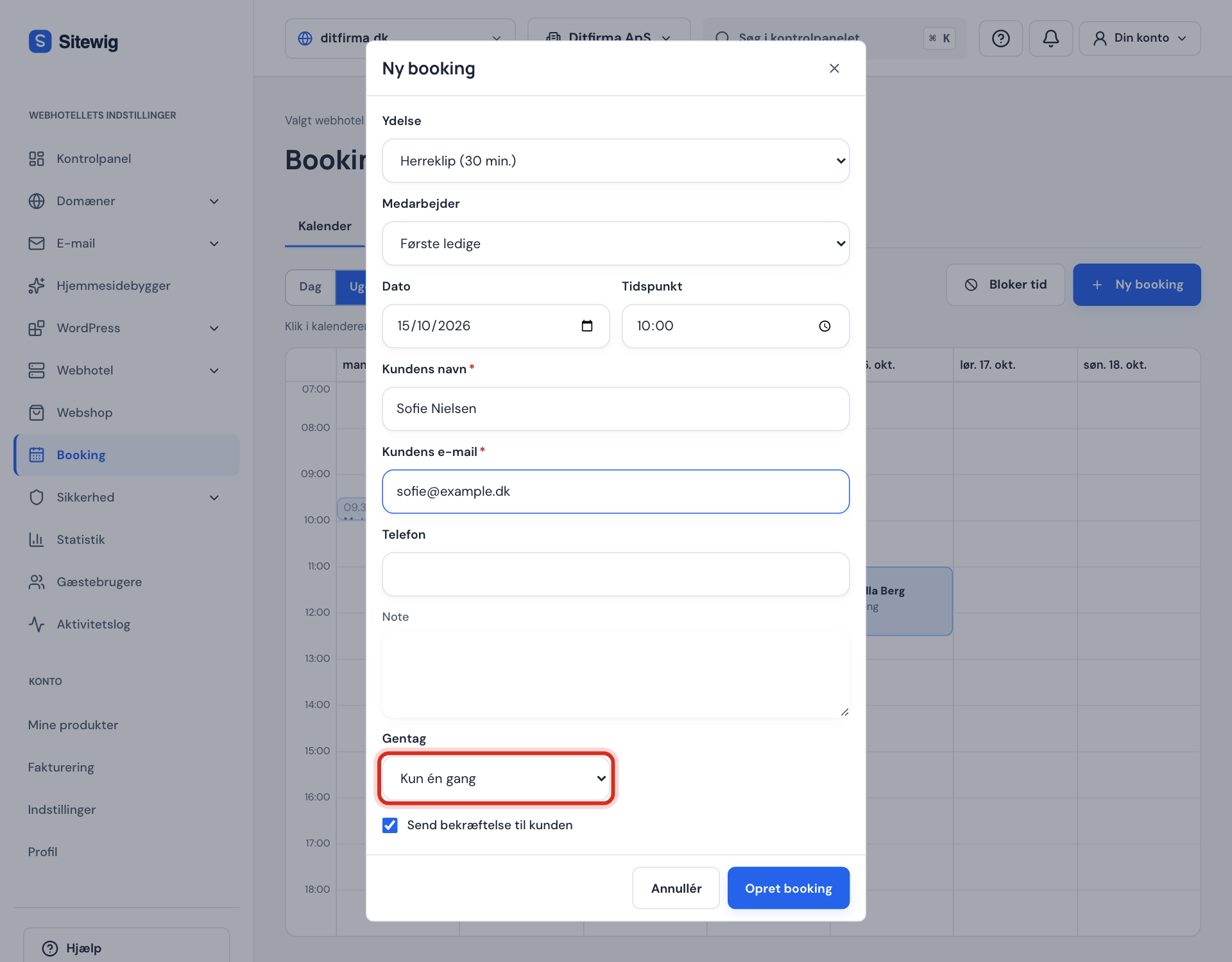
Choose the Service and Staff member (or First available). Check the Date and Time.
Step 3: The customer's details
Fill in Customer name and Customer email. Phone, Participants and Note are optional. Write anything only you should see in Internal note (only you can see it).
Step 4: Recurring appointments (optional)
If the customer comes regularly, choose in Repeat: Every week or every 2nd, 3rd or 4th week, and enter the Number of times (2-26). If one of the times is taken, it is skipped, and you are told which dates were affected.
Step 5: Confirmation and save
Leave Send confirmation to the customer turned on if the customer should receive an email with the time. Tap Create booking.
Move, cancel or update a booking
Click the booking in the calendar. The window shows customer, service, time and status, and has these buttons:
| Button | What happens |
|---|---|
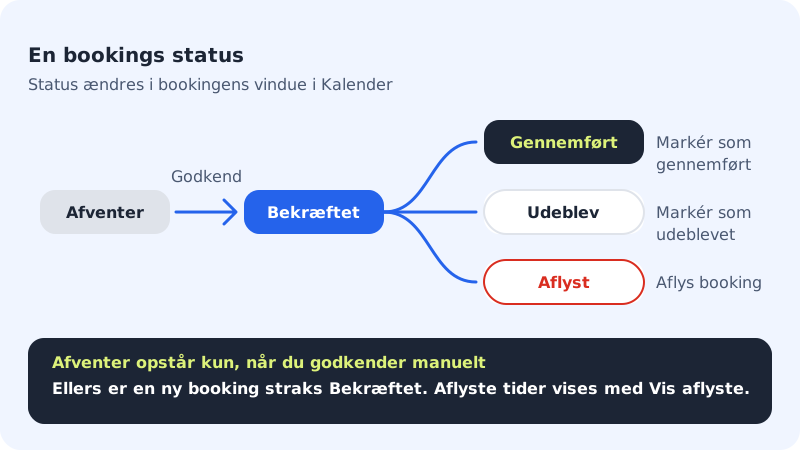
| Approve | Confirms a booking that is Pending (only with manual approval) |
| Move | Choose a new date, time or staff member |
| Mark as completed | The customer attended: status Completed |
| Mark as no-show | The customer didn't turn up: status No-show |
| Cancel booking | Cancels the appointment and releases it to others |
When you move or cancel, you can tick Notify the customer by email. When cancelling, you can also write a Message to the customer (optional), e.g. a suggestion for a new time. You can also save an internal note on the booking with Save note.
Frequently asked questions
Do my own bookings count towards the monthly limit?
No. Only bookings that customers make online count.
Is the customer notified when I cancel?
Yes, if Notify the customer by email is turned on. The customer gets an email about the cancellation with your message, if you wrote one.
Can NinaAI create and move bookings for me?
Yes. NinaAI can create, move and cancel bookings, but only after you have confirmed the change.