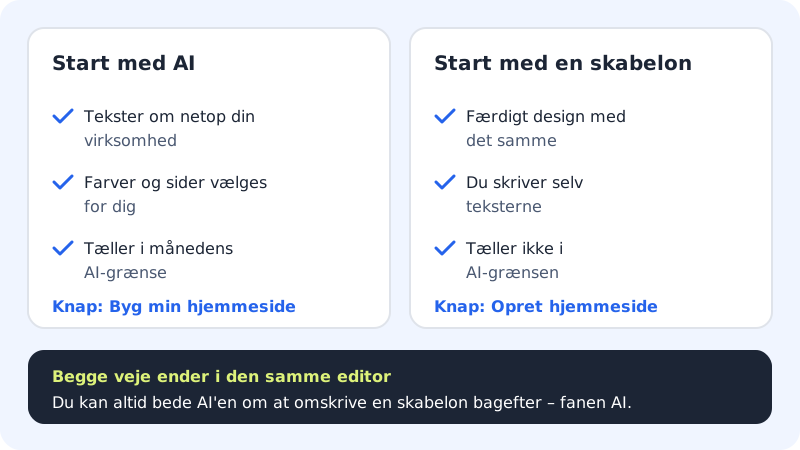
A template is a ready-made website with pages, sections, colours and sample texts for a particular industry. You get a good-looking result straight away and write the texts yourself. It's a good choice if you already know what it should say, or if you want to save your monthly AI limit.
Create a website from a template
Step 1: Find the templates
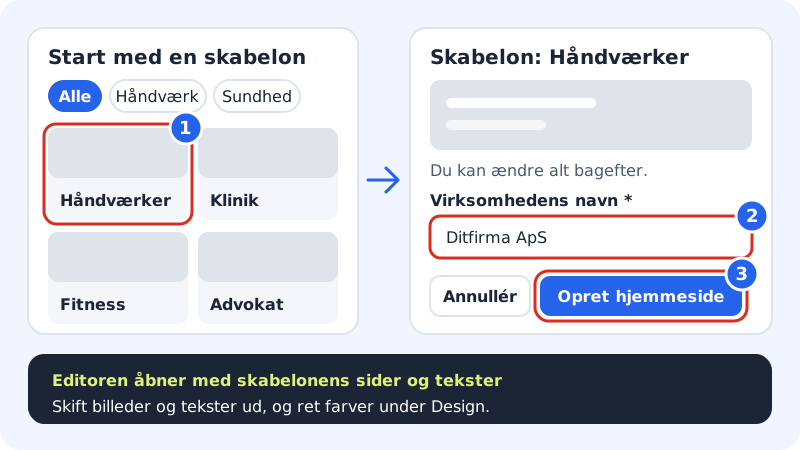
Choose Website builder in the menu and scroll down to Start with a template. The number after the heading shows how many templates are in the selected category.
Step 2: Filter by industry
Click a category, e.g. Trades, Food & drink, Beauty, Health, Consulting, Creative, Shop, Leisure & events or Associations. Click All to see all templates again.
Step 3: Click a template
The Template: … window opens with a preview of the whole home page. Scroll in the preview to see the sections.
Step 4: Type the business name
The Business name field is filled in with the name from your account. Change it if the website should have a different name. The name is used in the logo and in the template's texts. If you have several sites, also choose which Website the website should be published to.
Step 5: Click Create website
The editor opens with the template's pages and sample texts. Replace the texts with your own, and swap out the images.
Templates that require a particular plan
The Retail shop & webshop template includes a webshop and requires a plan with webshop (Pro, Business or Max). If your plan doesn't have a webshop, you see an upgrade box in the window, and the Create website button can't be clicked. If you only want to show your products without selling online, you can use the Local shop template instead.
Frequently asked questions
Can I switch to a different template later?
Not on an existing website. Instead you can change the look under the Design tab, change the layout of individual sections, or ask the AI to rebuild the site. If you want to move completely to another template, create a new website from the template and delete the old one from the builder when you're done.
Does a template use my AI limit?
No. Creating a website from a template doesn't count towards your monthly AI limit. It only does if you afterwards ask the AI to rewrite texts.
Are the images in the template free to use?
Yes, they come with the builder and may be used on your website. We still recommend swapping them for images from your own business – it looks more trustworthy.
Why does it show sample texts and a wrong phone number?
The templates use your business name, but the rest is sample content. Edit the address, phone and email in the Contact section, and write your own story in About us, before you publish.