Files you delete with FTP or in the file manager don't go to a recycle bin. However, Sitewig backs up your web hosting every night and keeps the backups for 30 days (90 days with Max), and you can bring a copy back yourself. With Side by side, nothing that's there now is overwritten, so you can pick out exactly the files you're missing.
Self-service restore is included in Starter, Pro, Business and Max.
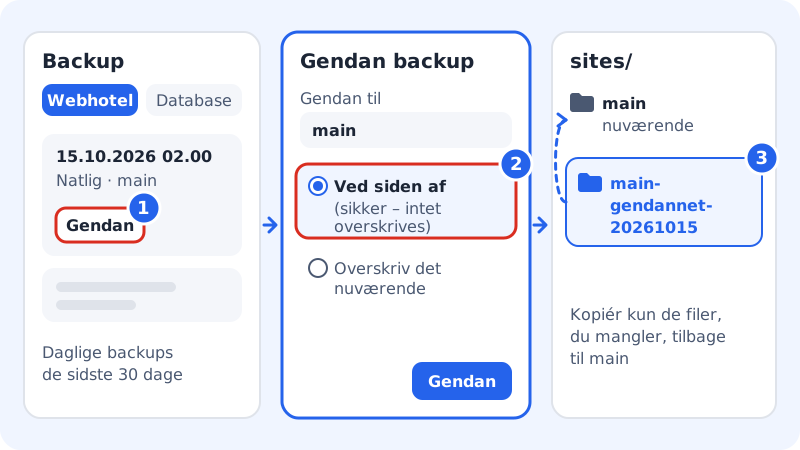
Restore side by side
Step 1: Open Backup
Log in to the control panel and choose Web hosting → Backup. Select the Web hosting tab.
Step 2: Find a backup from before the mistake
The list shows the time, type and contents, such as Nightly and main. Choose a backup from before you deleted or overwrote the files, and click Restore.
Step 3: Choose the target and method
Under Restore to, choose the website, such as
main. Choose Side by side (safe: nothing is overwritten) and click Restore. If you're asked to confirm that it's you, do so.Step 4: Wait for the restore
Under Restores you can follow the status. When it says Done, the copy is ready.
Step 5: Copy the files you're missing
Connect with your FTP program or the file manager. The restored copy is in
sites, in a folder with the date in its name, such assites/main-restored-20261015. Copy the files you're missing intosites/main/public.
You need the whole website back
If the whole website is broken, you can choose Overwrite the current one instead. The website's folder is then set back to how it was at the time of the backup, and any later changes in the folder disappear. Read more in restore from backup.
Frequently asked questions
Do I delete the files if I delete an FTP user?
No. When you delete an FTP user, it only loses its access. The files on the web hosting stay where they are.
Can I restore a single file without restoring the whole folder?
Yes, with Restore individual files on the Backup page. See restore individual files.
Can I take a backup myself right now, before I change anything?
The Back up now button requires the Business or Max plan. On the other plans, you can download a copy of the files with your FTP program before you start.