With self-service restore, you can put your website or database back to an earlier day yourself – without writing to support. You choose whether the backup should be placed alongside the current version, so you can compare, or whether it should overwrite what is there now.
Restore in six steps
Step 1: Open Backup
Click Web hosting in the left-hand menu, and choose Backup. Then choose the Web hosting tab (files), Database or Website (pages from the website builder).
Step 2: Find the right date
Find the backup from the day you want to go back to, and press Restore in that row. Choose a date from before the error appeared.
Step 3: Choose what to restore
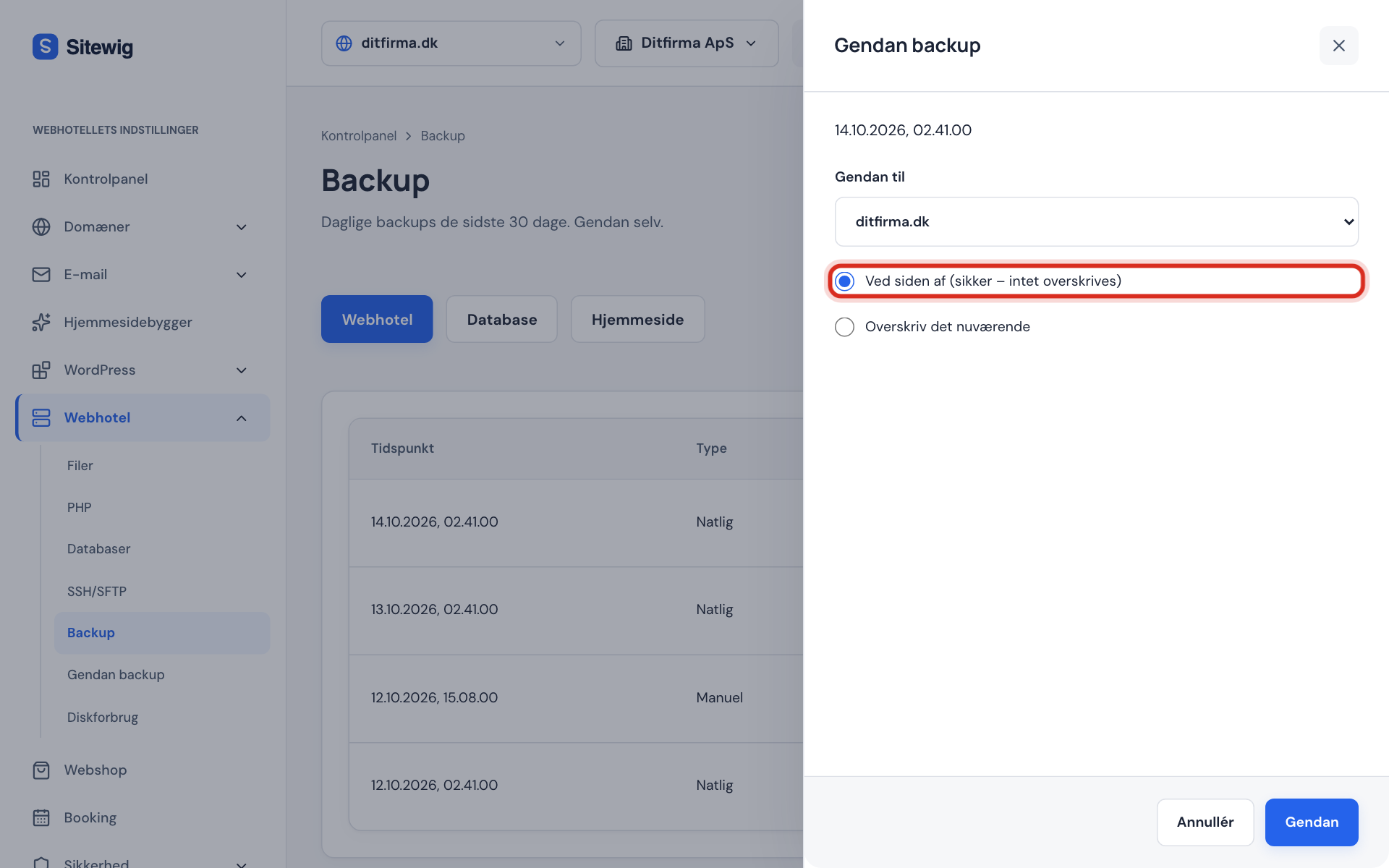
The Restore backup panel opens. Under Restore to, choose which website or database the backup should be put back on.
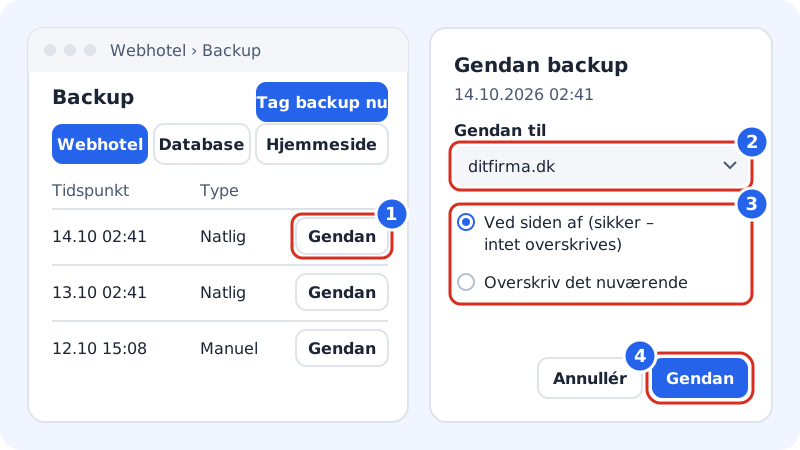
Choose a target and a method, and press Restore Step 4: Choose a method
Choose Alongside (safe – nothing is overwritten) if you want to look at the backup first or only take something out of it. Choose Overwrite the current one if the current version should be replaced completely.
Step 5: Start the restore
Press Restore. If extra confirmation is turned on for your account, you are asked to confirm with your password or passkey first. You then see the message Restore started.
Step 6: Follow the status
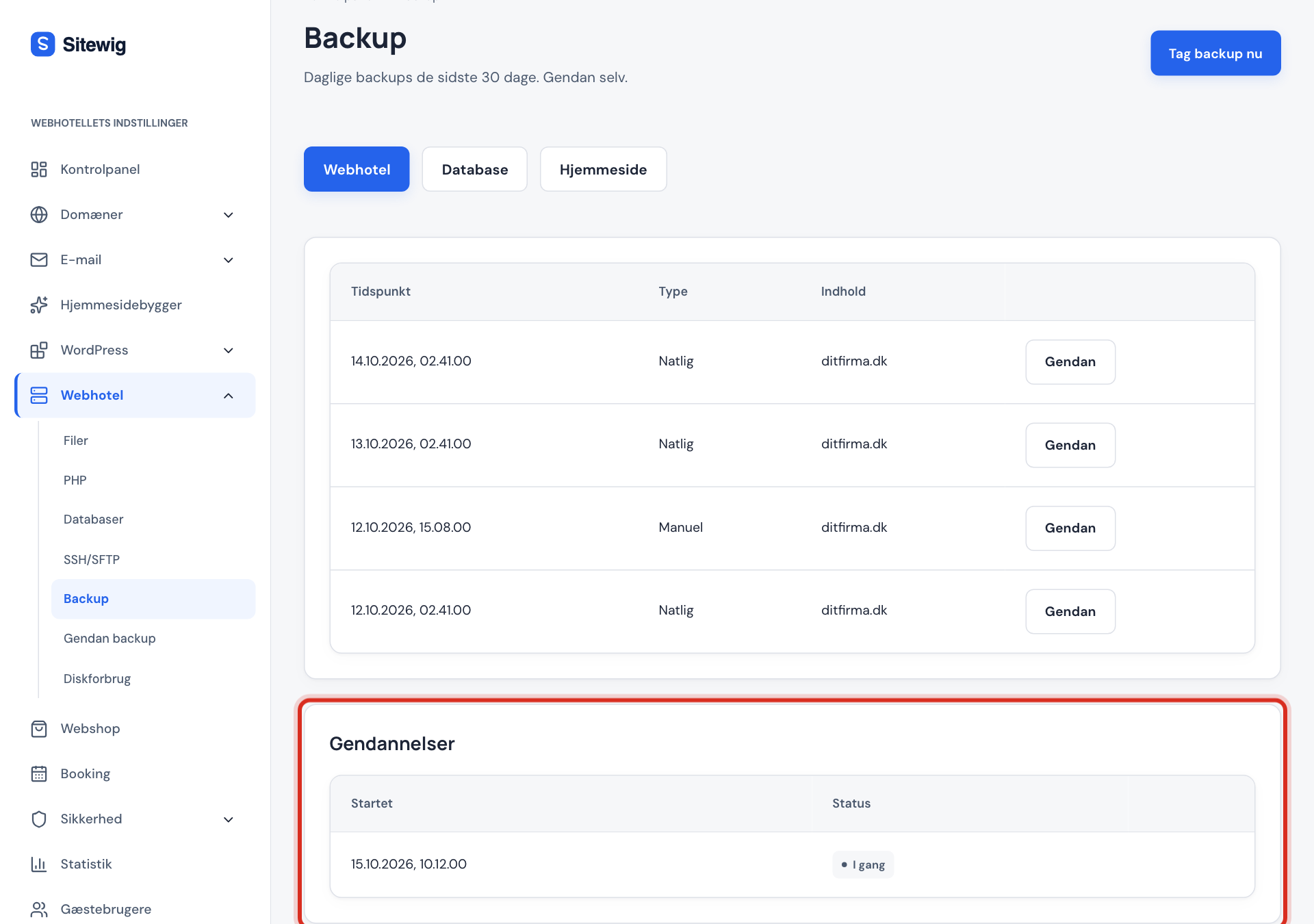
The Restores card shows the status: Queued, In progress and finally Done – or Failed if something went wrong.
Alongside or overwrite?
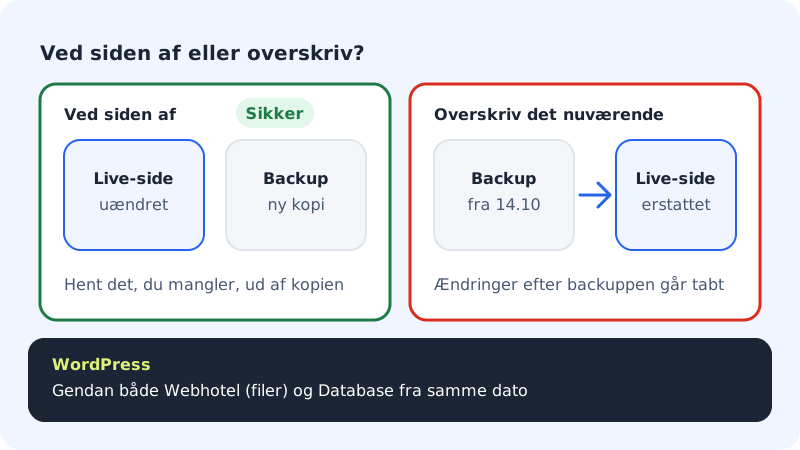
| Alongside | Overwrite the current one | |
|---|---|---|
| Your current site | Stays as it is | Is replaced |
| Good for | Taking out a single file or comparing | Getting the whole site back after an error or hack |
| Can be undone | Yes – nothing has changed | Only by restoring another backup |
Frequently asked questions
How long does a restore take?
It depends on the size. A small website is typically done within a few minutes, while large web hosting accounts can take longer. Follow the status in the Restores card.
Will I lose orders or posts when I overwrite?
Yes. Everything created after the time of the backup – for example new orders, posts or comments – disappears when you overwrite. Use Alongside if you are in doubt.
Can I restore on the free plan?
No. Self-service restore is included in the Starter, Pro, Business and Max web hosting plans.
What is the Restore backup menu item?
Under Web hosting there is also a Restore backup item, which is a shorter form for the same thing. The Backup page gives the best overview and is recommended.