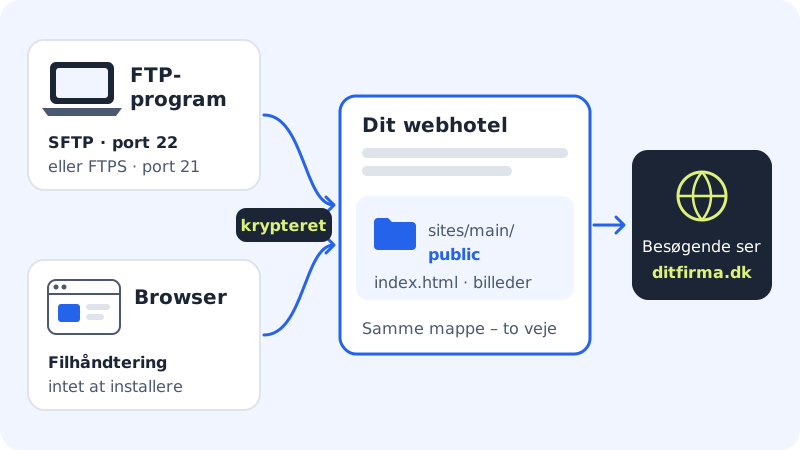
If you only need to upload a few files or edit a single file, the file manager is the quickest way. It opens in the browser, and you log in with one of your FTP users. You see the same folders you would see in an FTP program.
Before you start
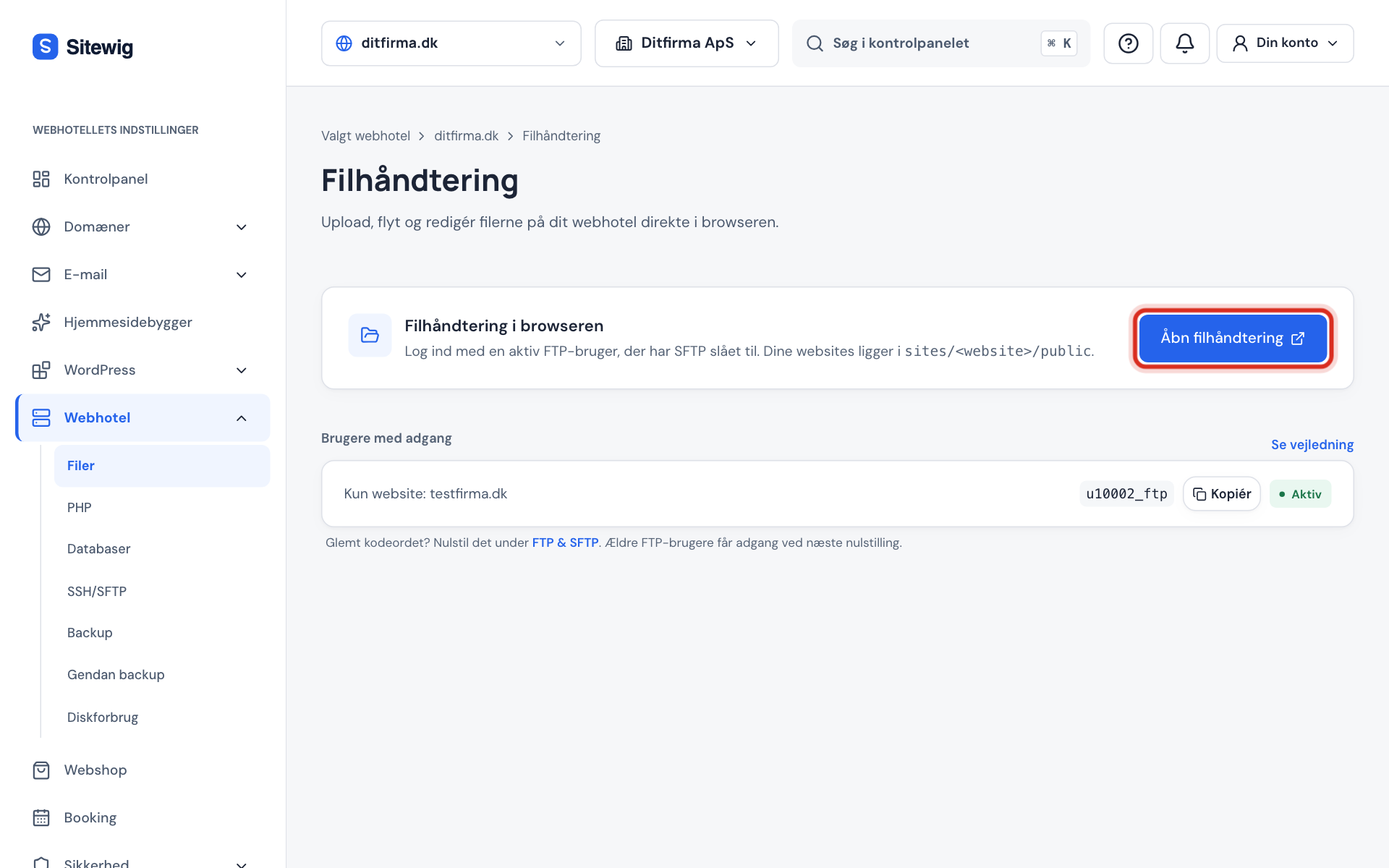
You need an FTP user that has SFTP turned on and the status Active. If you don't have one, create an FTP user. Under Users with access on the file manager page you can see which users can log in.
Open the file manager
Step 1: Go to Files
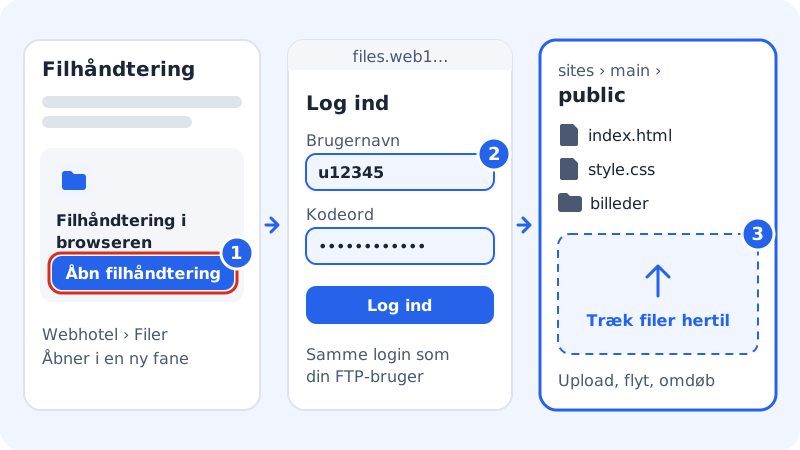
Log in to the control panel and choose Web hosting → Files. You'll also find a shortcut on the front page of the control panel.
Step 2: Click Open file manager
In the File manager in the browser card, click Open file manager. The file manager opens in a new tab at an address that starts with
files.followed by the name of your server.Step 3: Log in with your FTP user
Enter your FTP user name, such as
u12345, and the FTP user's password. The login page may be in English.Step 4: Open the public folder
Click your way into
sites, thenmainandpublic. Other websites are insites/<name>/public.Step 5: Upload or edit files
Drag files from your computer into the window to upload them. You can also create folders, move, rename, download and delete files, and edit text files directly.
Frequently asked questions
Why is there no Open file manager button?
The button only appears when you have at least one active FTP user with SFTP. If the user has just been created, wait a moment and reload the page. If it says The file manager is closed, the account has been suspended and you'll need to contact us. If it says The file manager isn't available yet, your web hosting isn't quite ready yet.
My login works in FileZilla but not in the file manager. Why?
Either the user only has FTPS, or it's an older user that was created before the file manager existed. Older users get access the next time you click New password next to them under Web hosting → SSH/SFTP.
Can I unpack a zip file in the file manager?
We can't promise that the file manager can unpack archives. The safe way is to unpack the files on your computer first and upload the contents. If you have many files, it's quicker with an FTP program.
How large a file can I upload?
Large files of several hundred MB upload most reliably with an FTP program. See uploading large files.