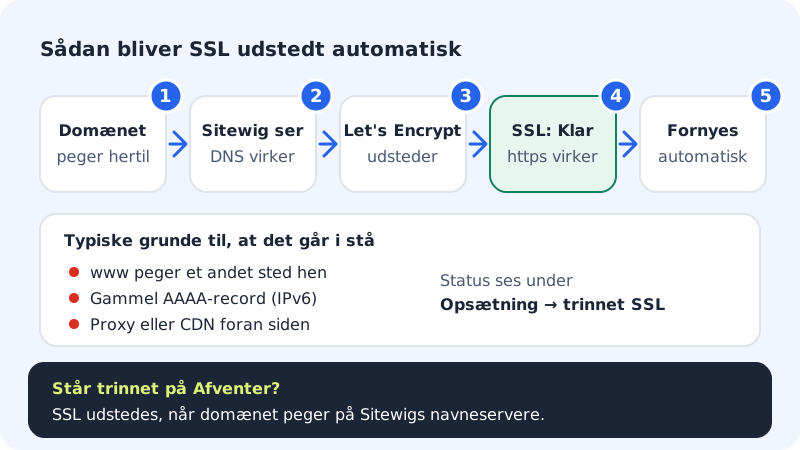
All domains at Sitewig get a free SSL certificate from Let's Encrypt, which is issued and renewed automatically. If the browser still says Not secure, there are two possible explanations: either the certificate has not been issued yet, or the certificate is fine, but the page loads images or scripts via http://.
Has the certificate been issued?
Step 1: Open the domain
Go to Domains → My domains, and click the domain. Find the SSL step in the Setup list.
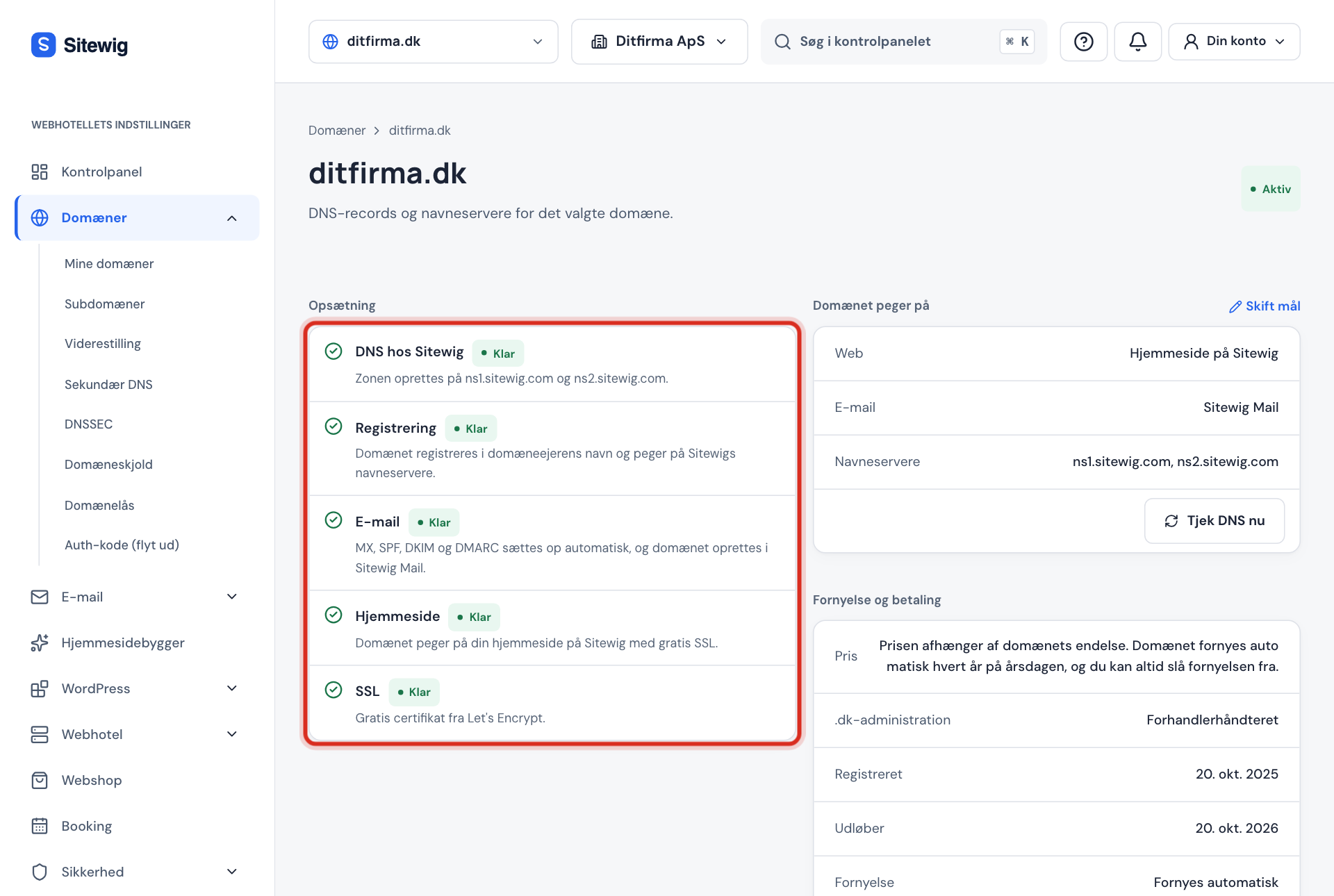
If SSL shows Ready, the certificate has been issued Step 2: Read the SSL status
- Ready: The certificate has been issued. Continue to the section The certificate is fine, but the page is still not secure.
- Pending: SSL is issued when the domain points to Sitewig's name servers. See I have changed DNS, but nothing has happened.
- Error: Something is preventing Let's Encrypt from reaching your site. Continue with the next step.
Step 3: Check that both the domain and www point to Sitewig
If the domain uses
ns1.sitewig.comandns2.sitewig.com, we set the right records ourselves. If you use another DNS provider, both the domain itself (@) andwwwmust point to Sitewig.Step 4: Remove old records
Look in the DNS section of the domain page for records from a previous provider – especially an old AAAA record (IPv6) or a CAA record that only allows another issuer than Let's Encrypt. You can delete your own records with Delete.
Step 5: Turn off any proxy while the certificate is issued
If you have a proxy or CDN service in front of the site, it can hide our server from Let's Encrypt. Turn off the proxy until SSL shows Ready.
Step 6: Give it a little time
When DNS has been corrected, we try again automatically. If the step still shows Error after a day, write to support with the domain name.
The certificate is fine, but the page is still not secure
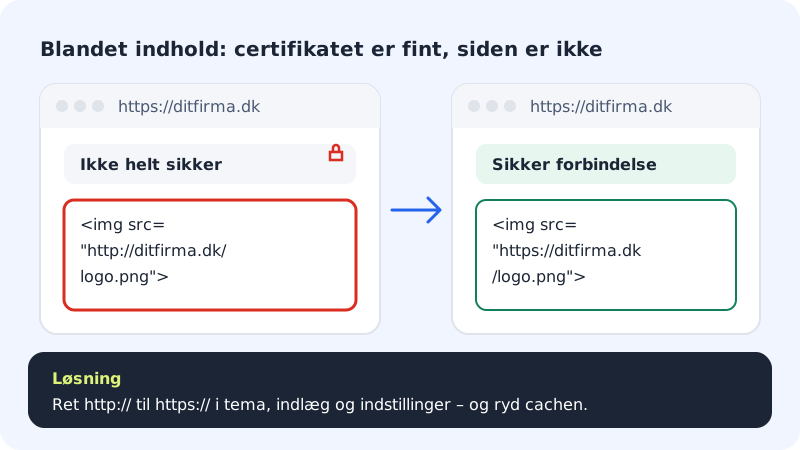
Then it is almost always mixed content: the page is opened via https://, but an image, a font or a script is loaded via http://. The browser then shows that the page is not fully secure.
Step 1: Find what is loaded via http
Right-click the page, and choose Inspect. The Console tab lists the addresses that are loaded insecurely.
Step 2: Correct the addresses
- WordPress: Check under Settings → General that both addresses start with
https://. Then correct links in posts, menus and the theme. - Website builder: Replace images you have linked to from another site via
http://, and publish again. - Your own files: Search for
http://in your HTML, CSS and PHP files.
- WordPress: Check under Settings → General that both addresses start with
Step 3: Clear the cache
Clear the browser's cache. If you use a cache in WordPress, clear that too.
Frequently asked questions
Do I need to buy or renew a certificate myself?
No. The certificate from Let's Encrypt is free, covers both the domain and www, and renews automatically before it expires.
Can I upload my own certificate?
No, not in the control panel today. All domains use the automatic certificate from Let's Encrypt.
Where can I see SSL for all my domains at once?
Under Security, the SSL per domain card shows the status of your domains.