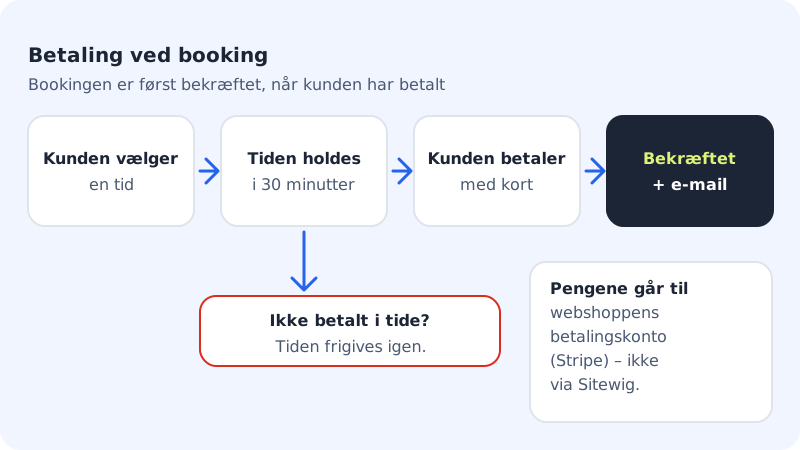
If you require payment when booking, the appointment is only confirmed once the customer has paid. This means fewer no-shows, and you don't have to chase payment. The money goes straight to the shop's Stripe account, and Sitewig takes no percentage.
What needs to be in place first
- A payment account (Stripe): The same account the shop uses. Create and complete it under Shop → Payment.
- A price on the service: Services without a price can't require payment.
- A published page with booking: The page with the Online booking section must be published, so the customer can return after paying.
If anything is missing, the Payment at booking card shows a message about what you need to do. When everything is ready, it says The payment account is ready.
Turn on payment for a service
Step 1: Open Payment at booking
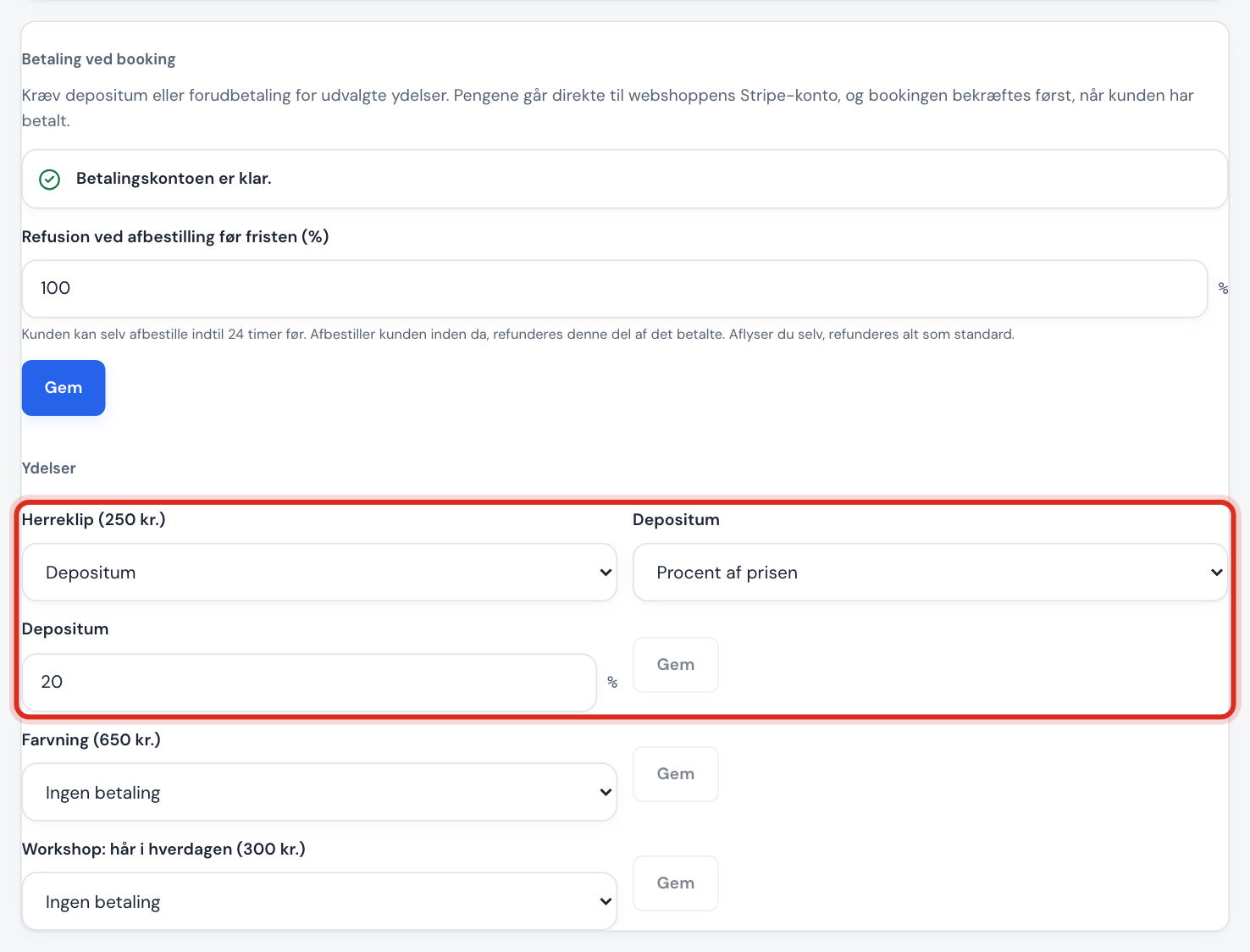
Go to Booking → Settings and scroll down to the Payment at booking card.
Step 2: Choose payment per service
Next to each service, choose No payment, Deposit or Full prepayment.
Step 3: Set the deposit
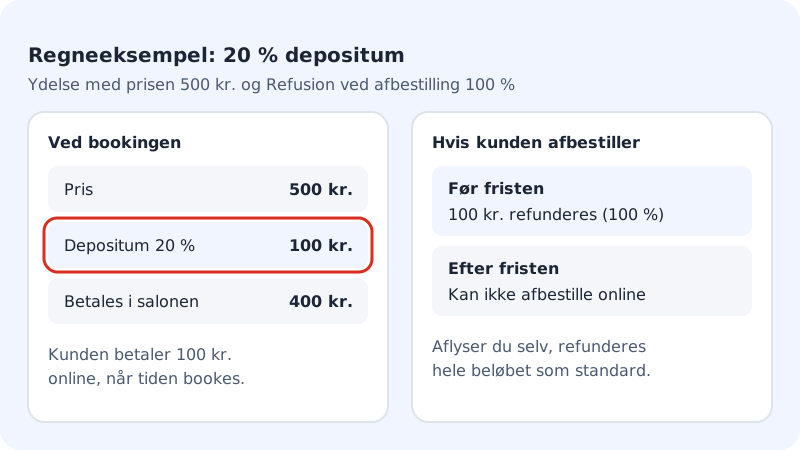
If you choose Deposit, you decide whether it is a Percentage of price (1-100%) or a Fixed amount (at least 3.00). Tap Save next to the service.
Step 4: Decide the refund
In Refund on cancellation (%), enter what share of the amount paid the customer gets back if they cancel themselves before your deadline. The deadline is the same as Cancel and move no later than (hours before) in the settings. Tap Save.
Step 5: Test it
Book an appointment on your website as a customer would, and pay. The booking should change from Pending to Confirmed, and the payment shows as Paid in the booking window.
What happens if the customer doesn't pay?
The time is held for the customer for 30 minutes while they pay. If the payment is interrupted or isn't completed in time, the time is released again and the payment shows as Not paid (expired).
Refund a payment
Click the booking in Calendar. The Payment line shows the status and amount. Tap Refund, choose the amount and confirm. The refund is sent to Stripe straight away and can't be undone.
If you cancel a paid booking yourself, the full amount is refunded by default.
| Payment status | Means |
|---|---|
| Awaiting payment | The customer is in the middle of paying |
| Paid | The amount has been received |
| Partly refunded | Part of the amount has been sent back |
| Refunded | The whole amount has been sent back |
| Not paid (expired) | The customer didn't pay in time, and the time was released |
| Payment declined | The card payment was declined |
Frequently asked questions
Can I charge a fee if the customer doesn't turn up?
Not automatically. But with a deposit the amount has already been paid: if the customer doesn't turn up, nothing is refunded by itself, and you can mark the customer as a no-show in the calendar. After the cancellation deadline, the customer also can't cancel online themselves.
Can the customer pay with a gift card or punch card?
Yes, with gift cards from the shop and punch cards in booking, if your plan includes them (Business and Max).