If you want to measure visits in Google Analytics, or show ads to your visitors on Facebook and Instagram, the tracking code needs to be on your website. In Sitewig you don't have to copy any code – you just add your ID, and Sitewig makes sure tracking only starts once the visitor has said yes in the cookie banner.
What comes with your plan?
Tracking per plan
- Google Analytics 4
- Starter and above
- Meta Pixel
- Starter and above
- Google Tag Manager
- Pro and above
- Google AdSense
- Pro and above
If your plan doesn't include a feature, you'll see a box instead, with the name of the cheapest plan that has it and a link to See plans.
Find your ID
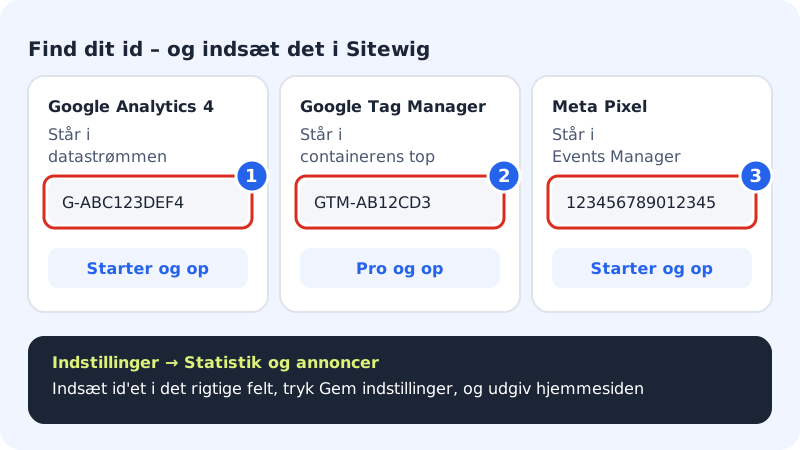
- Google Analytics 4: The measurement ID is shown next to your data stream in GA4's admin area. It starts with
G-, e.g.G-ABC123DEF4. - Google Tag Manager: The container ID is shown at the top of Tag Manager. It starts with
GTM-, e.g.GTM-AB12CD3. - Meta Pixel: You'll find the pixel ID in Meta's Events Manager. It is digits only, e.g.
123456789012345. - Google AdSense: The publisher ID starts with
ca-pub-, e.g.ca-pub-1234567890123456.
Add the ID
Step 1: Open the settings
Choose Website builder in the control panel, and press Open editor. Go to the Settings tab, and find the Website settings section.
Step 2: Find Statistics and ads
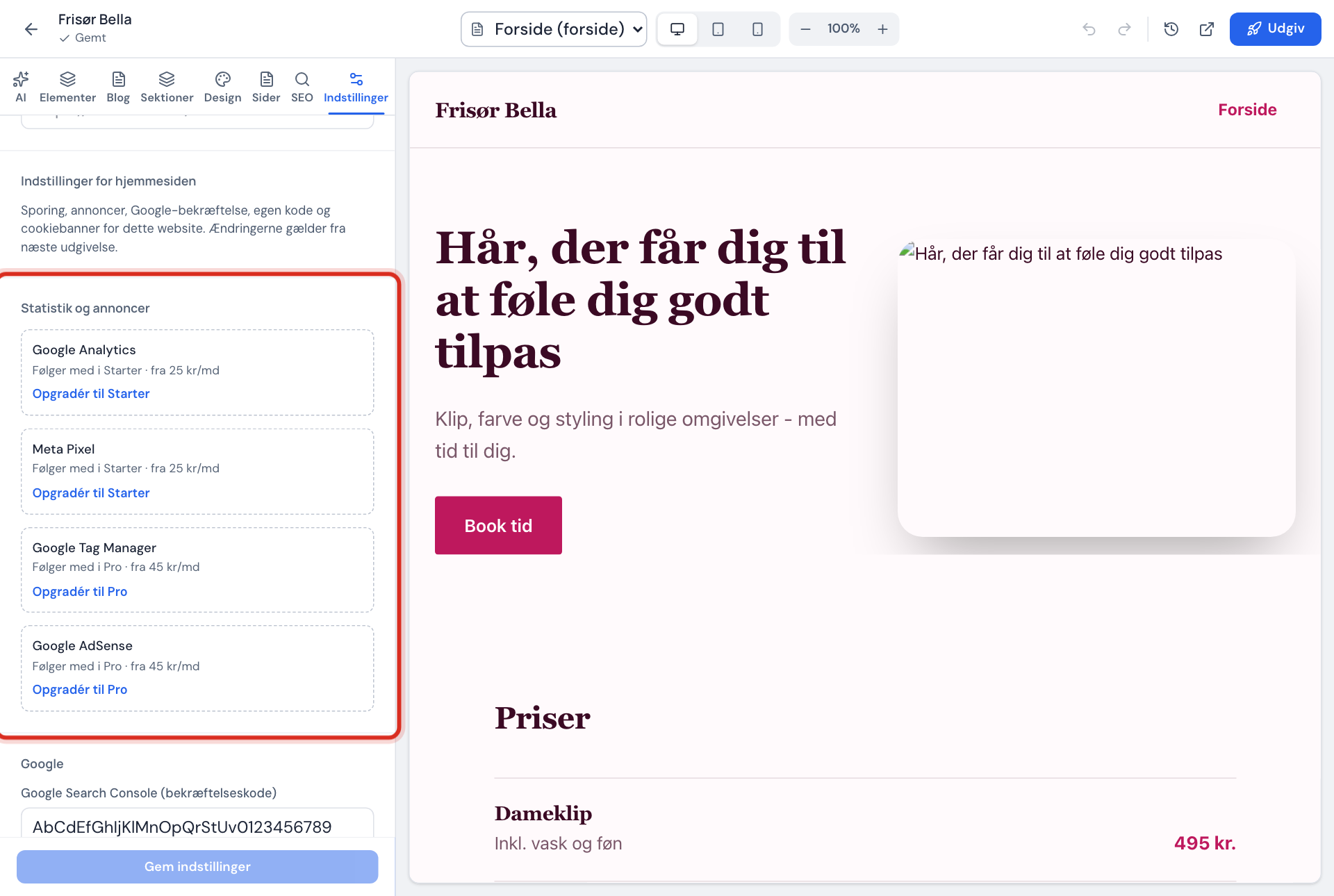
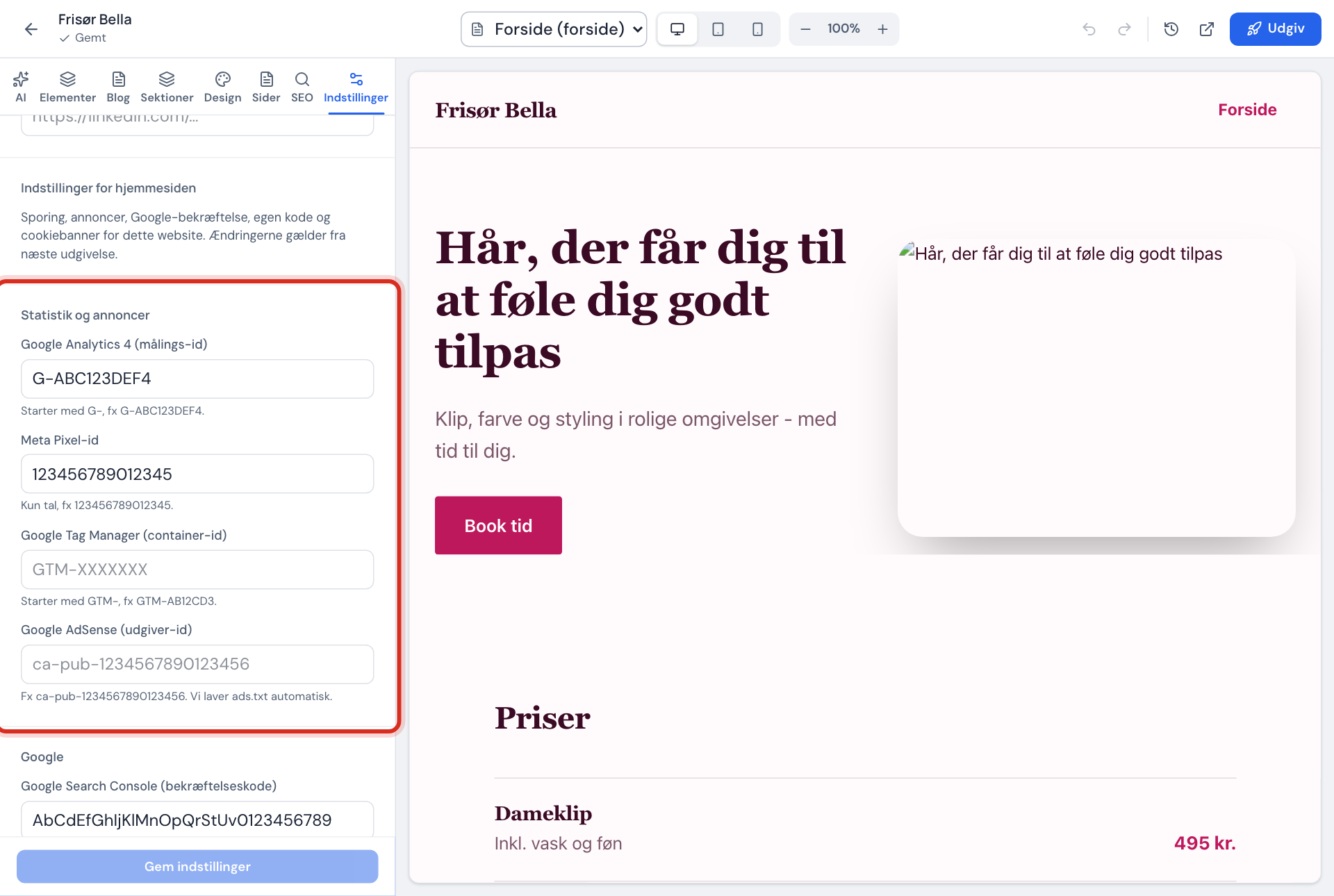
Under Statistics and ads there are four fields: Google Analytics 4 (measurement ID), Meta Pixel ID, Google Tag Manager (container ID) and Google AdSense (publisher ID).
Step 3: Paste the ID
Paste the ID into the right field. The format is checked straight away. If it says The format doesn't match., a space has probably crept in.
Step 4: Add a link to your privacy policy
When the site uses tracking, the cookie banner needs a link to your privacy policy. Fill in Link to cookie and privacy policy (https) under Cookie banner, otherwise you can't save.
Step 5: Save and publish
Press Save settings. It says Saved. Publish the site to use the changes. Press Publish at the top of the editor.
How consent controls tracking
Sitewig loads no tracking until the visitor has made a choice in the cookie banner. Google is told via Consent Mode, which starts at "no" and only changes once the visitor says yes.
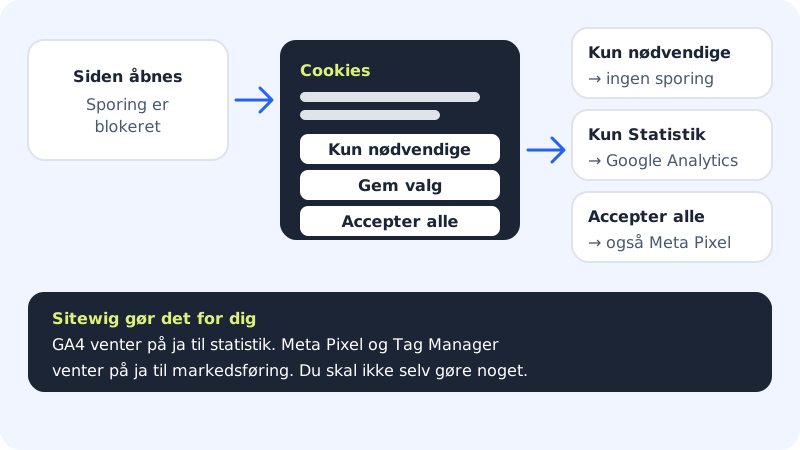
| Field | Category in the cookie banner |
|---|---|
| Google Analytics 4 | Statistics |
| Meta Pixel | Marketing |
| Google Tag Manager | Marketing |
| Google AdSense | Marketing |
Test that it works
- Open your website in a private window.
- Press Accept all in the cookie banner.
- Look at GA4's real-time report, or use Meta's browser extension to check the pixel.
Google AdSense
When you fill in the AdSense field, Sitewig automatically creates the ads.txt file when you publish. In the EU, Google requires a certified consent solution for ads. You must therefore set up Google's Privacy & messaging message in your AdSense account and tick the confirmation under the field before you can save. The panel shows whether Sitewig is currently only publishing ads.txt, or whether only non-personalised ads are shown.
Online shop
If you have an online shop on Sitewig, purchases and basket activity can be sent as events to Google Analytics, Tag Manager and Meta Pixel – also only after consent.
Frequently asked questions
I can't see the Website settings section?
The section is under the Settings tab in the website builder. If you can't see it, contact support.
It says "Saved, but not included in your plan"?
You've saved an ID that your current plan doesn't cover, for example after a downgrade. The ID is saved, but it isn't added to the site until you have a plan with the feature.
Why does Google Analytics show fewer visits than Sitewig's statistics?
Google Analytics only measures those who say yes to statistics. Sitewig's built-in statistics count page views without cookies. Read more in View your website's visitor numbers.
Can I add Google Ads conversions, Hotjar or LinkedIn?
There isn't a separate field for them. Use Google Tag Manager, or add the code under Custom code – see Add your own code safely, with consent.