The most important rule when you move to Sitewig: get everything ready at Sitewig first, and switch the domain last. The domain decides where email and visitors end up. If it points to Sitewig before the mailboxes exist, emails may be rejected.
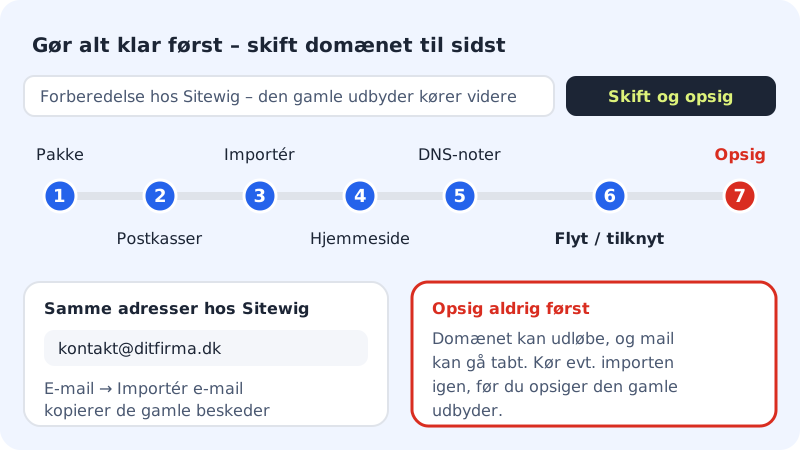
The roadmap
Step 1: Choose a Sitewig plan
Create your Sitewig account and choose a plan with the mailboxes and website you need.
Step 2: Create the same mailboxes
Create a mailbox at Sitewig for every address you use today, e.g.
contact@yourcompany.com. The addresses must be exactly the same as at the old provider.Step 3: Copy your old emails
Go to Email → Import email and copy folders and messages from the old mail server. Your old mailbox is not touched. The import can take a few hours, so start it in good time.
Step 4: Get the website ready
Build or move the website to Sitewig so that it is ready when the domain switches.
Step 5: Make a note of special DNS records
Write down the DNS records that other services use at the old provider, e.g. TXT records for verification or CNAME records for newsletters. You need to add them under DNS on the domain's page at Sitewig.
Step 6: Move or connect the domain
Now everything is ready. Move the domain with the auth code, or connect it and change the name servers to
ns1.sitewig.comandns2.sitewig.com.Step 7: Cancel the old provider last
Wait until the domain points to Sitewig and you have checked that emails arrive and the website works. If you like, run the email import once more to pick up the last messages. Then cancel the old provider.
The move guide in the control panel
Under Domains → Move here you will find the move guide. It takes you through the steps The domain, Mailboxes, Move your emails, The website and Change name servers, and it can look up where your domain is today. It only looks up the domain's public DNS and never signs in to your current provider.
If it says The move guide isn't open yet, the guide has not been turned on for your account. Follow the roadmap above instead – you can do exactly the same under Domains and Email.
Frequently asked questions
What happens to emails that arrive during the switch?
While the name servers are changing, some emails may reach the old server and others Sitewig, for up to 24 hours. That is why you should keep the old mailbox for a few days and run the import again at the end.
Does Sitewig help with the move?
Yes. See the page Move to Sitewig, or contact support if you would like help with moving.
Do I need to change anything in my email apps?
Yes. Once your email is at Sitewig, your email apps need to use Sitewig's servers. See, for example, Set up your Sitewig email on iPhone and iPad.