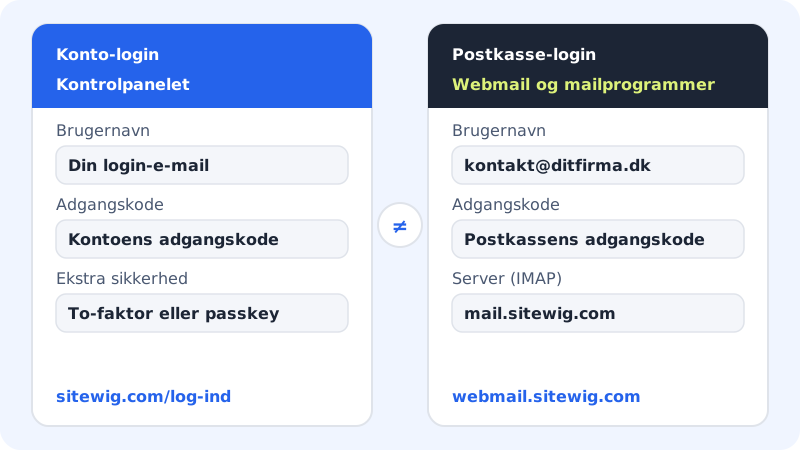
At Sitewig there are two kinds of sign-in. With your account you sign in to the control panel and manage domains, email, web hosting and website. With a mailbox you read and send email – in webmail or in an email program. Each of them has its own password.
Sign in to the control panel
Step 1: Open the sign-in page
Go to
sitewig.com/log-ind.Step 2: Choose the Control panel tab
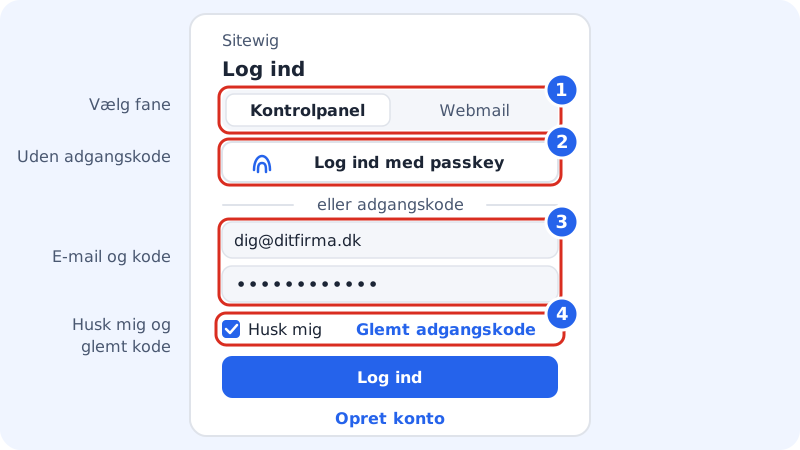
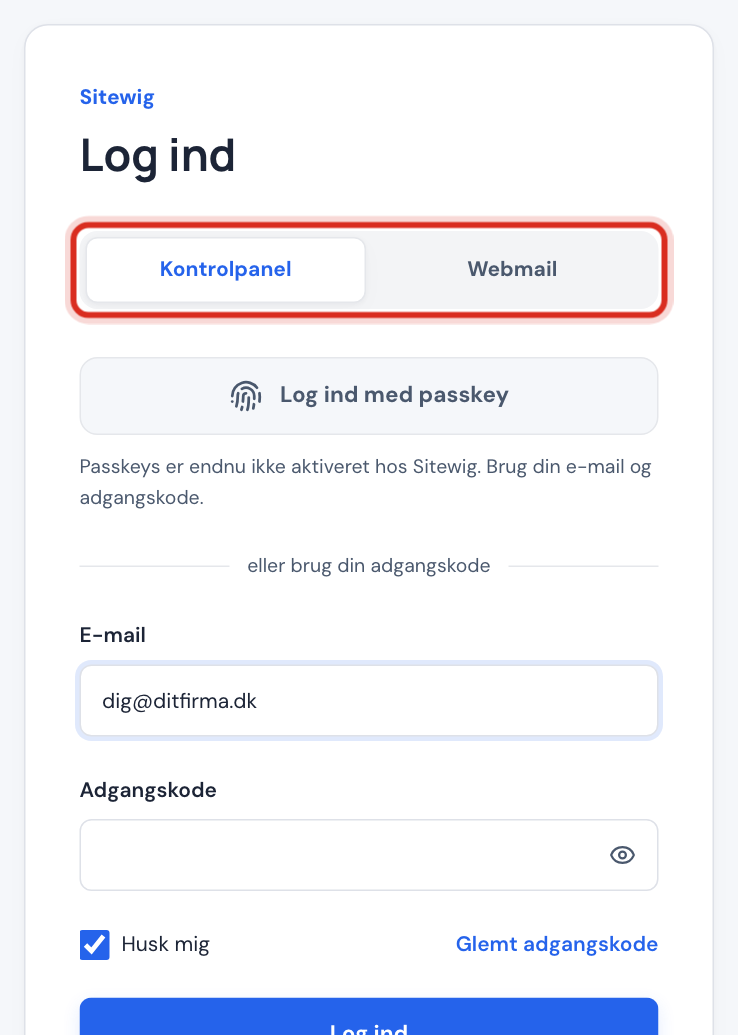
At the top of the sign-in card there are two tabs: Control panel and Webmail. Leave Control panel selected.
Step 3: Enter email and password
Enter the email address you created the account with and your password. Tap the eye icon if you want to see what you have typed. If Caps Lock is on appears below the field, turn Caps Lock off first.
Step 4: Choose Remember me – only on your own device
Remember me is ticked by default, so you stay signed in. If you are using a shared or public computer, untick it. You will then be signed out when the browser is closed.
Step 5: Tap Sign in
If you have turned on two-factor sign-in, we now ask for the 6-digit code from your authenticator app. After that you are in the control panel.
Open webmail
Choose the Webmail tab on the sign-in page and tap the Webmail button. You can also go directly to webmail.sitewig.com. Here you sign in with:
Sign-in for webmail and email programs
- Username
- Your full email address, e.g.
contact@yourcompany.com - Password
- The mailbox password – not the account password
If you have forgotten the mailbox password, an owner or administrator can set a new one in the control panel under Email → Mailboxes.
If sign-in does not work
- Wrong email or password. – check the spelling and Caps Lock. If you cannot remember the password, reset it.
- Email not confirmed. Click the link in our email. – open the confirmation email from when you created the account and click the link.
- Too many attempts. Wait a moment and try again. – we temporarily slow down sign-in after many failed attempts. Wait a few minutes.
Frequently asked questions
Why does my email password not work in the control panel?
Because the control panel uses the account password. The mailbox password only works in webmail and email programs. If you have several mailboxes, each of them has its own password.
I opened a page in the control panel and was sent to sign-in. Is that an error?
No. Pages in the control panel require you to be signed in. Once you have signed in, we send you back to the page you were trying to open.
Can several people use the same sign-in?
We advise against it. Instead, give each person their own sign-in with guest users. That way you can control what each person may do and remove their access again without changing your own password.