Backup codes are an emergency key to your account. Each code can be used once instead of the code from your authenticator app, e.g. if your phone is lost, broken or reset.
How to get your backup codes
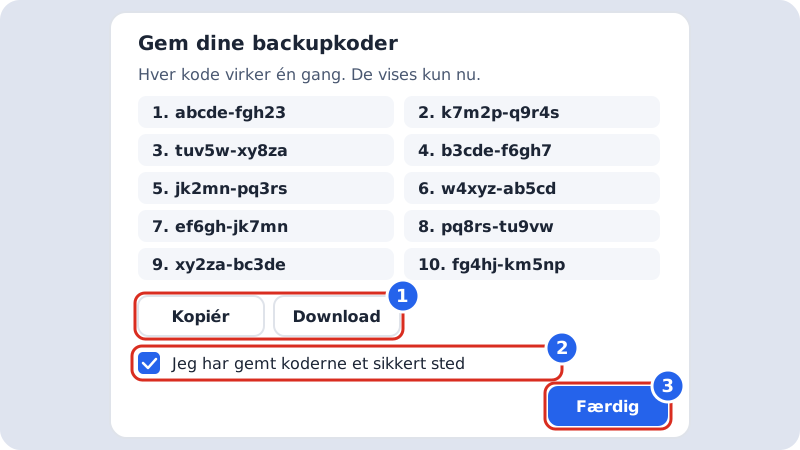
When you turn on two-factor sign-in, we show the Save your backup codes window with 10 codes. The codes are shown only this once: we don't store them, so we can't show them again.
Step 1: Save the codes
Tap Download to save a text file, or Copy and paste them into your password manager. You can also print the file and keep it somewhere safe.
Step 2: Confirm they're saved
Tick I have saved the codes somewhere safe. Only then can you tap Done.
Sign in with a backup code
- Sign in with your email and password as usual.
- When the Two-factor sign-in page asks for the code, tap Use a backup code instead.
- Enter one of your codes in the Backup code field. It doesn't matter whether you include the hyphen and capital letters.
- Tap Continue. The code is now used and won't work again.
If it says The backup code is wrong or already used., try another code from the list.
Create new codes
Under Settings → Sign-in and security, the Backup codes row shows how many codes you have left, e.g. 7 of 10 left. If you have 3 or fewer, it says You're running out of codes – create new ones.
Tap Create new codes and confirm in the Create new backup codes? window. You get 10 new codes, and the old ones stop working immediately. Also create new codes if you think someone else has seen them.
Lost your phone?
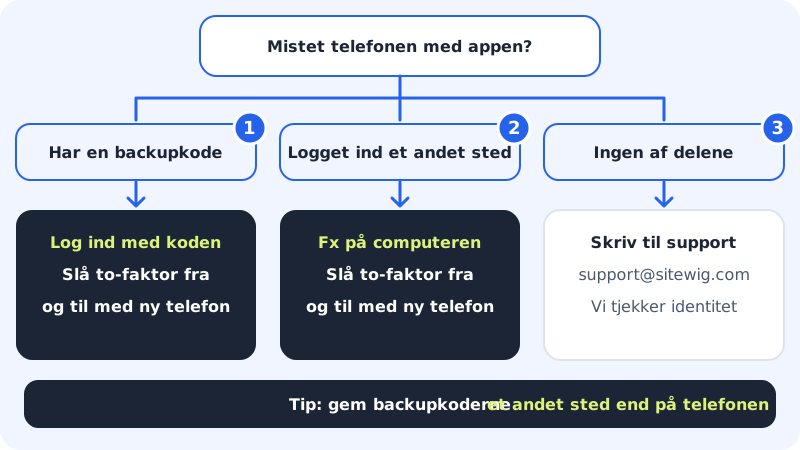
- Do you have a backup code? Sign in with it.
- Go to Settings → Sign-in and security, tap Turn off next to Two-factor sign-in and confirm.
- Tap Turn on again and scan the QR code with your new phone. You get new backup codes at the same time.
- If you're still signed in on another device, e.g. your computer, you can skip step 1 and do it from there.
If you have neither phone nor codes
You can't remove two-factor sign-in yourself if you can't sign in. Write to support@sitewig.com from your sign-in email and tell us you've lost access to your authenticator app. We'll ask you to prove that the account is yours before we turn off two-factor sign-in. This takes longer than using a backup code, which is why it's important to keep them safe.
Frequently asked questions
How many backup codes do I get?
- Each code works once. If you create new ones, you get 10 again.
Can I see my old codes again?
No. For security reasons we only store an encrypted check value for each code, not the codes themselves. If you've lost the list, create new codes.
What does a backup code look like?
It consists of 10 lowercase letters and digits, e.g. abcde-fgh23. The hyphen is only there to make the code easier to read.