WooCommerce is a free plugin that turns WordPress into an online shop. It is flexible and has thousands of extensions, but you are also responsible for the setup, payments, updates and security yourself. If you don't already have WordPress, Sitewig's own Online shop is often quicker to get started with.
Choose the right solution
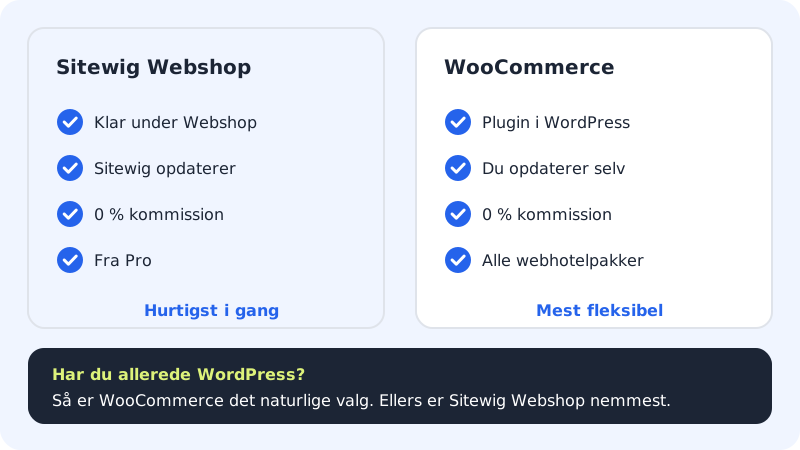
| Sitewig Online shop | WooCommerce on WordPress | |
|---|---|---|
| Setup | Ready in the control panel under Online shop | Plugin, theme and payment plugin are set up in WordPress |
| Maintenance | Sitewig updates | You update WordPress, WooCommerce and extensions |
| Commission to Sitewig | 0% | 0% |
| Plan | Pro and up | All web hosting plans |
| Suitable for | Small and medium-sized shops that want to get going quickly | Shops with special needs or an existing WordPress site |
Install WooCommerce on an existing WordPress site
Step 1: Sign in to WordPress
Go to
https://yourcompany.com/wp-admin, and sign in.Step 2: Add the plugin
Choose Plugins → Add New Plugin, search for WooCommerce, and click Install Now and then Activate.
Step 3: Run the setup wizard
WooCommerce starts a wizard. Choose your country, your currency, and enter your shop's address. You can always change this later under WooCommerce → Settings.
Step 4: Set up VAT, shipping and payment
Under WooCommerce → Settings, you switch on VAT/tax, create shipping zones and methods, and choose a payment solution. Payment providers typically have their own plugin for WooCommerce.
Step 5: Create your first products
Choose Products → Add New, give the product a name, a price and an image, and click Publish.
Step 6: Test a purchase
Put a product in the basket and complete a test purchase before you open the shop to customers.
Install WordPress and WooCommerce at the same time
If you use the new WordPress in 3 clicks card, you can tick With WooCommerce (online shop) when you install WordPress. WooCommerce is then installed and activated together with WordPress, and you can go straight to the setup wizard. If you already have WordPress, you install WooCommerce as described above. See How to get WordPress on your website in 3 clicks.
Look after an online shop
An online shop holds orders and customer data, so it needs looking after:
- Update often. WooCommerce and payment plugins regularly receive security fixes. With Pro, Business and Max, Sitewig can update automatically. See Keep WordPress up to date.
- Test big updates on a copy. Use a test environment (staging), but remember that new orders on the live site are overwritten if you push the copy live.
- Keep an eye on backups. Sitewig takes a daily backup, which is kept for 30 days. If you restore an older backup, orders from the time after it disappear.
Frequently asked questions
Does Sitewig take commission on my sales?
No. Sitewig doesn't take a percentage of your sales, either on WooCommerce or on Sitewig Online shop. Your payment provider charges its own fees.
Can I move from WooCommerce to Sitewig Online shop later?
There isn't an automatic tool for moving products and orders between the two today. You can export your products from WooCommerce as a CSV file and use that as a starting point.
Which theme should I use for WooCommerce?
Choose a theme that states it supports WooCommerce. Several of the free themes in Sitewig's selection do, for example Astra, Kadence and GeneratePress.