The logo at the top and the footer at the bottom are the same on every page. You edit them in one place, the Settings tab (on mobile the tab is called More), and the change applies to the whole website.
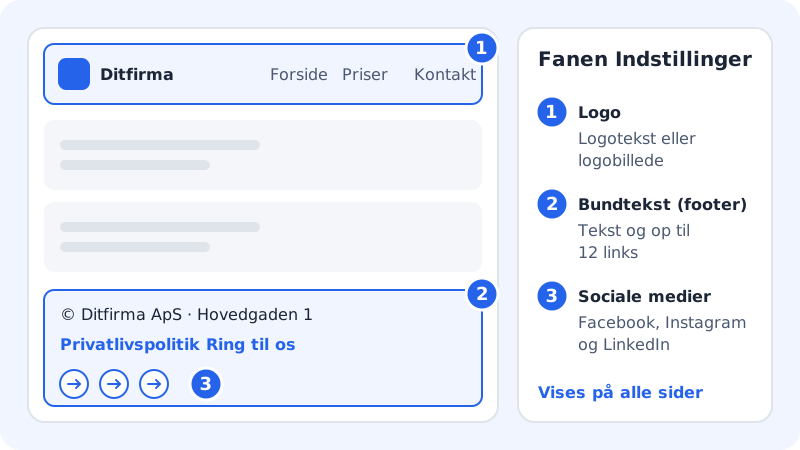
Logo
Step 1: Open the Settings tab
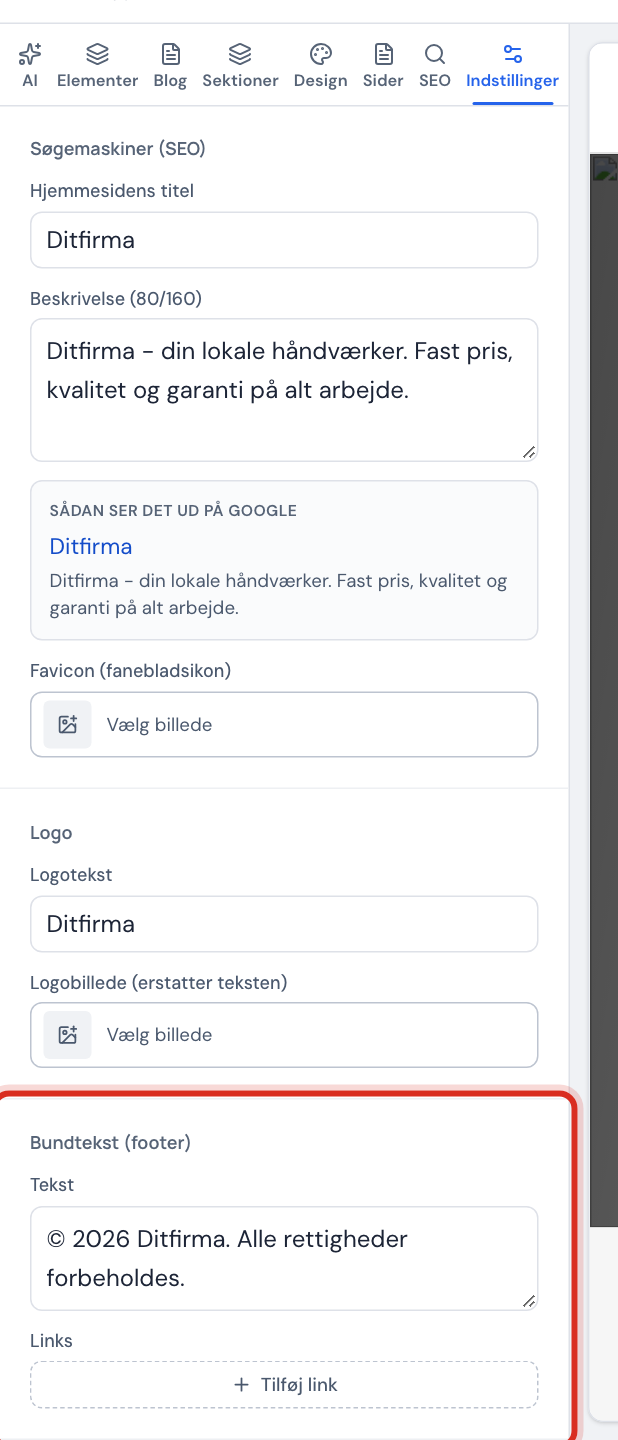
Open the website in the editor and click the Settings tab in the side panel. Scroll down to Logo.
Step 2: Write a logo text
In the Logo text field, write the business name as it should appear at the top left. It can be 60 characters at most.
Step 3: Or upload a logo image
Click Logo image (replaces the text) and choose your logo in the image picker. The logo image is shown instead of the logo text. Preferably use a PNG with a transparent background, so the logo suits both light and dark mode.
Favicon
The favicon is the small icon shown in the browser tab and in bookmarks. You'll find Favicon (tab icon) under Search engines (SEO) at the top of the Settings tab. Use a square image, e.g. your logo symbol without text.
Footer and links
Under Footer:
- Write the text in the Text field, e.g. business name, address and company registration number.
- Click Add link. A new link appears with the text Privacy policy and the address
/privatliv, which you can edit. - Write the link's text in the first field and the address in the second. Click the Remove link button next to a link to delete it.
You can have up to 12 links in the footer.
Valid link addresses
- Another website
https://yourcompany.com/…mailto:contact@yourcompany.com- Phone
tel:+4512345678- One of your own pages
/pricing- A place on the same page
#kontakt
If the address starts with anything else, the field shows Links must start with https://, mailto:, tel:, / or #., and the editor won't save until you've fixed it – the save status shows Fix the invalid field to save.
Social media
Under Social media there are fields for Facebook, Instagram and LinkedIn. Paste the full address of your profile, e.g. https://www.facebook.com/yourcompany. The address must start with https://. Leave the field empty if you don't use that platform.
Frequently asked questions
Where do I edit the website's title on Google?
At the top of the Settings tab under Search engines (SEO): Website title and a description. The How it looks on Google field shows an example. Google typically only shows the first 160 or so characters of the description.
Can I add TikTok, YouTube or X?
Not as fixed fields. Add them as links in the footer instead, e.g. with the text YouTube and the address of your channel.
Why can't I see my new logo on the website?
Changes only show to visitors when you publish again. If you can't see it in the editor either, check that the image uploaded without errors.
Do I need a privacy policy?
If the website collects personal data, e.g. through a form, you must say how you handle it. Create a page for the privacy policy under Pages and give it the address privatliv, and the link that Add link suggests in the footer will work.