All pages are managed in the Pages tab in the editor. Here you create new pages, edit the name and address, choose whether a page appears in the menu, and change the menu order. A website can have up to 30 pages.
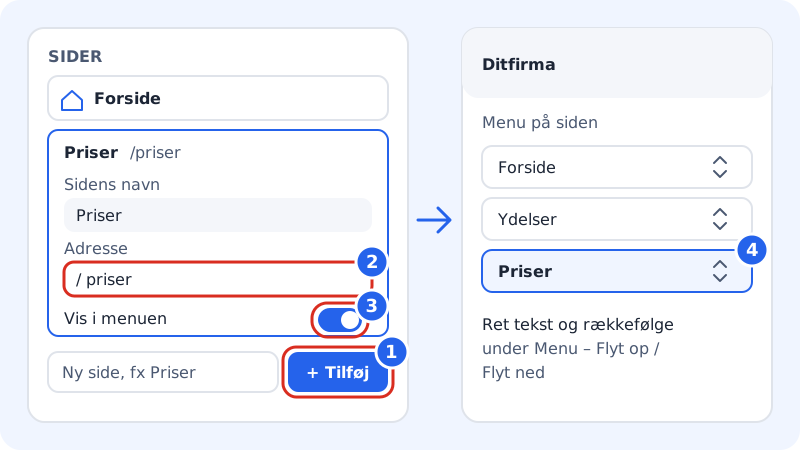
Add a new page
Step 1: Open the Pages tab
Open the website in the editor and click the Pages tab in the side panel. On mobile you'll find the tab in the bottom menu.
Step 2: Write the page's name
Type the name in the field at the bottom (it says New page, e.g. Pricing) and click Add. The name can be 80 characters at most.
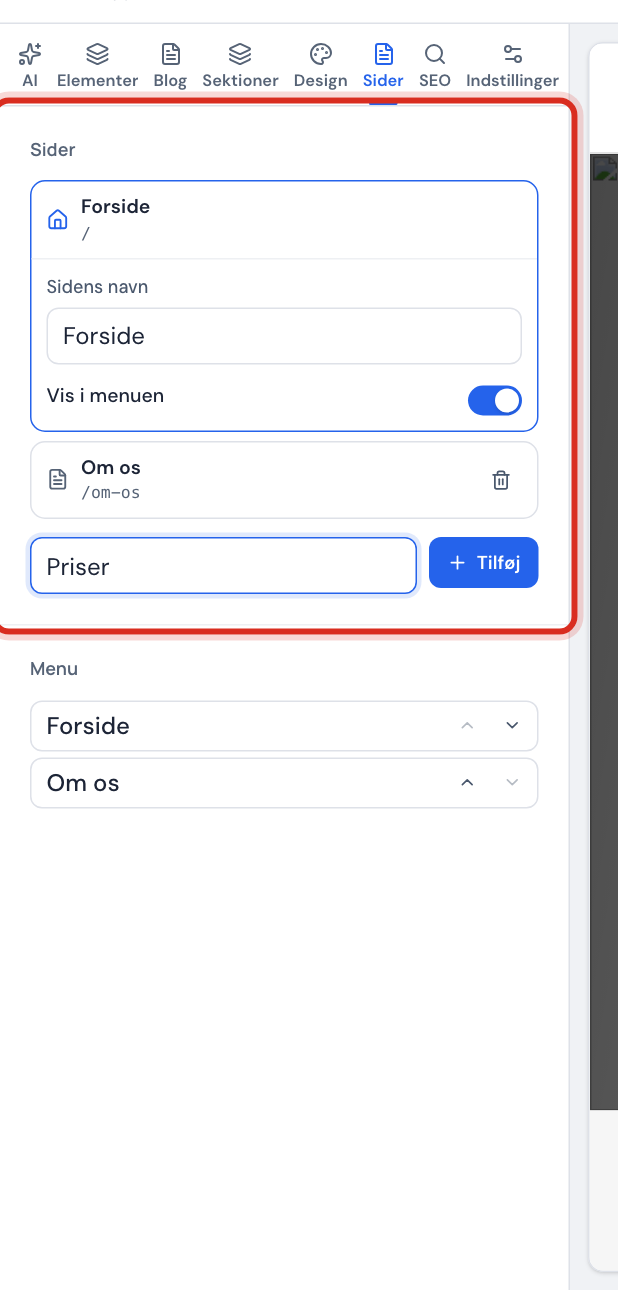
The Pages tab in the editor Step 3: Fill the page with content
The new page gets a text section with the page's name as the heading and is automatically added to the menu. The editor switches to the page so you can start writing. Add more blocks under the Sections tab – see Work with sections.
Edit the name and address
Click a page in the list to expand it:
- Page name: the name in the list and in the page selector. If the page is in the menu with the same name, the menu item follows when you edit the name.
- Address: the part after the domain, e.g.
/priser. The address is made from the name, but you can edit it. It's saved when you click out of the field.
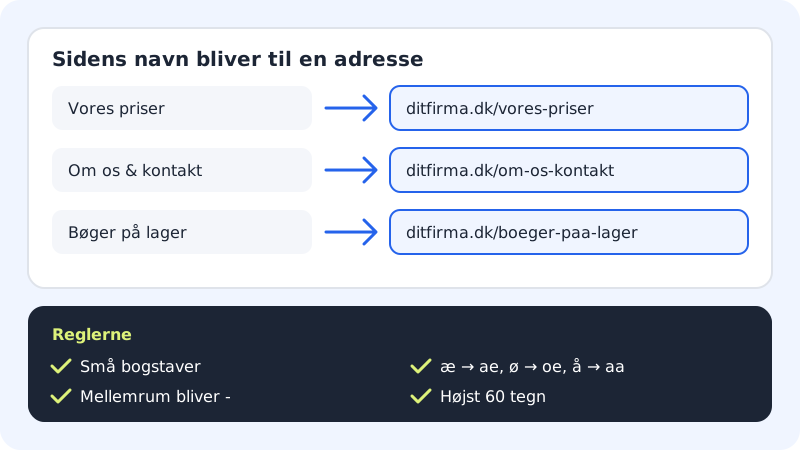
The address is always written in lower case with hyphens, and Danish letters such as æ, ø and å become ae, oe and aa. If you type something that gets changed, the field shows Saved as /… so you can see the result. The address can be 60 characters at most.
The home page (the house in the list) has no address – it's shown on the domain itself, and it can't be deleted.
Show or hide a page in the menu
Use the Show in menu switch on the expanded page. If you turn it off, the page still exists and can be opened via its address or a link, but it isn't in the menu. That's handy for e.g. a campaign page or a thank-you page.
Edit the menu
Under Menu in the same tab you see the menu items in order:
- Edit the text directly in the field if the menu item should have a different name from the page (60 characters at most).
- Use Move up and Move down (the arrows) to change the order.
If it says The menu is empty, turn on Show in menu for at least one page.
Delete a page
Click the bin next to the page. In the Delete page? window, click Delete page. The page and all its content disappear from the draft, and it's also removed from the menu.
Frequently asked questions
Why does it say "The address is already used by another page"?
Two pages can't have the same address. Choose a different address, e.g. /priser-erhverv. Until you do, the page keeps its old address.
Can I make subpages or a dropdown menu?
Yes. Choose a Parent page for the page, and it's shown in the parent page's submenu. The address doesn't change, and there can be at most 2 levels.
Can I put a link to another website in the menu?
No, the menu only shows your own pages. You can put external links in the footer instead (see Logo, favicon, footer and social media) or on a button in a section.
Can I add more than 30 pages?
No, a website can have 30 pages at most. On the Free plan the limit is 5 pages per website. If you need lots of articles, consider gathering the content on fewer pages with the Questions and answers or Text section.
When can visitors see the new page?
When you've published the website again. Until then, the page is only in the draft.