If you sell the same product in several versions (e.g. a T-shirt in S, M and L in two colours), you create one product with several variants. The customer chooses a variant on the product's page, and each variant has its own stock. That saves you creating six almost identical products.
Before you start
Variants can only be added once the product has been saved. If you open a new product, it says Save the product first, then you can add variants such as size and colour. So create the product with name, price, images and description as described in Create a product, and click Save.
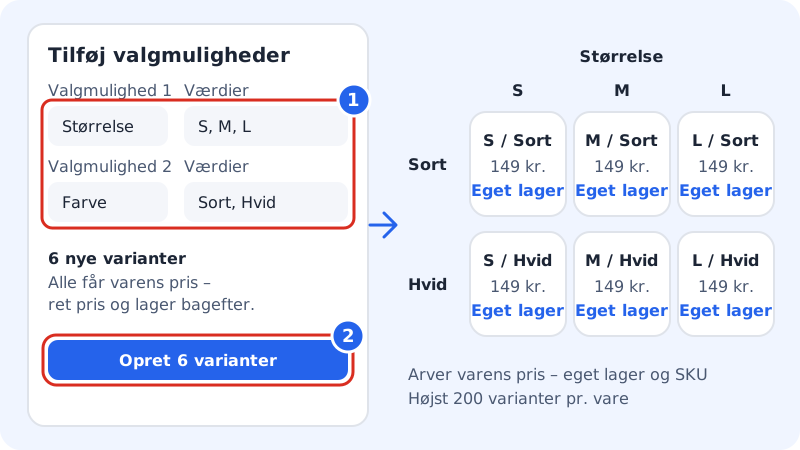
Create many variants at once
Step 1: Open the product
Go to Online shop → Products and open the product. Scroll down to the Variants section at the bottom of Edit product.
Step 2: Enter your options
Under Add options, enter the name of each option and its values separated by commas. For example:
- Option 1:
Sizewith the valuesS, M, L - Option 2:
Colourwith the valuesBlack, White
You can use 1–3 options.
- Option 1:
Step 3: Check the preview
Sitewig works out how many combinations there will be. In the example it says 6 new variants. If some of the combinations already exist, this is shown in brackets, and they aren't created again.
Step 4: Create the variants
Click Create 6 variants. All variants get the product's price and names such as
S / Black.Step 5: Adjust price, stock and SKU
Click Edit next to each variant to set Quantity in stock, SKU and, if needed, Weight (grams). If a variant costs something different, e.g. an XXL, enter the price in Price. If you leave the field empty, the variant uses the product's price.
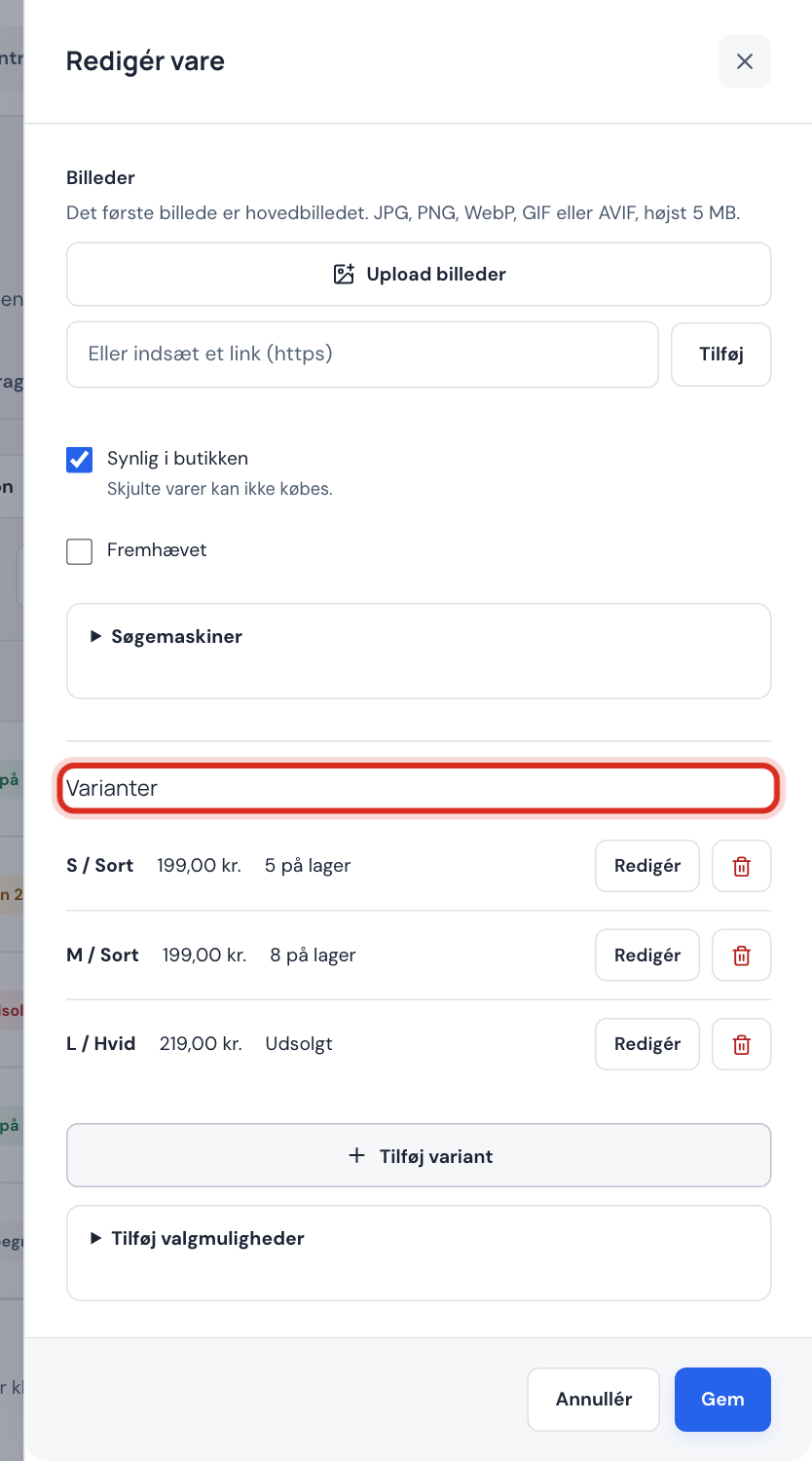
Add a single variant
If you're only missing one combination, click Add variant under Variants:
- Under Options, enter a name and value, e.g.
SizeandXL. Click Add option to add the colour, for example. - Variant name can be left empty, in which case the options are used, e.g. XL / Black.
- Fill in the price, SKU and stock, and click Save.
Frequently asked questions
How many variants can a product have?
A product can have at most 200 variants. Three sizes and two colours give 6, so the limit goes a long way.
Can a variant have a different price from the product?
Yes. Click Edit next to the variant and enter the price in Price. If the field is empty, the variant costs the same as the product.
What happens when a variant is sold out?
If you've ticked Track stock on the variant and stock is 0, the variant shows as Sold out in the shop and can't be selected. The other variants can still be bought.
How do I delete a variant?
Click the bin next to the variant under Variants and confirm. The product and the other variants are not affected.