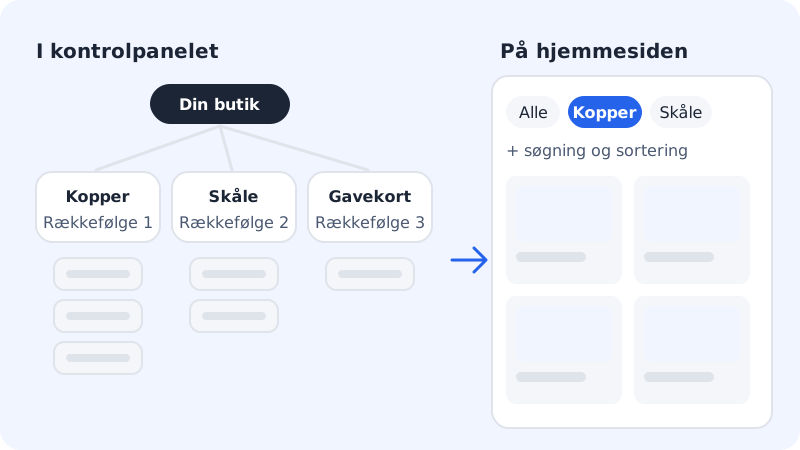
Categories group products that belong together, e.g. Cups, Bowls and Gift cards. They make it easier for customers to find their way around, and you can filter by them under Products. A product can belong to one category.
Create a category
Step 1: Open Categories
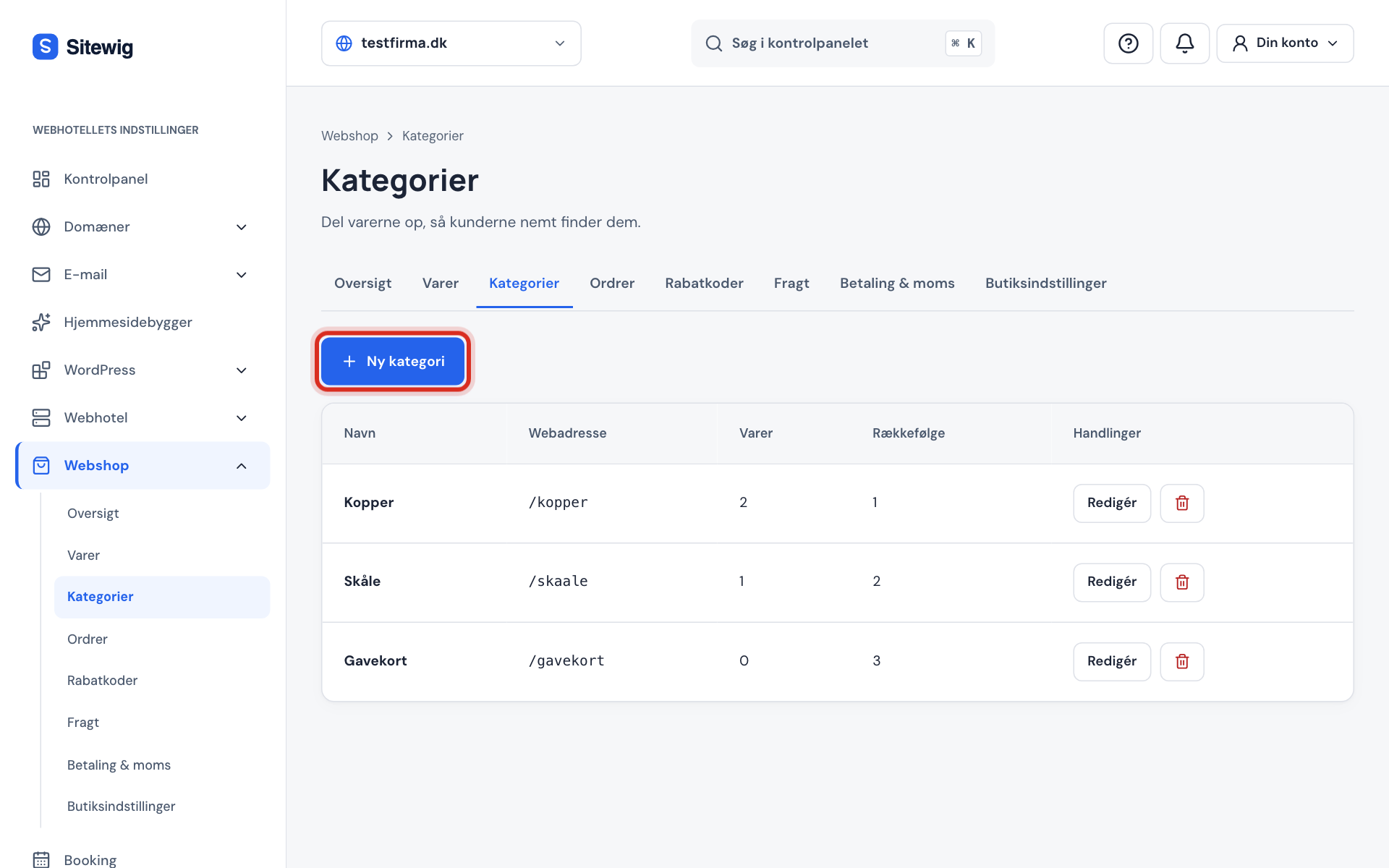
Go to Online shop → Categories and click New category.
Step 2: Enter a name and description
Fill in Name, e.g.
Cups. Description is optional. Web address is created automatically from the name if you leave the field empty.Step 3: Choose the order
Enter a number in Order. The lowest is shown first, so
1comes before2.Step 4: Save
Click Save. The category appears in the list with the number of products.
Link products to the category
Open the product under Online shop → Products, choose the category in the Category field and click Save. If you import products from a CSV file with a category column, Sitewig creates any missing categories itself – the preview tells you which ones.
Category bar, search and sorting on the website
If you turn on Show category bar, search and sorting, the product grid on the website gets a bar where customers can choose a category, search and sort by price, name or newest. The bar is included the next time you publish the website.
Frequently asked questions
What happens to the products when I delete a category?
The products aren't deleted. They stay without a category, and you can link them to a new one.
Can a product be in several categories?
No, a product has one category. If a product fits in two categories, choose the one customers are most likely to look in.
Can a category have its own VAT rate?
Yes, if the VAT feature with OSS is turned on for your account. You can then give a category a different rate, e.g. for books. See VAT in the online shop.